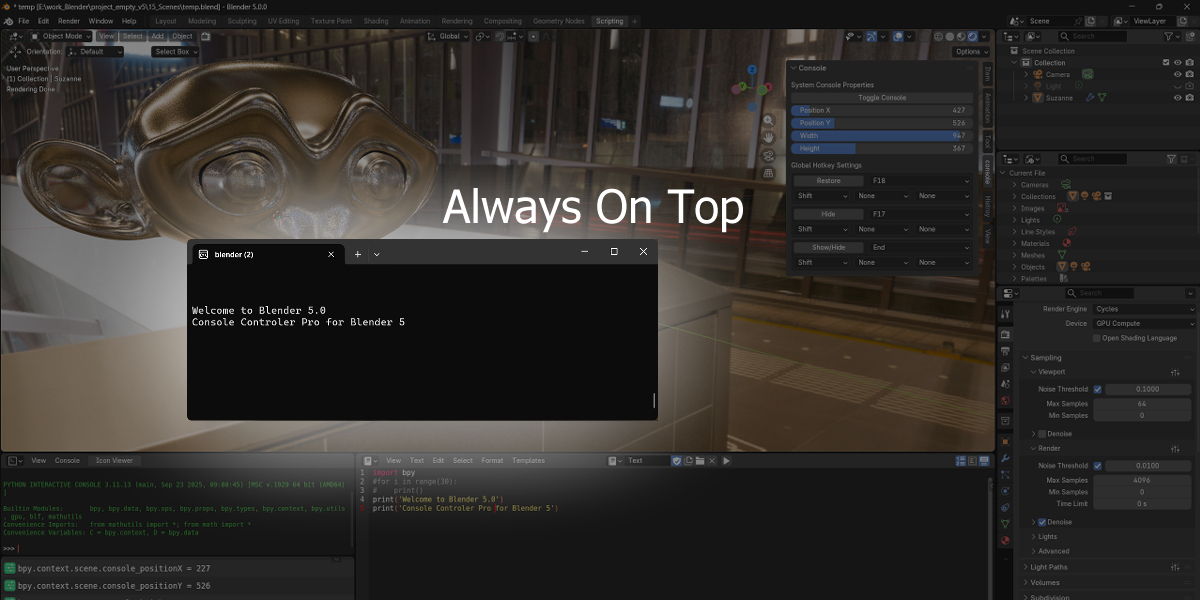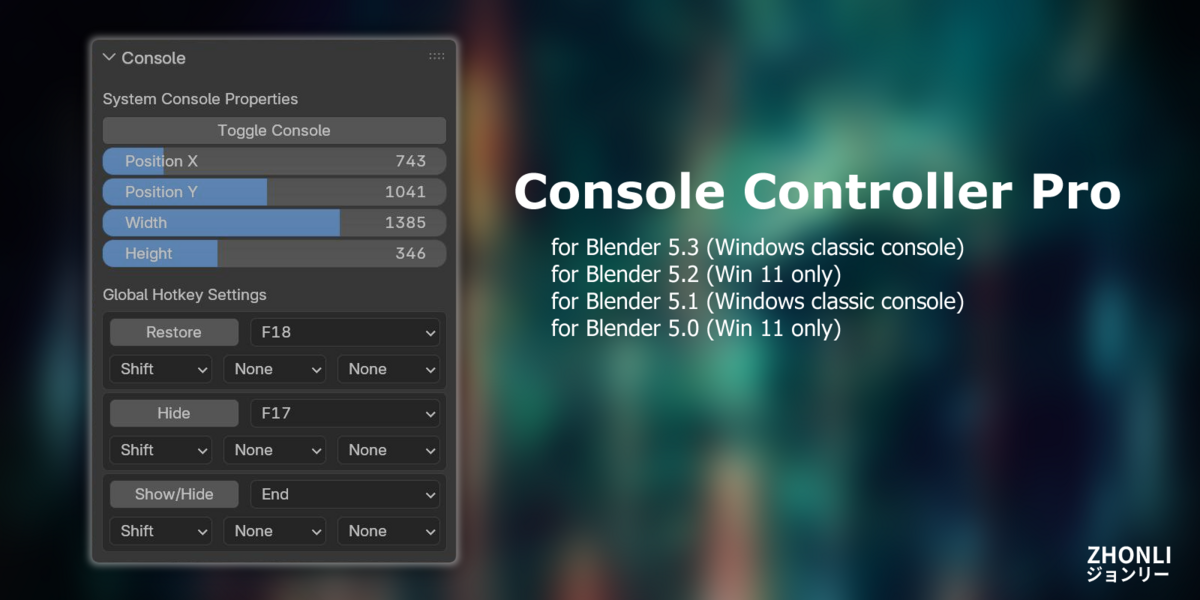
Console Controller Pro for Blender 5.X is a Windows-only Python add-on for keeping Blender's system console visible while you work. Its sidebar panel can show or hide the console, keep it on top, and set its position and size. The add-on also saves user settings and provides Windows global hotkeys for restoring, hiding, or toggling the console.
Console controls for development
The panel includes a Toggle Console control, X and Y position fields, and width and height settings. This lets you place the console where it fits your Blender workspace, then use it without repeatedly opening it from elsewhere. The always-on-top option keeps the system console above Blender windows.
Three global shortcuts are assigned by default: Win + F7 restores the console, Win + F8 hides it, and Win + F9 toggles it. You can change these in the add-on's settings. If Windows already uses a selected shortcut, the add-on shows a warning and you need to choose another key combination.
Blender 5.x and Windows compatibility
The Superhive listing identifies Blender 5.0 through 5.3 as supported and marks the add-on as Blender Extension Compatible. Its version notes specify different Windows requirements: Blender 5.0 requires Windows 11; Blender 5.1 works with Windows 10 and Windows 11; Blender 5.2 works only with Windows 11; and the 5.3.0 build is listed as working in Windows, without a specific Windows version named. Do not assume the Windows 10 support for 5.1 also applies to other builds. Check the listing for the package that matches your Blender version before downloading. The listing says Windows only, so macOS and Linux support is not indicated.
Install and open the panel
The product documentation describes installing the ZIP by dragging it into Blender's viewport or using Install from Disk in Add-ons. It then directs users to the Scripting workspace. In the 3D Viewport, press N to open the sidebar, or Ctrl + ] with the Industry Compatible keymap, and select the console tab.
After Blender starts, the global-hotkey settings panel is initially disabled. Open the system console with Toggle Console or its assigned shortcut; the hotkey settings become available after the console appears. The product listing identifies Tony as the developer and lists the license as GPL.