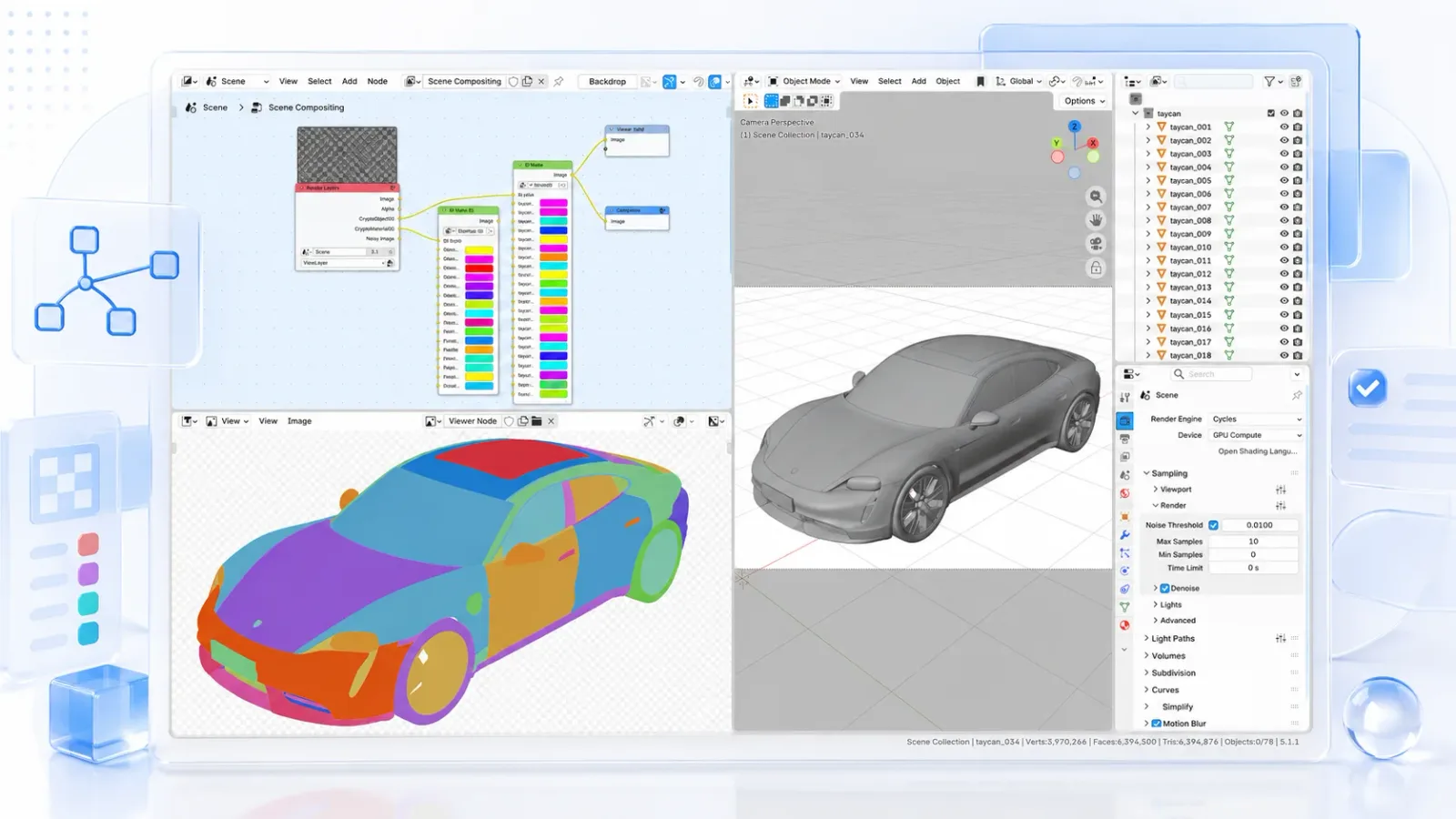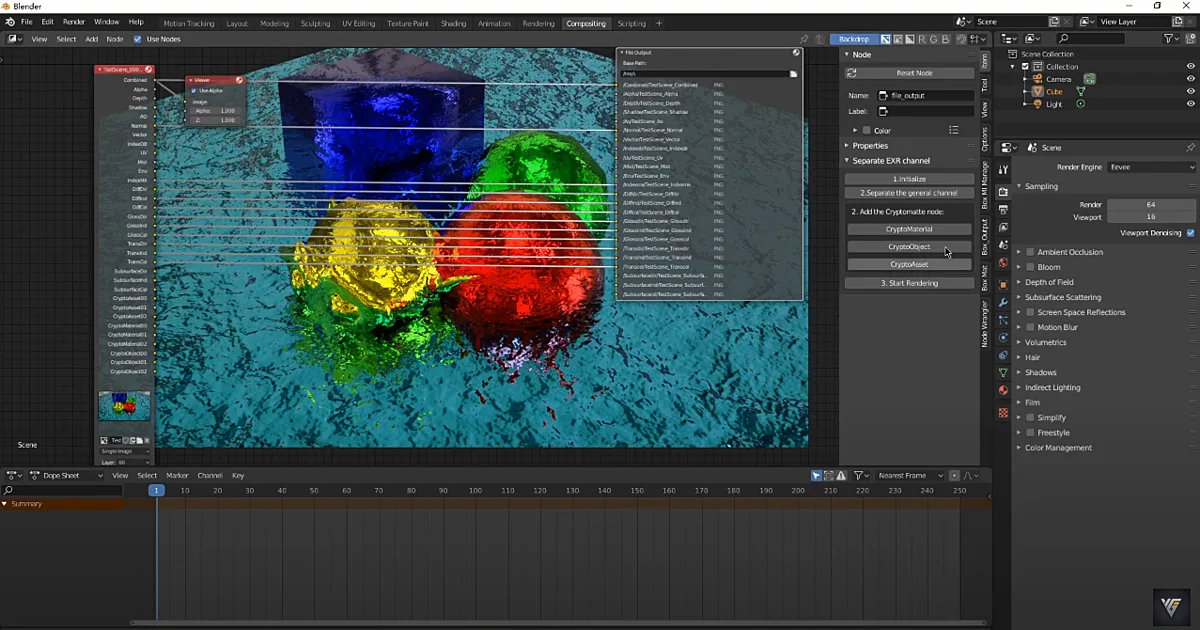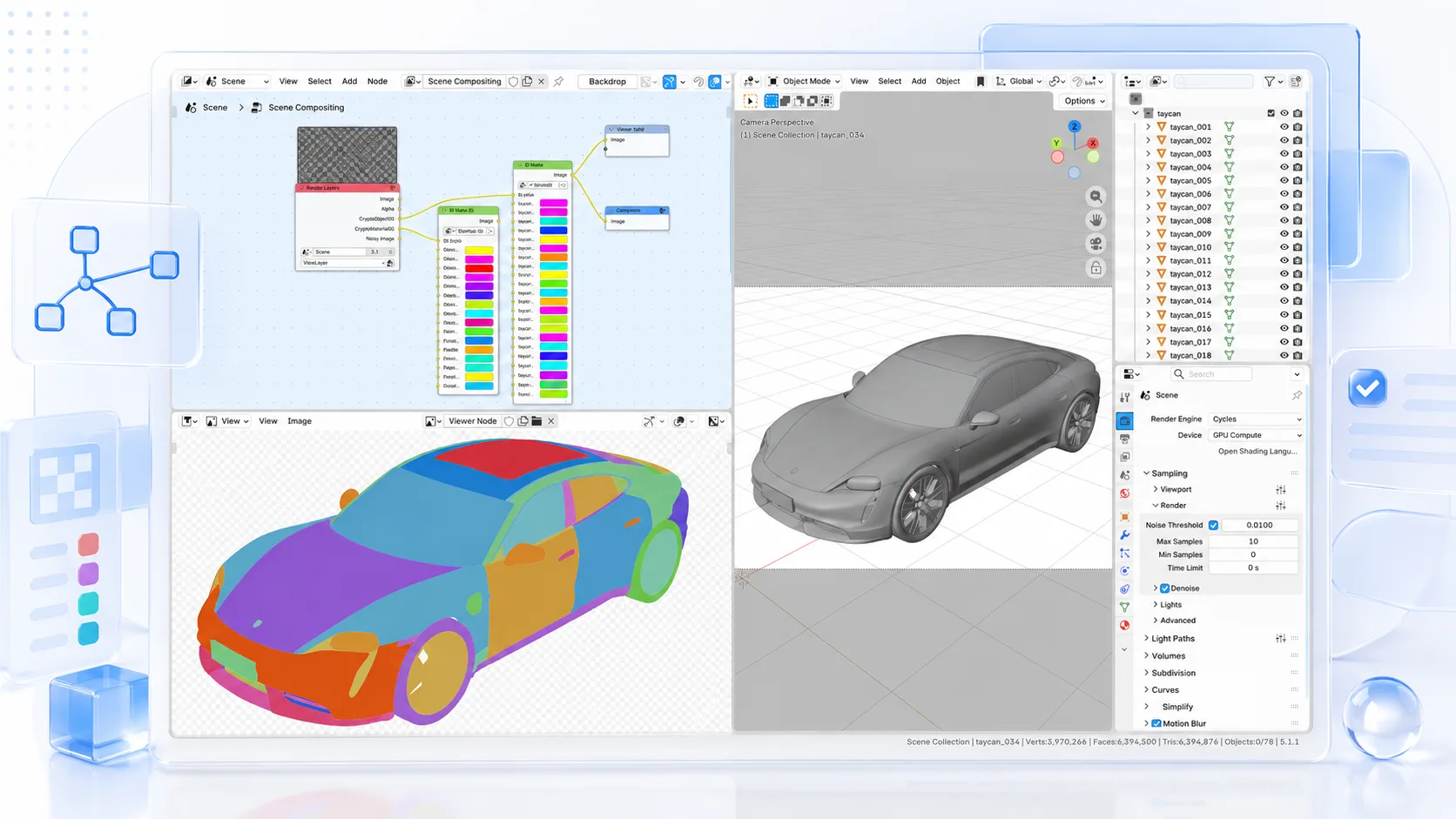
CryptoMatte ID Color adds a Cryptomatte-based ID color workflow to Blender's Compositor. It builds an Object ID or Material ID node group from the visible renderable objects or materials in the scene, then connects the nodes for you. You can edit channel colors, preview the result through the Viewer, and export ID layers for later compositing.
Choose object or material IDs
Use an Object ID group when you need color IDs for visible renderable objects. Choose a Material ID group when the IDs should follow visible materials in the scene. The add-on generates and connects the corresponding nodes based on the scene, which gives you a prepared node setup for either kind of ID map.
Edit and preview the colors
Change ID lets you adjust the selected object's ID color by editing its HSV value. Random ID reshuffles existing colors when you want a different separation. The Viewer displays the result in real time, so you can inspect the color map before exporting it.
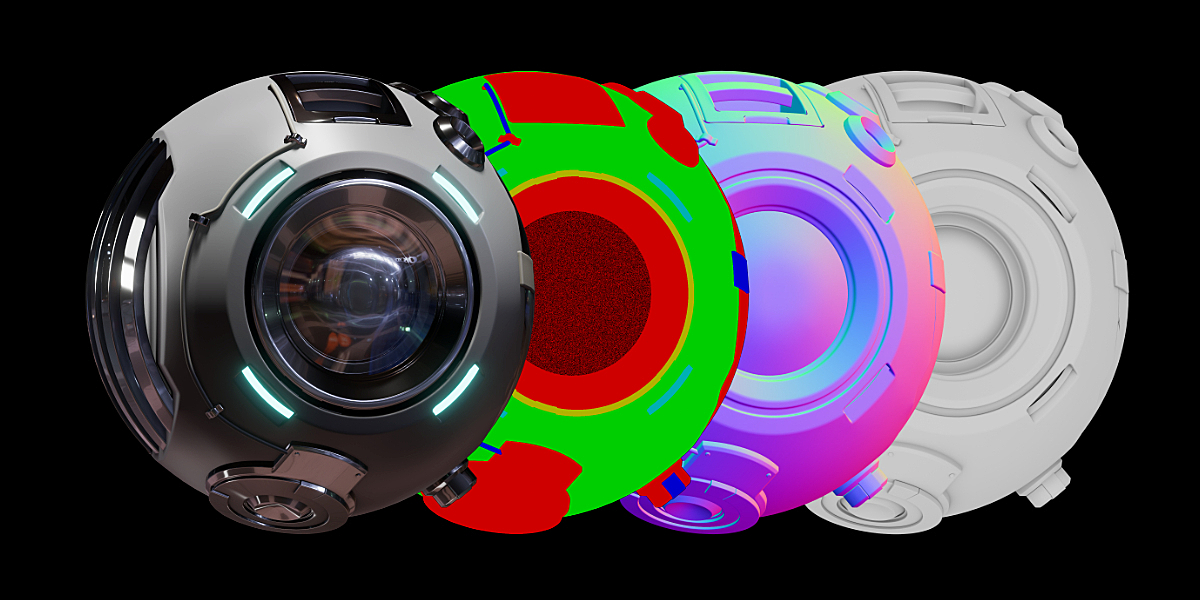
Workbench can render single-color ID images, but its colors cannot be customized per object. CryptoMatte ID Color uses Cryptomatte nodes and lets you adjust the channel colors for the map.
Export and memory options
Enable Use EXR when you need multilayer EXR output for compositing. The 1.1.1 release notes say EXR and PSD exports use standard color mapping to keep the channel map consistent with the input colors.
For systems with less available memory, low-memory mode bypasses the compositor and processes layers serially, releasing memory after each layer. The developer notes that this can take longer while reducing peak memory use and crash risk. The add-on can also remember checked options and output paths between Blender launches. Its low-parameter render button applies preset render settings without changing project settings, and you can save custom settings for later use.
Install in Blender
The listed version, 1.1.1, requires Blender 4.5.0 or later. In Blender, open Edit > Preferences > Get Extensions, search for CryptoMatte ID Color, then install and enable it. For manual installation, download a release package and use Install from Disk. See the Blender Extensions listing or the developer's GitHub releases for the package.
After enabling the add-on, open the Compositor and find its panel under Sidebar > Tool. Choose Object ID or Material ID to create the node group, then adjust colors or enable Use EXR as needed.