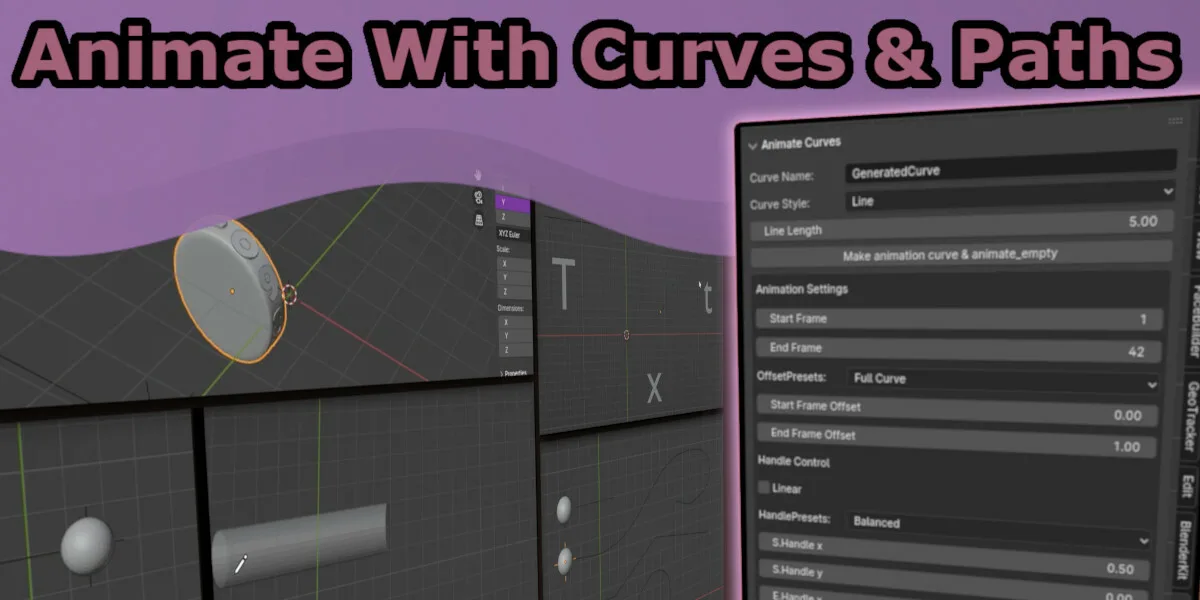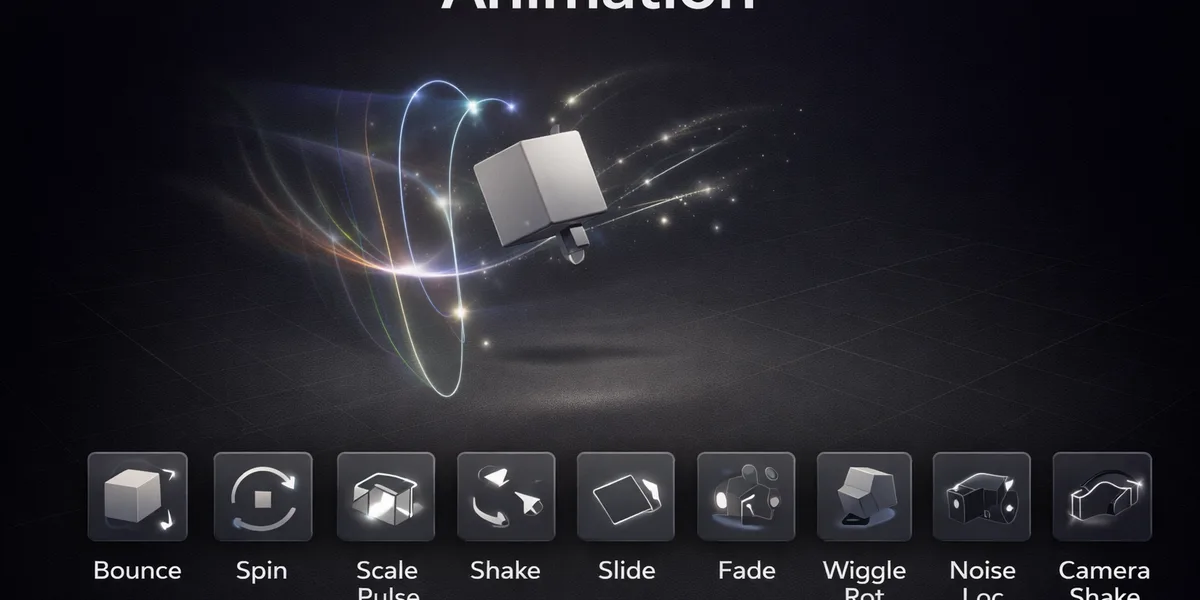
CurveKit is a Blender add-on by CG Refaat that groups curve tools in the 3D Viewport sidebar, opened with the N-key. Its context-aware panel changes the available controls for a curve, a mesh or points in Edit Mode. That keeps path animation, curve deformation and editing actions close to the selected work. The CurveKit overview describes its main operators and version 2.0 changes.
Set up path animation
Select the object or objects to animate, select a curve, then use Add Follow Path Constraint. CurveKit creates the constraint through one operator. The Follow Path constraint can also be applied to a camera, light, text object or empty. It suits scenes where objects need to travel along a curve and you want to set up the relationship from the viewport panel.
Apply a curve deformation
For curve-based deformation, select the object and make the target curve active, then use CurveKit to add a Curve Modifier that points to that curve. Snap to Curve Start aligns the curve origin with the object's position, giving you a starting point for the deformation setup. The add-on also supports applying curve modifiers to other curves and to text objects.
Use the curve editing controls
The panel includes a one-click radii reset that returns points to a radius of 1, plus multiselection support. Its controls are context-aware, and interactive buttons become available when they apply to the current selection.
What version 2.0 changes
Version 2.0 revamps the interface and streamlines toggle lists. The Superhive listing states Blender 3.0 to 4.5 compatibility and identifies the license as GPL.
Install and find CurveKit
The creator FAQ gives these installation steps: in Blender, open Edit > Preferences > Add-ons > Install, then select CurveKit.zip. The tools appear in the 3D Viewport's N-panel after installation. Check the Superhive listing for the compatibility range that applies to your Blender version.