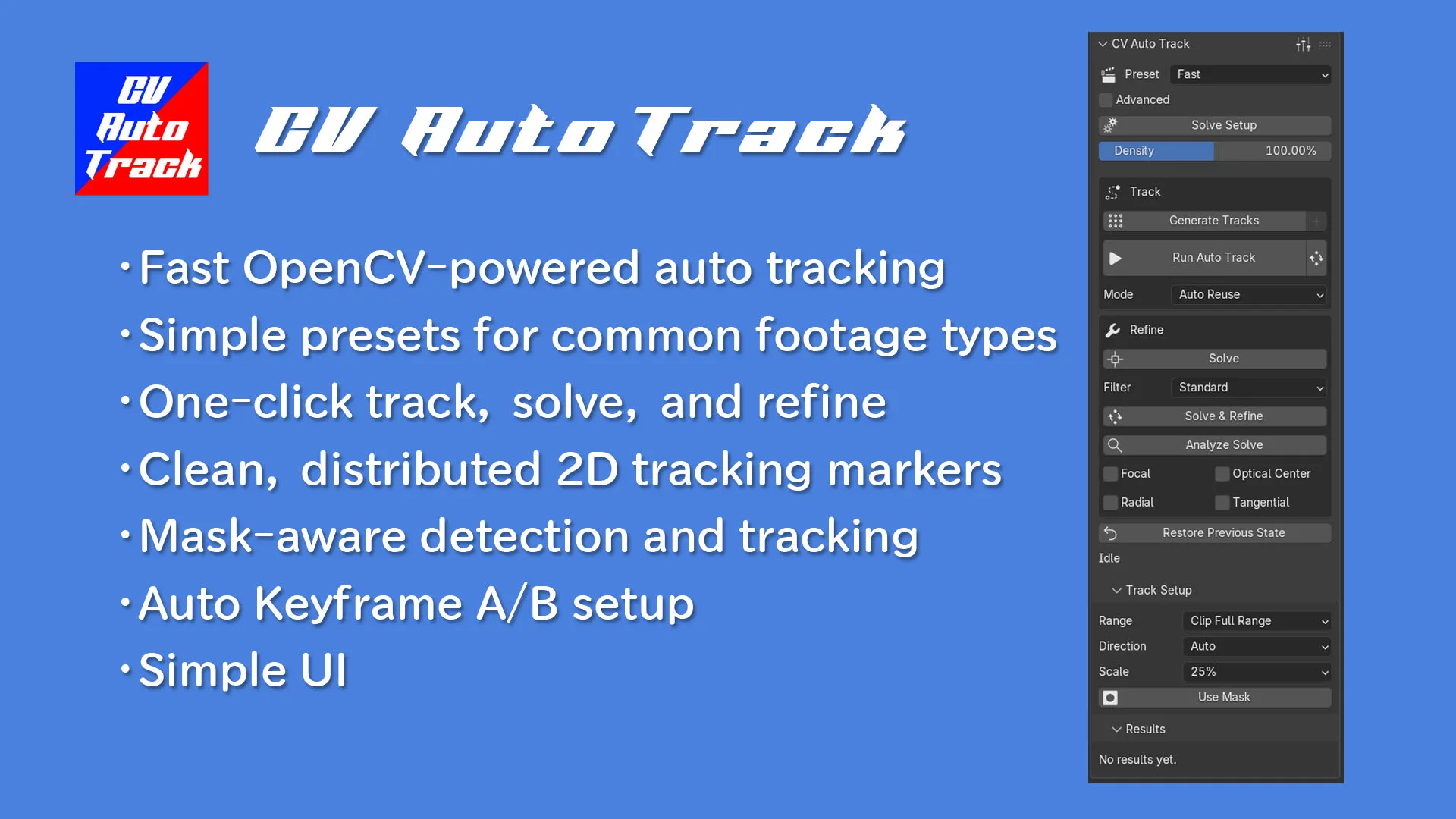
CV Auto Track is a Blender add-on by K_Naoki for OpenCV-based automatic tracking in the Movie Clip Editor. It detects 2D feature points, follows them through a clip, filters weak candidates, balances marker coverage and writes the results as standard Blender tracking markers. You can edit, solve or delete those tracks with Blender’s usual tools.
The Blender Extensions listing describes a preset-based workflow for camera tracking, with optional masks, scene setup and solve refinement.
How the tracking workflow works
Load footage in Blender’s Movie Clip Editor and configure the clip settings. Choose a tracking preset, then use Run Auto Track to detect and track features, bake markers and, if configured, run the camera solve and refinement. Auto Scene Setup can prepare the active scene camera after solving, including a Camera Solver constraint and clip background.
Use Generate Tracks when you want a track-only pass before solving. You can inspect the markers, remove tracks on moving objects or problem areas, add manual tracks, and then run Blender’s standard solve. Bundle Error is available only after a solve, so the track-only command cannot use it for filtering.
By default, Auto Reuse replaces existing AT_ tracks when you use Generate Tracks. Run Auto Track reuses existing AT_ tracks and skips detection. The Replace and Add New modes let you choose how a new set should interact with existing tracks. After a compatible tracking pass, + Add Tracks can add candidates from the cached analysis.
Presets and controls
The presets offer different starting points. Fast is a general-purpose choice; Dynamic suits longer shots or changing views; High Motion is intended for faster camera moves. Balanced uses more analysis detail than Fast, Sensitive permits detection on weaker texture, and Detailed performs denser full-resolution analysis at a slower pace.
Density changes how many markers are generated. The Lenient, Standard and Strict filter presets adjust candidate cleanup: Lenient keeps more tracks, while Strict rejects more aggressively when coverage is dense and stable. Use Mask to exclude moving objects or other forbidden areas. A Blender mask or an external movie clip can define the mask; the add-on ends a track when it enters a forbidden area.
Tracking direction can be Forward, Backward, Both, Current or Auto. Auto runs separate forward and backward passes and is the default. Forward is the fastest option. Backward, Both, Current and Blender’s solve and refine stages can take longer to respond.
Footage that suits automatic tracking
CV Auto Track works best with visible texture and real camera motion. Architecture, streets and interiors can provide trackable details, especially in dolly, drone, handheld and pan shots with visible parallax. Dynamic is intended for shots where the view changes over time, while High Motion can help with rapid pans or larger movement between frames.
Heavy blur or defocus, large foreground occluders, moving people or vehicles, reflections, transparent surfaces, repeated patterns, water, smoke, foliage, sky and flat walls can make tracking harder. A mask, different preset or manual cleanup may help. For difficult footage, Advanced Mode exposes controls for detection, optical-flow tracking, filtering and marker distribution.
Solving, refinement and limitations
The add-on uses Blender’s built-in camera solver for camera calibration. Focal length and radial distortion estimates depend on the footage, keyframes and starting camera parameters. If the solve is unstable, check the camera settings and try different keyframes or more suitable initial values.
Solve & Refine can remove tracks with very high Bundle Error or elevated error supported by motion or geometry inconsistency. Select important tracks to protect them from refinement, or use Generate Tracks and solve manually when you want to inspect the markers first. Blender’s solve and refine calls may pause the interface while they run.
The developer’s reference for the Fast preset is under 20 seconds for a 200-frame Full HD clip, depending on hardware. Actual time varies with resolution, clip length, Density and preset. When OpenCV cannot read a source format, such as OpenEXR, the add-on can build or reuse Blender’s 100% proxy; the listing recommends a high proxy Quality setting to avoid reducing tracking accuracy.
Version and installation
The listing identifies version 1.0.5 and Blender 4.2 or newer. It lists Windows, macOS with Intel or Apple Silicon, and Linux builds. Its 1.0.5 notes include safer handling of failed geometric estimates, improved redetection after tracking loss, a warning about insufficient coverage before solving and optional two-way tracking, disabled by default.
The add-on is licensed under GPL-3.0-or-later, and the listing identifies OpenCV as Apache-2.0. It provides platform downloads and links to Blender’s Install from Disk instructions. The developer’s GitHub repository is listed for issue reports.