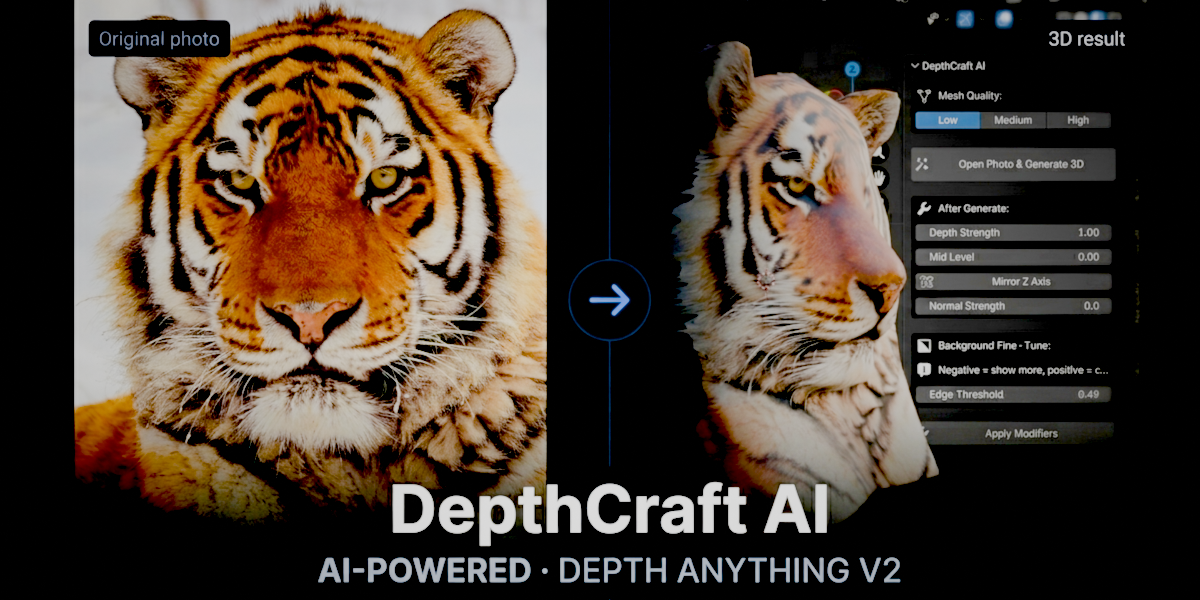
Turn a photo into a textured mesh
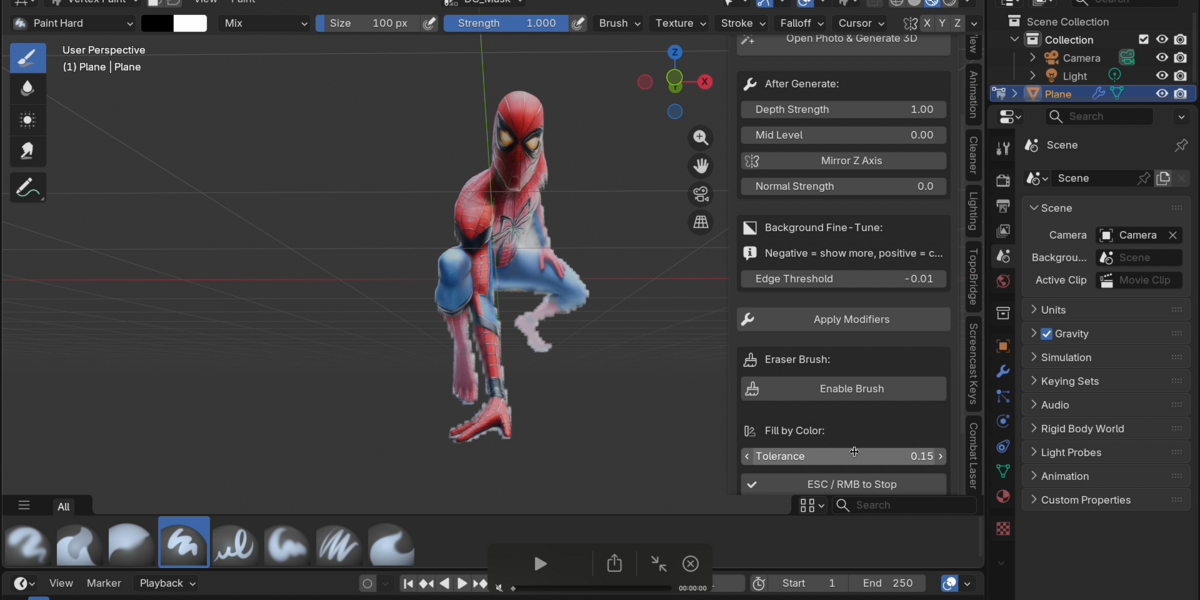
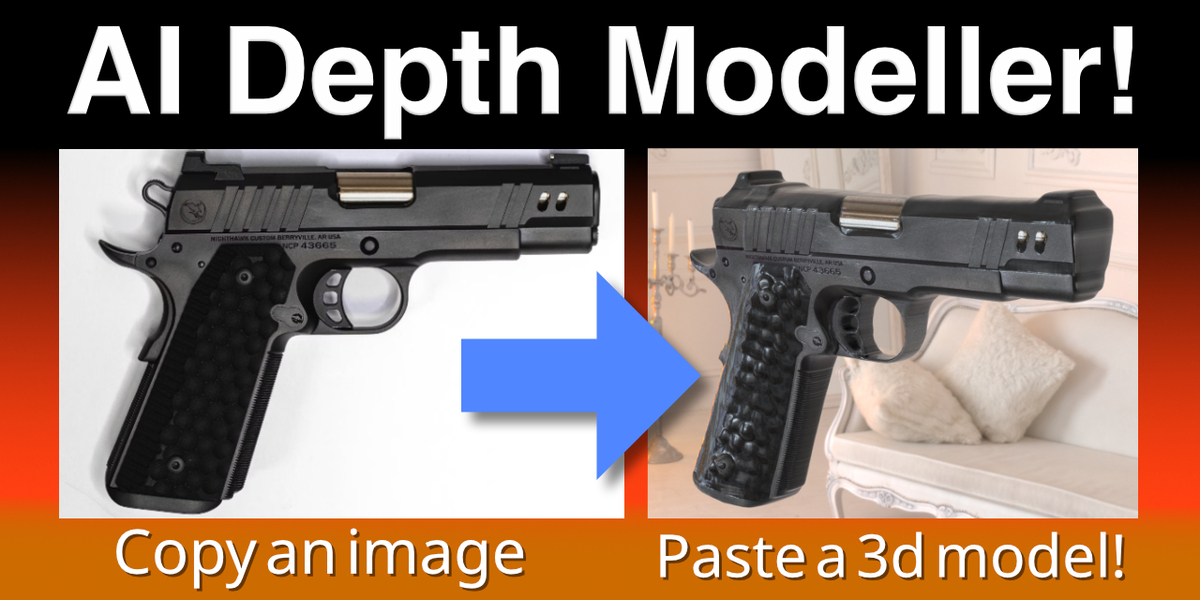
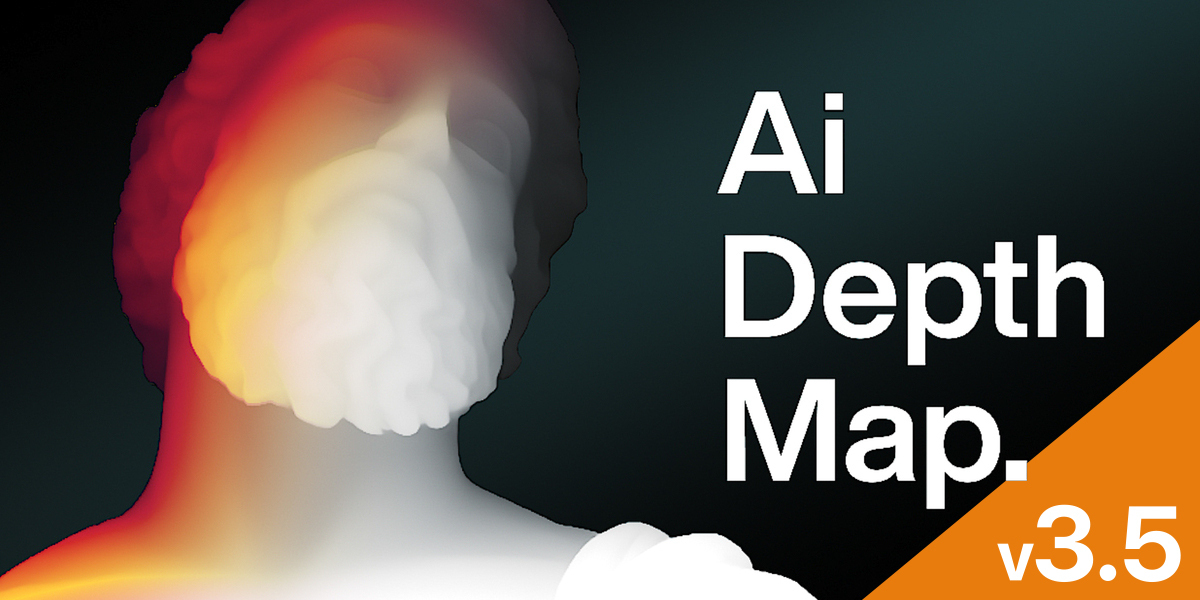
DepthCraft AI by studioromanrec converts a photo into a 3D mesh inside Blender. It uses Depth Anything V2 to generate a depth map, builds the mesh, applies the photo as a texture, and creates a normal map in one workflow. It works with any photo, including portraits, animals, landscapes, and architecture, without a manually prepared depth map. Generated objects scale to match the source image ratio. See the DepthCraft AI listing for its feature details.
Refine and export the mesh
An Edge Threshold slider provides real-time background removal. Fill by Color masks connected areas with similar colors; you can adjust its tolerance. An eraser brush lets you paint on the mesh, and Delete Masked Geometry permanently removes geometry hidden by those tools. Three mesh quality presets are available: Low, Medium, and High.
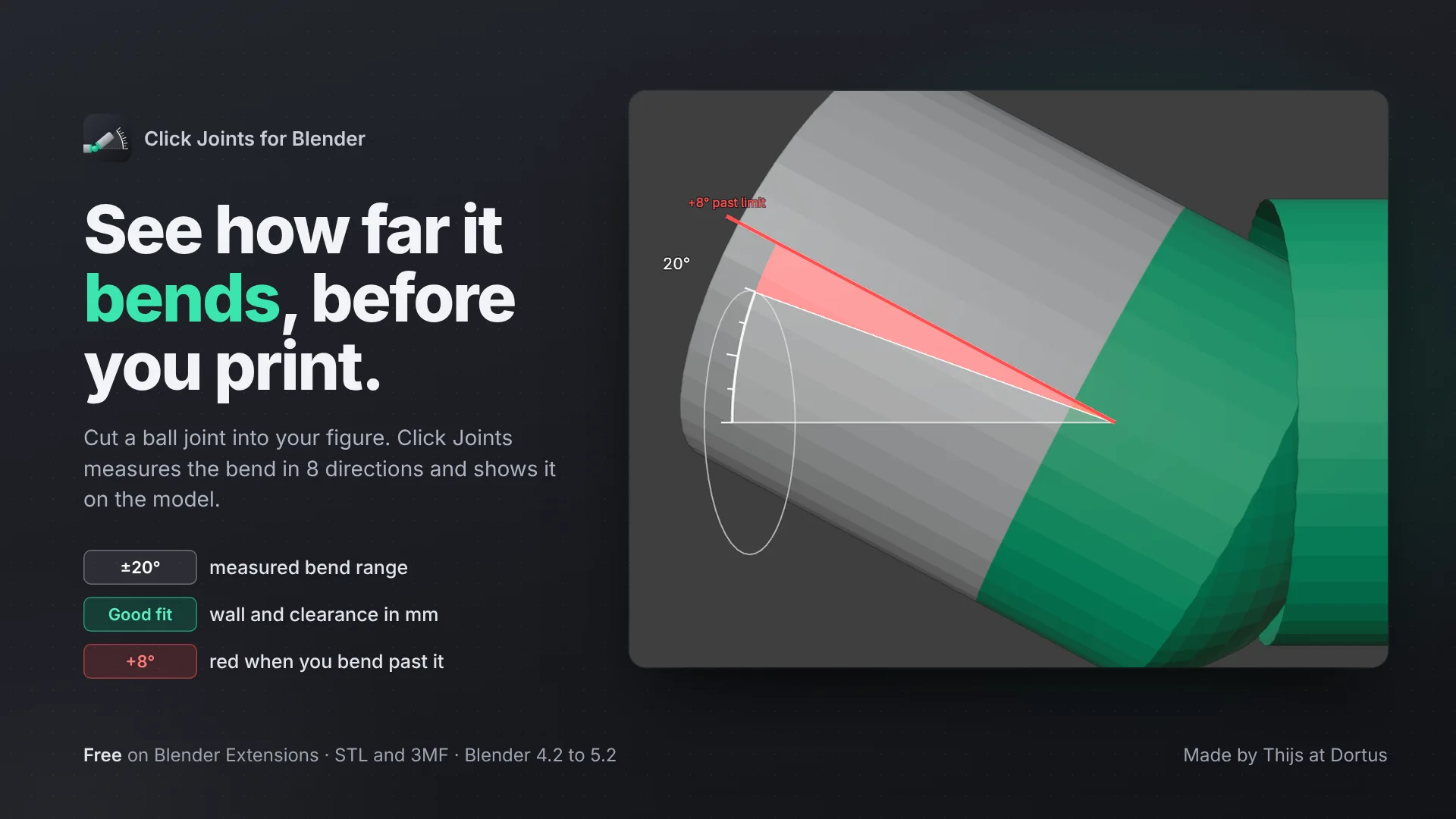
You can add a separate base plate for display or 3D printing. The documented export is GLB with texture, intended for web, AR, and game engines. The listing does not specify an STL export or say that meshes are automatically print-ready, so inspect the geometry and confirm your output format before printing.
First-time setup and updates
For the first setup, connect to the internet, click “Install All” in the add-on preferences, then restart Blender once to activate the downloaded libraries. Generation works offline after setup. Version 1.0.1 improves stability and fixes some issues on newer Blender 5.x versions; the developer says you can skip it if your installation works well. See the DepthCraft AI documentation for the setup and update instructions.
Check compatibility before installing
The product details list Blender 3.2–5.1 and Windows and macOS. The documentation note for version 1.0.1 says Blender 3.2–5.x and lists Windows, macOS, and Linux. Since the pages differ on operating-system support and the precision of the version range, check the current listing for your exact Blender version and operating system before installing.