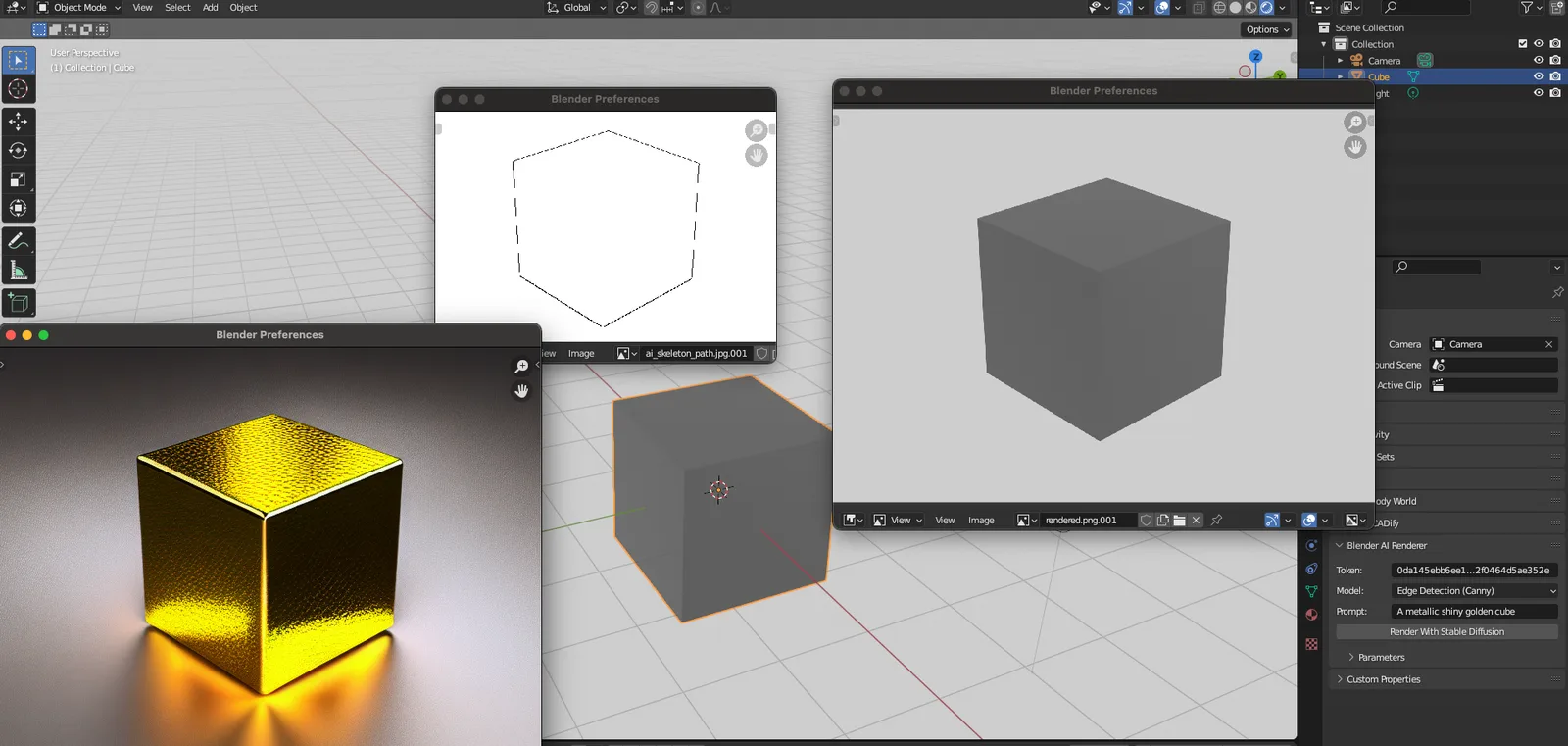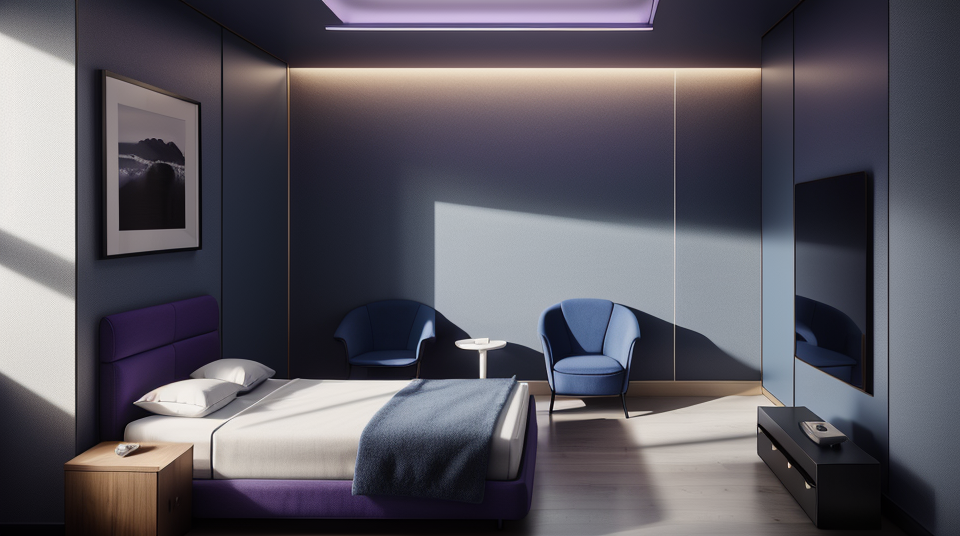
DraftCraft turns a Blender viewport into an AI concept render guided by a depth map of the scene’s geometry. It is designed for architectural massing studies, client previews, mood exploration and design iteration, with generation running locally on an NVIDIA GPU.
The depth map comes from the model’s Z-buffer rather than an estimate from a screenshot, so composition, massing and perspective follow the scene. Generated details can still differ from the source model. See the DraftCraft documentation for setup and operating details.
From viewport to concept image
Frame the view in Blender’s 3D Viewport, choose an output size, then select Generate Draft in the N-panel. The result opens in the Image Editor and is saved alongside the .blend file. If the project has not been saved yet, DraftCraft uses an output folder in its install path.
Choose from square 1024 × 1024, landscape 1152 × 896 or wide 1344 × 768 output. Each is about one megapixel, and the depth map is rendered directly at the selected size. Camera view supports lens shift and orthographic cameras. For a pixel-exact crop, match the scene’s render aspect ratio to the selected output. Quad View and panoramic cameras are not supported.
Six lighting presets provide starting prompts for Golden Hour, Blue Hour, Winter, Overcast, Fog and Night. A preset also sets Prompt Guidance and Depth Control; those values and the prompt remain editable. Use Custom to leave the current prompt and settings in place. Depth Control adjusts how closely the result follows the geometry, while Depth Curve can help distant structures remain visible in deep scenes.
Local setup and requirements
DraftCraft requires 64-bit Windows 10 or 11, Blender 4.2 or newer, and an NVIDIA RTX 30 or 40 series GPU with at least 8 GB of VRAM. The product page reports testing on RTX 40 cards; its FAQ says RTX 30 cards are expected to work but have not been tested, and RTX 20 is untested. AMD and Intel GPUs, macOS and Linux are unsupported. Allow about 11 GB for the engine and default model, plus about 7 GB for each additional model and extra temporary space during installation.
Setup downloads the engine and selected model. In the add-on preferences, choose RealVisXL V4.0 Lightning, the default, or download optional RealVisXL V5.0 Lightning. Both models can stay installed side by side; switching models restarts the engine on the next generation. After setup, image generation works without an internet connection. The engine communicates on 127.0.0.1; the developer says scenes, prompts and generated images are not uploaded and DraftCraft sends no telemetry. Setup and model downloads do use the internet, so download providers receive ordinary connection data such as an IP address.
What to expect from generation
DraftCraft is for concept visuals rather than final photorealistic renders. The DraftCraft 1.3.3 user guide reports about 9 seconds per 1024 × 1024 image with RealVisXL V5.0 Lightning at 6 steps on an RTX 4060 Laptop GPU with 8 GB VRAM while the engine is running. The first image takes longer, and other graphics cards have not been measured. Generation time varies with the GPU, settings and model loading.
Capture uses a temporary scene and does not change the scene’s objects, cameras, visibility settings or compositor. Blender’s Render Result window may be replaced during capture. Output filenames include the generation seed, which helps reproduce a starting point with the same settings on the same machine.
Licensing and image use
The add-on code is licensed under GPL-3.0-or-later. The AI models are separate downloads with their own licenses. The developer says generated images may be used in commercial projects; users remain responsible for complying with model license restrictions. Copyright treatment for AI-generated images depends on local law. The developer’s product page links to the model licenses and current product details.