Renderscenes is a Blender add-on for saving, restoring, and switching between complete scene states. Each saved state can include a thumbnail preview, giving you a visual way to return to a particular camera, lighting setup, or scene variation.
It is aimed at workflows such as product rendering, interior design, and architectural visualization, where one project may need several render configurations. The Superhive listing reports support for Blender 3.0 through 5.1; check the listing for the current range before installing.
What a scene state can save
Renderscenes can record render resolution, the active camera and its settings, world settings, object transforms and visibility, modifiers and Geometry Nodes values, and collection visibility or exclusion states. Add-on Preferences let you choose which groups of settings to record, so you can tailor snapshots to a project.
Review and update scene variations
A thumbnail browser lets you identify and select saved states visually, with zoomable thumbnails. You can save a new state, update an existing one, duplicate it, or load it to restore its settings. Preview capture can be locked to prevent accidental overwrites. The panel can appear in the 3D View sidebar, under Properties → Scene, or in both locations.
Batch operations can update selected objects, world settings, or resolution and format across multiple saved states. Renderscenes can also create one state per camera, which is useful when a scene has several viewpoints to prepare.
Render scenes or bake them to the timeline
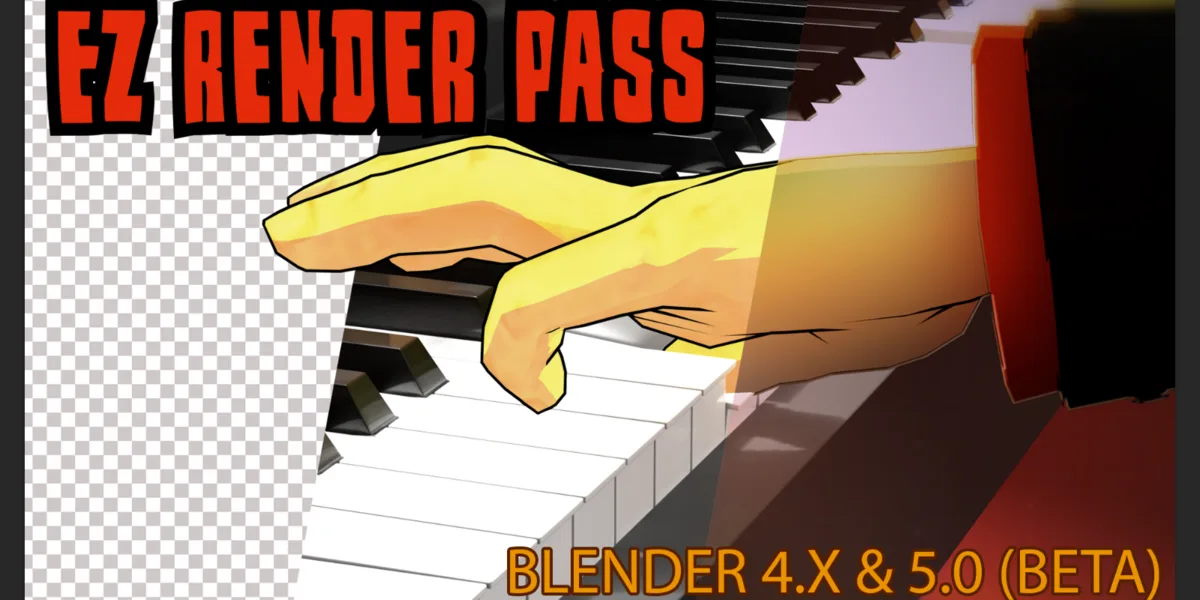
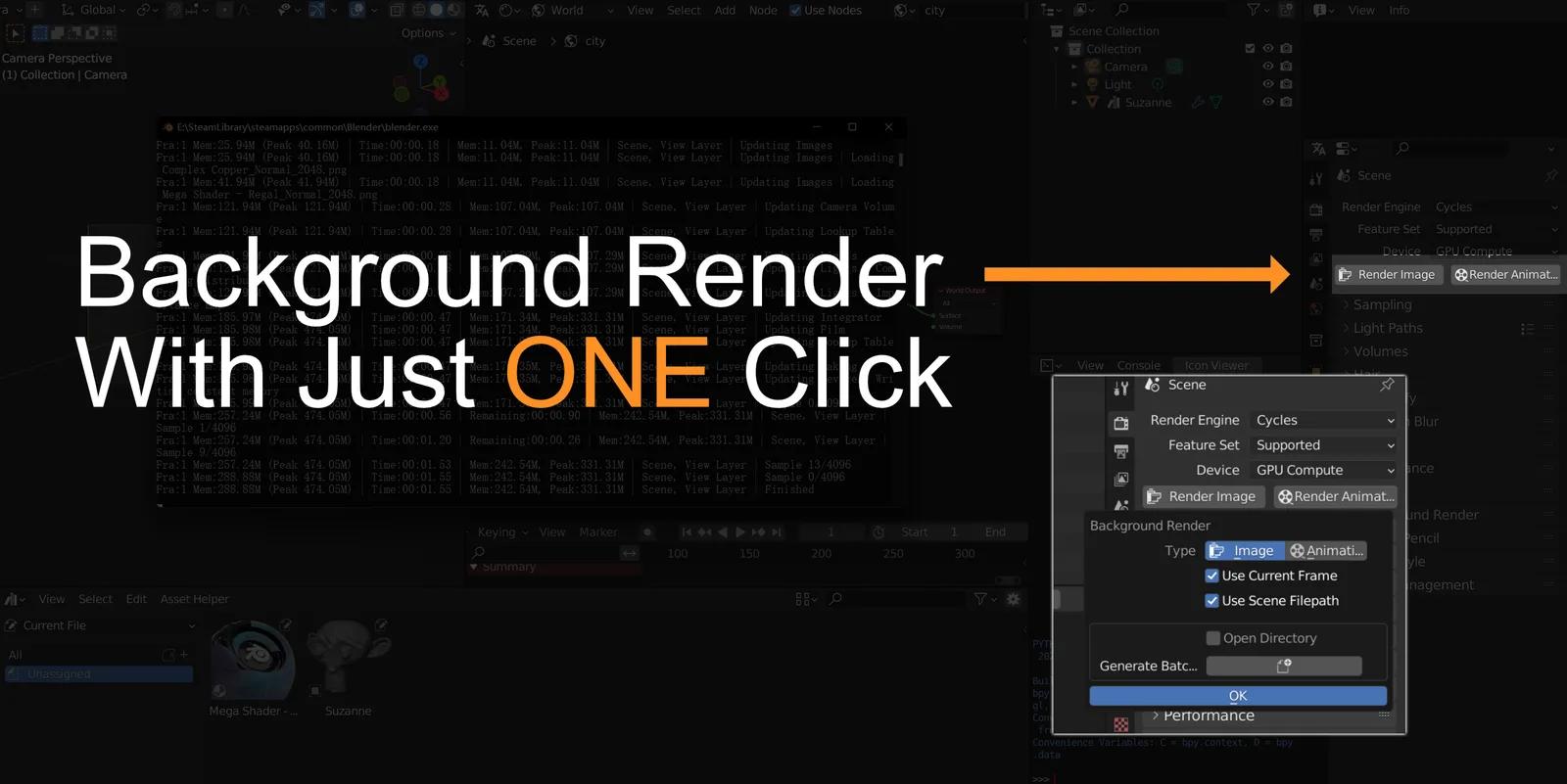
Render All Scenes processes enabled states sequentially, and the add-on restores the original scene state when rendering finishes. You can also render from the selected state. For output, the documentation describes a Beauty pass plus any combination of Data, Light, and Cryptomatte passes; Renderscenes sets up and removes the required File Output nodes. Optional subfolders can keep output organized per RenderScene.
For animation or storyboard work, timeline baking turns saved states into keyframes and adds timeline markers with camera assignments. Quick visibility controls include Hide, Unhide, and Hide from Camera only, for objects and collections.
Getting started
Set up a scene, choose which settings to record in Add-on Preferences, and use Save New Scene to create a snapshot. After changing the scene, update that snapshot or save another variation. Load a state to restore it, then use Render All Scenes when you are ready to process the enabled setups. The Renderscenes documentation covers the controls and preferences, while the marketplace FAQ gives the installation steps.
The documentation specifically describes support for Cycles and Eevee, with previews adapting to the current render engine. If your workflow depends on a particular setting, pass, or Blender release, confirm it against the current documentation before building a large set of snapshots.