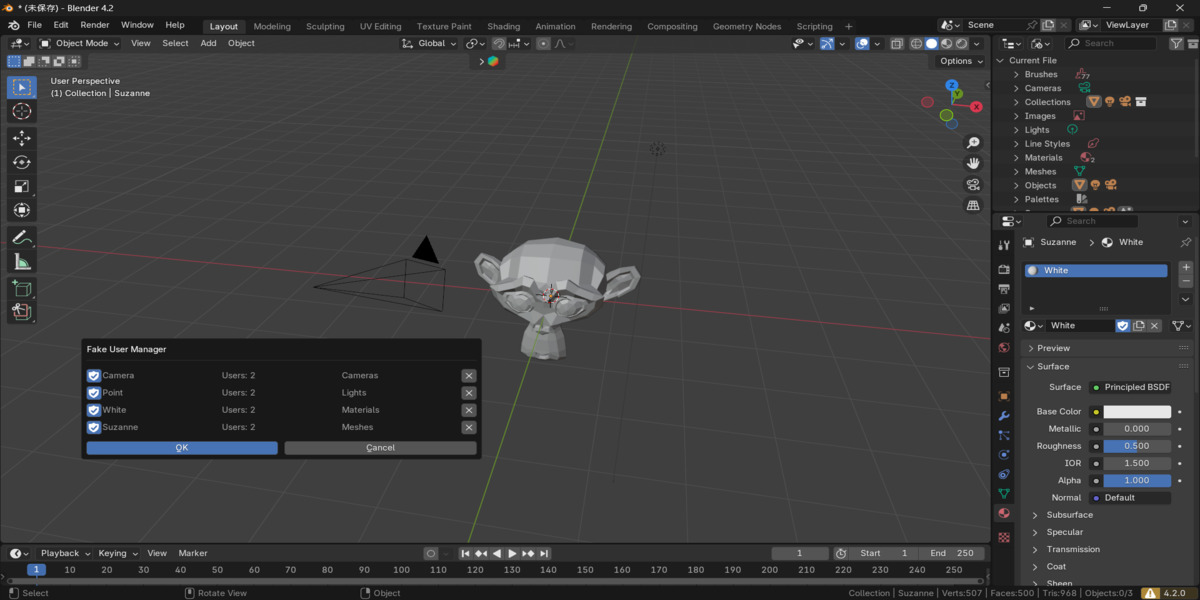
Fake User Manager is a Blender add-on by Mob3DCG for reviewing data-blocks with Fake User enabled. It gathers them in one list under File > Clean Up > Fake User Manager, where you can change their status. The developer describes Fake User status as protection for important assets during a file purge. See the product documentation for the available controls.
Manage protected data-blocks
The manager shows the current user count for each item. Its list can include materials, brushes, palettes, textures, images, worlds, and other supported data-blocks. Toggle Fake User status from the list when you want to change whether an item is protected. Use the X button to hide an entry from the manager view.
Review unused data before cleanup
When a file contains unused data, a warning appears at the top of Blender's File > Export menu. Click the warning to open the manager and review the items. The documentation says a data-block with zero users and Fake User disabled can show a Trash icon for purging it.
This distinction helps when you want to tidy the manager view while keeping the underlying data, or remove data that Blender identifies as unused.
Install in Blender
- Open
Edit > Preferences > Add-ons. - Click
Install...and select the downloadedFake User Manager.zipfile. - Check the box beside Fake User Manager to enable it.
After enabling the add-on, open it from File > Clean Up > Fake User Manager. The Superhive listing specifies Blender versions 3.0 through 5.0 and lists the license as GPL. The product documentation states compatibility with Blender 3.0.0 and newer and identifies the license as GNU GPL v3.