Filestage's extensions for Adobe After Effects and Premiere Pro send compositions and sequences to a Filestage project for review. They suit motion designers and video editors who want reviewer comments tied to frames they can revisit from the Adobe app.
Send work for review
Install the extension from Creative Cloud, open an Adobe project, select Window > Extensions > Filestage, and sign in. Choose the Filestage project for the review. In After Effects, select a composition and its render settings and output module. In Premiere Pro, select a sequence and resolution.
Use a supported output format. Filestage lists MOV and MP4 among its supported video formats. Video uploads are limited to 20 GB and transcoded to 1080p for browser playback.
Follow feedback in the Adobe app
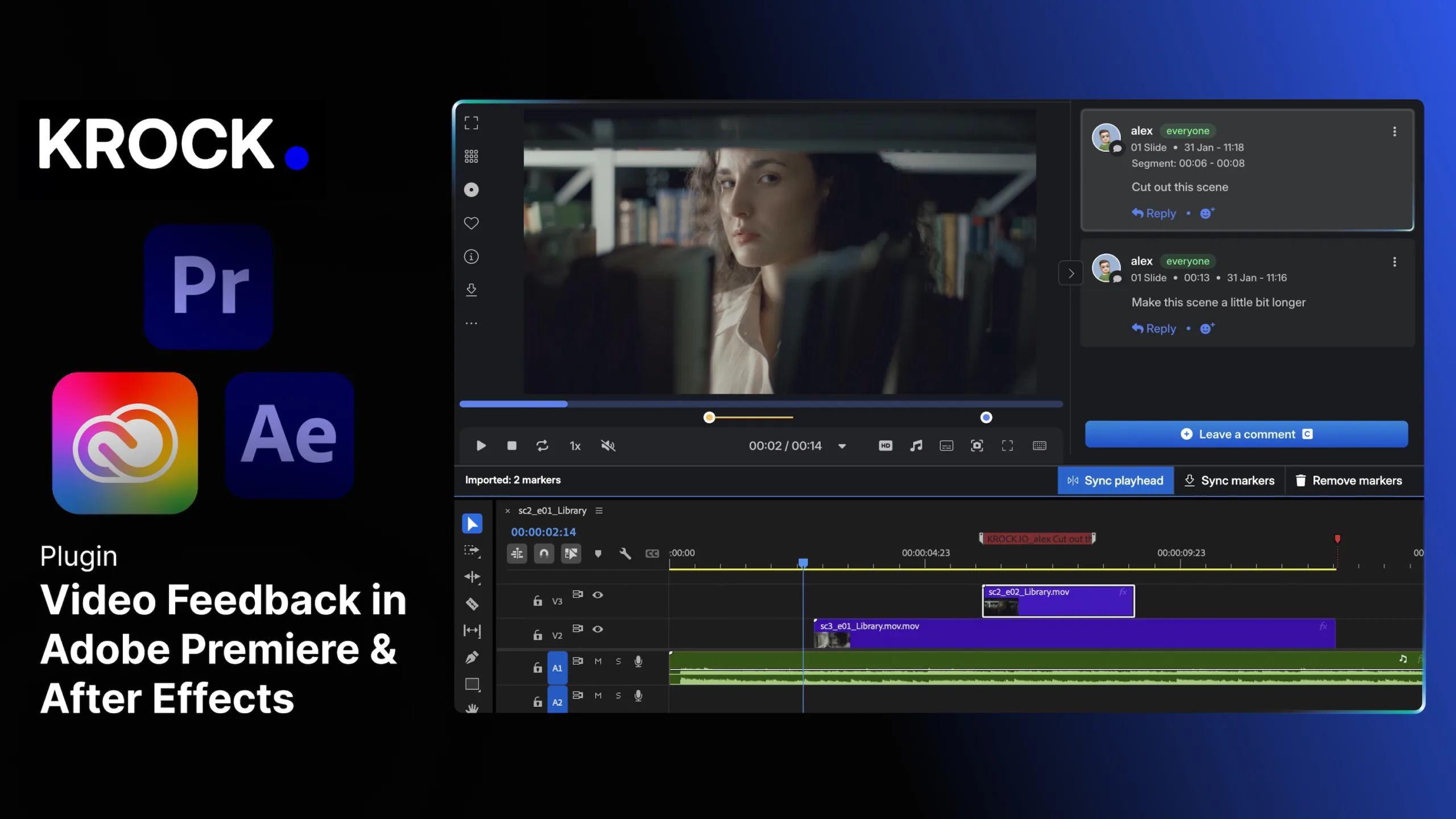
In Premiere Pro, each time-based Filestage comment appears as a marker at the same frame. The Filestage and Premiere playheads stay in sync, and double-clicking a marker opens its comment description.
Sync is one-way from Filestage to Premiere Pro. Adding a marker in Premiere does not create a Filestage comment. Replies and annotations stay in Filestage, and deleting a timeline marker leaves its Filestage comment intact.
In After Effects, select a comment in the Filestage panel to highlight it and jump to the referenced frame. Comments do not appear in the Composition viewer, and actions in the panel do not change the After Effects project.
Requirements
Each integration requires an Adobe Creative Cloud subscription and the installed Adobe application. Editors also need a Filestage account to sign in through the panel. If reviewers need to inspect fine detail above 1080p, account for the browser playback transcode when choosing this workflow.