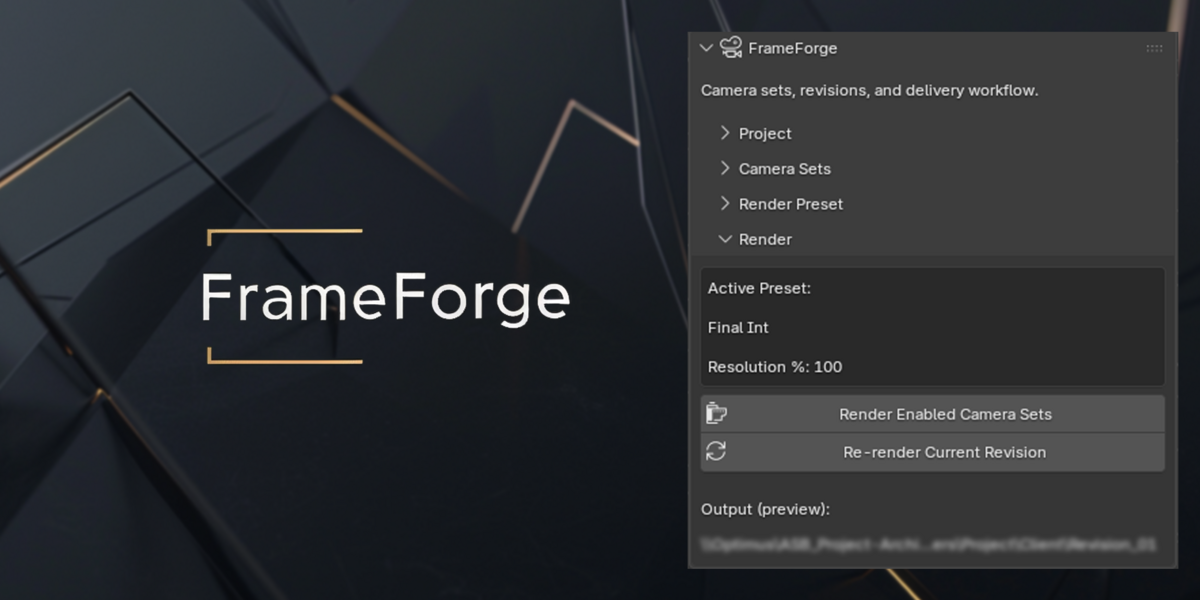
FrameForge is a Blender add-on for architectural visualization stills. It organizes scene cameras into sets, tracks client revision rounds, and batch-renders enabled cameras into folders based on project, client, and revision settings. The workflow is aimed at freelancers and small studios delivering images from multiple views.
Install and open FrameForge
Download the ZIP from the FrameForge listing on Superhive. In Blender, open Edit, then Preferences, then Add-ons. Choose Install, select the ZIP, and enable FrameForge. In the 3D Viewport, press N to open the sidebar and find FORGEWORKS, then FrameForge.
Organize cameras and revision rounds
Refresh the scene camera list, then add cameras to sets. You can enable or disable individual sets and cameras for batch output. Per-camera resolution overrides let a camera use a different output size from the rest of its set.
FrameForge also provides revision numbering, an optional revision name, and navigation between revisions. These controls help keep successive client feedback rounds identifiable while the scene's cameras remain organized in Blender.
Prepare a batch still render
Enter project and client names, set a base output directory, and choose the Draft or Final render preset. After selecting the camera sets and cameras to include, render the enabled sets. FrameForge saves the still images in structured folders based on the project, client, and revision settings.
The documented workflow covers batch rendering still images. It uses Blender's existing camera and render system, adding organization and output handling around it.
Compatibility and license
FrameForge requires Blender 4.0 or newer and lists Cycles and Eevee as supported render engines. The marketplace version field lists Blender 4.0 to 4.1, so check the current listing for compatibility details before using a later release of Blender. The add-on is distributed under the GNU General Public License (GPL); its documentation says commercial use is permitted. Updates are provided through Superhive.
For current release details, see the Superhive product page. The documentation lists the developer's site for support, bug reports, and feedback.