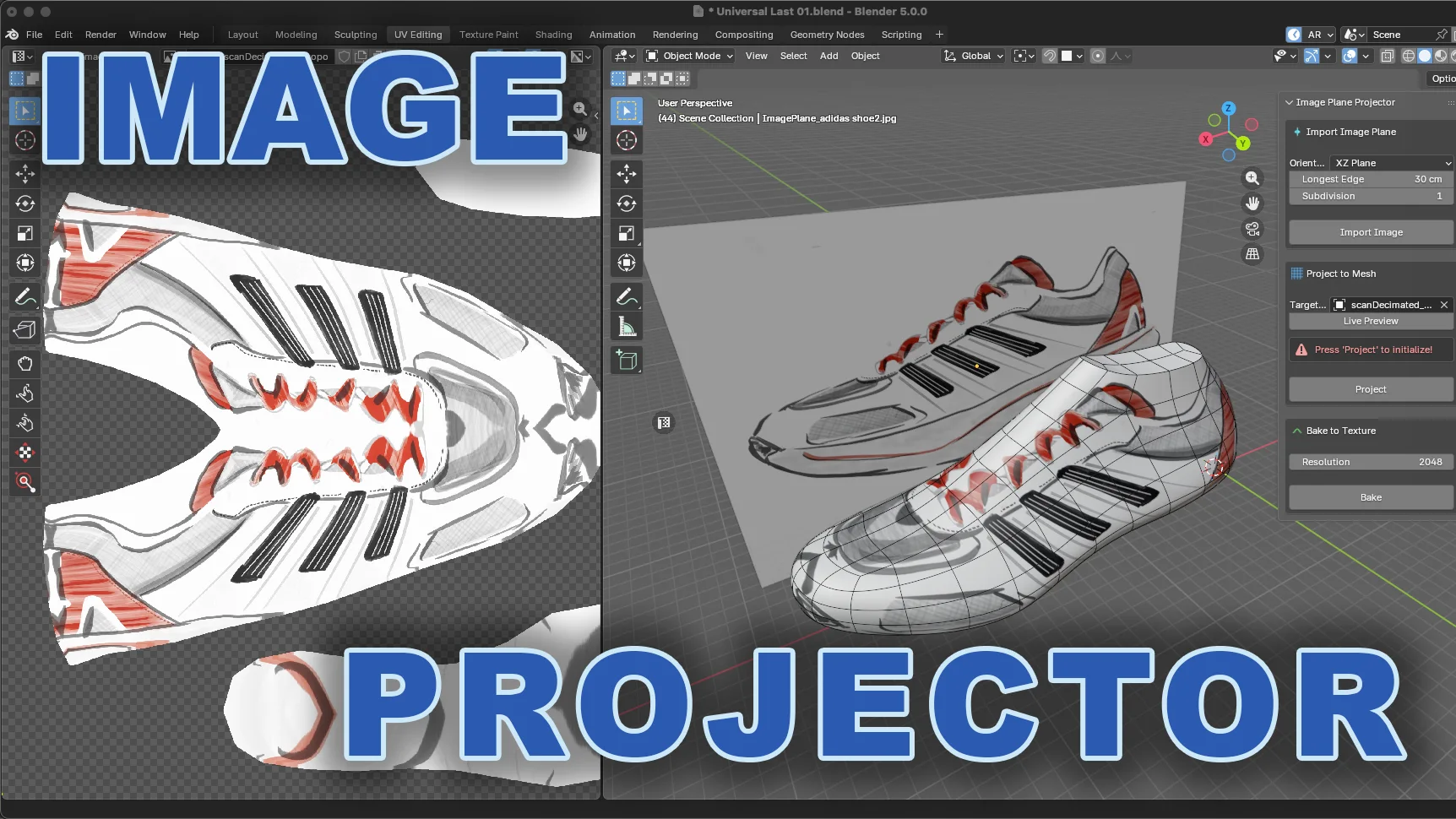
FTW3DForge Image Projector is a Blender add-on for projecting an image onto a mesh and creating UV mapping for the result. It loads the image onto a plane sized from its DPI setting, then uses ray casting to project it onto a target mesh. A live preview updates as you move the plane, so you can adjust its position before baking the projection to a texture. The Blender Extensions record lists version 2.1.0 and Blender 5.0.0 as the minimum supported version.
Project an image onto a mesh
The DPI setting defaults to 300 and determines the plane's physical size.
- Import an image and set its DPI for the plane size.
- Select a target mesh, choose whether to use Live Preview, and project the image.
- Move the plane to adjust the projection, then bake it when the placement is ready.
Adjust plane and mesh settings
Plane orientation options are XY, XZ and YZ. The add-on also respects Blender's metric or imperial unit settings. For mesh work, it supports subdivision modifiers on both the projection plane and the target mesh, with UV corners preserved. You can set subdivision levels from 0 to 6.
Projection uses ray casting and barycentric coordinate interpolation to calculate UVs. When a ray does not reach a vertex, the add-on uses a closest-point fallback. These details matter when preparing a mesh with modifiers or adjusting how the projected image sits across its surface.
Preview and bake the texture
Live Preview is useful while you are still positioning the image. Baking creates a permanent texture and replaces the original projection material with the baked result. The default bake resolution is 2048, and the available range is 64 to 8192. Choose a resolution that suits the texture's intended use before baking.
The project README describes the import, projection and bake workflow.
Compatibility and installation
FTW3DForge Image Projector requires Blender 5.0 or later and is distributed under the GPL-3.0-or-later license. To install it from a downloaded extension ZIP, open Edit, then Preferences, choose Get Extensions, open the menu in the upper-right corner and select Install from Disk. Choose the ZIP file to install and enable the extension. The official extension record lists permission to import images from disk, which the add-on needs to load the image used for projection.