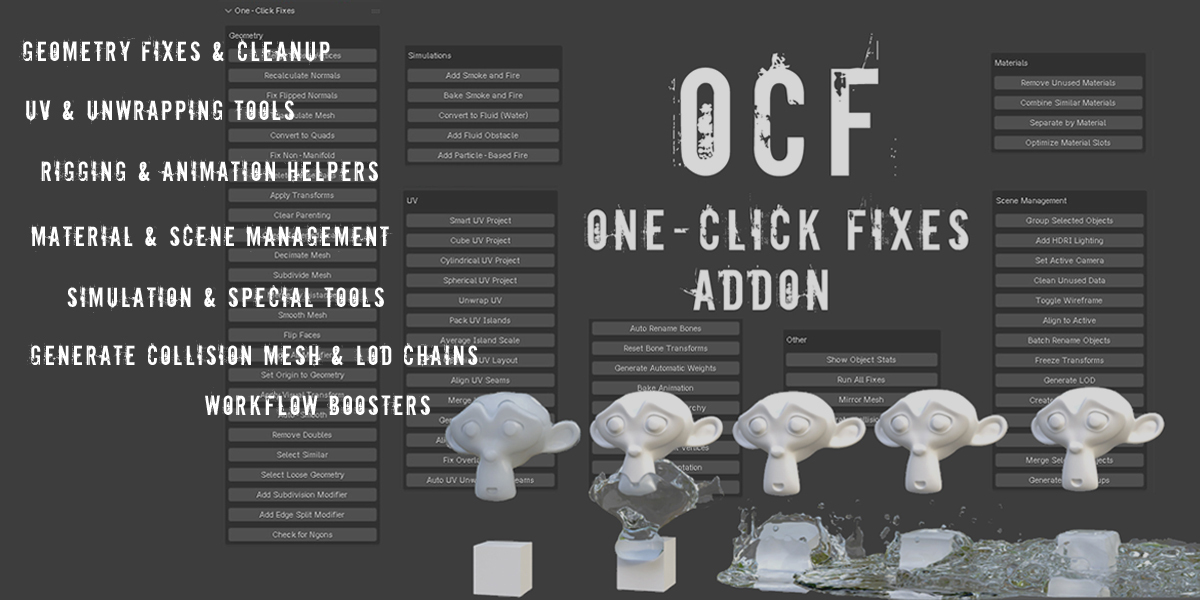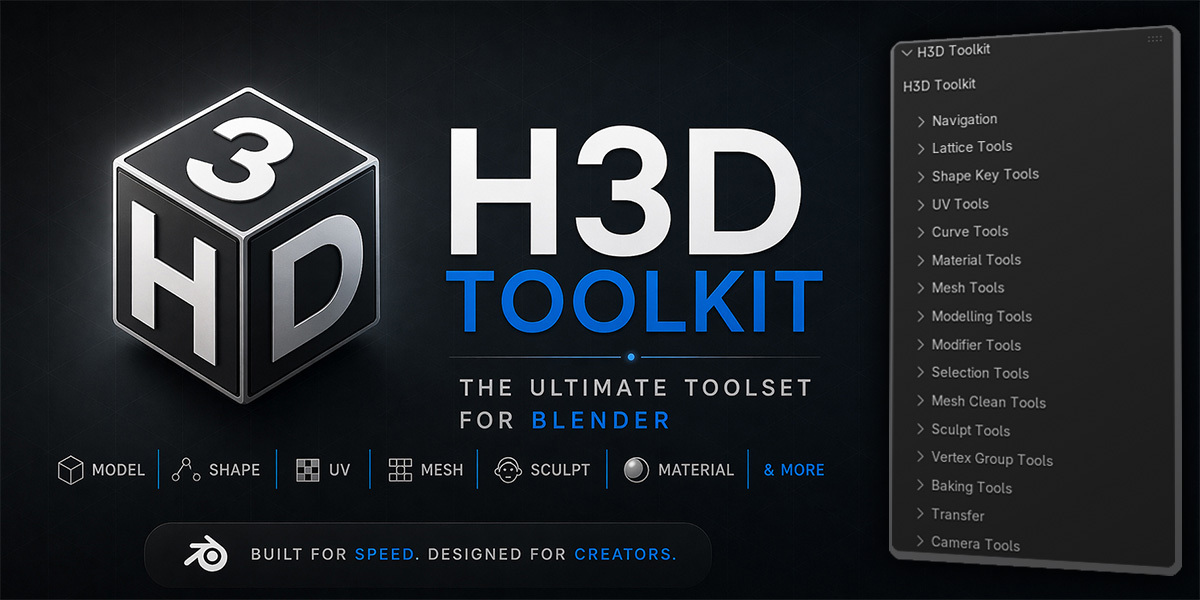
H3D Toolkit is a Blender add-on with more than 70 tools for navigation, UVs, modeling, lattices, curves, materials, mesh cleanup, sculpting, baking, camera rendering and other tasks. Its creator describes it as a toolkit shaped by VFX work and built to fill gaps in Blender’s default tools. The range is useful for artists whose work moves between modeling, cleanup, UV inspection and render preparation.
UV tools for inspection and layout
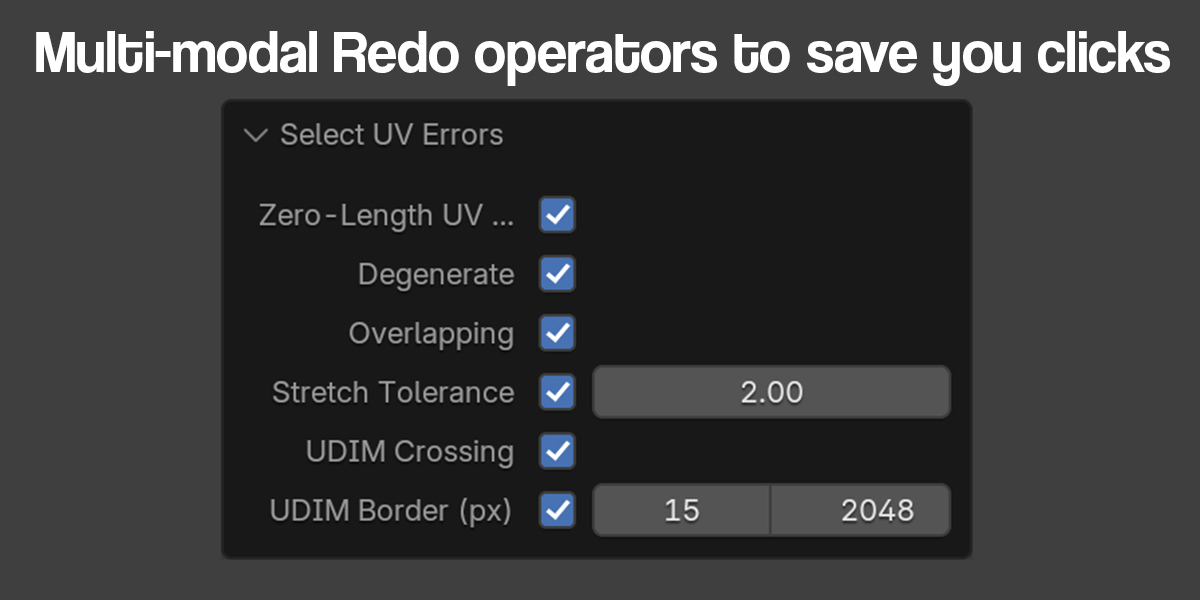
H3D Toolkit’s UV utilities cover error checks, unwrapping, layout and UV-set management. Select UV Errors checks for zero-length edges, degenerate or overlapping UVs, stretching, UDIM crossings and proximity to UDIM borders. Select Objects From UV Selection helps identify the objects associated with selected UVs, which can make it easier to inspect a problem in a scene with multiple objects.
Box Unwrap cuts seams on cube-like topology and aims to produce a single UV island. It can bias seams away from the camera-facing side and adjusts its seam cutting for manifold or non-manifold geometry. Cylinder Unwrap unfolds cylinder-like topology, straightening the quad body into a rectangular grid while leaving the caps untouched. Grid Layout stacks repeating-object UVs in columns and continues into another UDIM tile when needed. It supports object and group selections.
Other UV-set tools let you rename, create, select, activate or delete sets across objects. You can also copy and paste UVs between sets by name or remove non-active sets.
Modeling, selection and mesh cleanup
Modeling tools include a Geometry Nodes radial array that rotates geometry around the object’s origin, and Delete Intersecting Geo, which creates a modifier to remove geometry intersecting another object. Zip Merge is intended for complex joins where Merge by Distance causes problems or where preserving UVs without bridging faces matters. Curve Deform Verts lets you shape selected vertices along an editable spline or Bezier curve, adjust the number of control points and change how vertices are distributed.
For finding geometry, Select by Vert Count, Select Similar and Select Instances help locate components or objects by their structure. Modifier tools can select, apply, remove or disable modifiers by type, name or other criteria. Mesh-cleaning operators find skewed faces, n-gons, unpaintable vertices and overlapping objects or components. Other tools clear sharp-edge and custom-normal data, or delete empty objects.
Object setup, lattices and baking
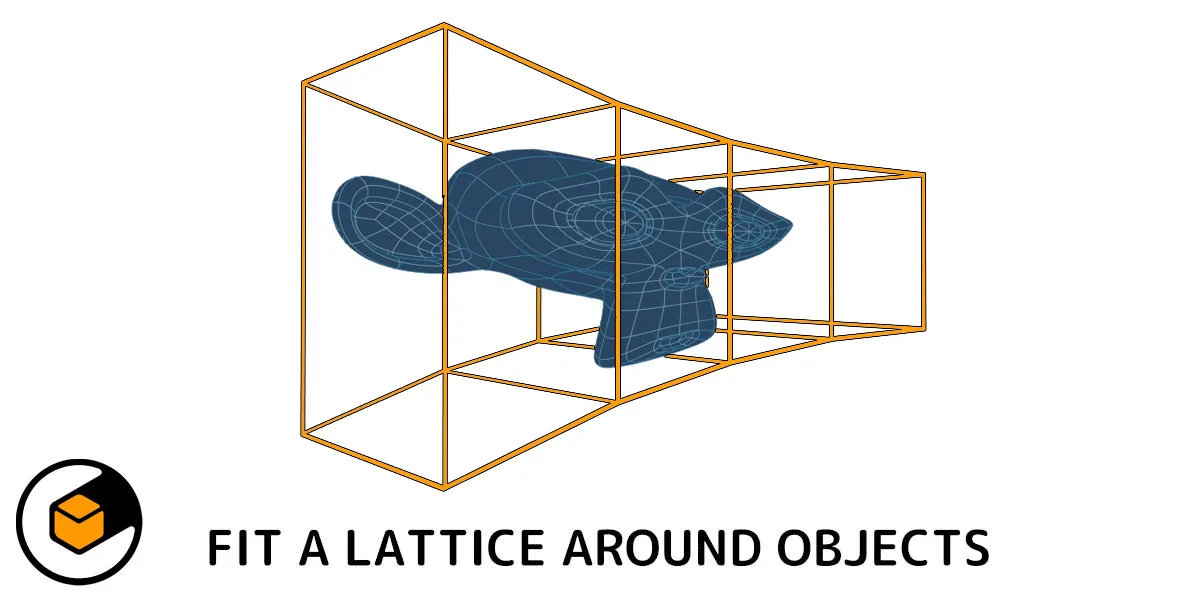
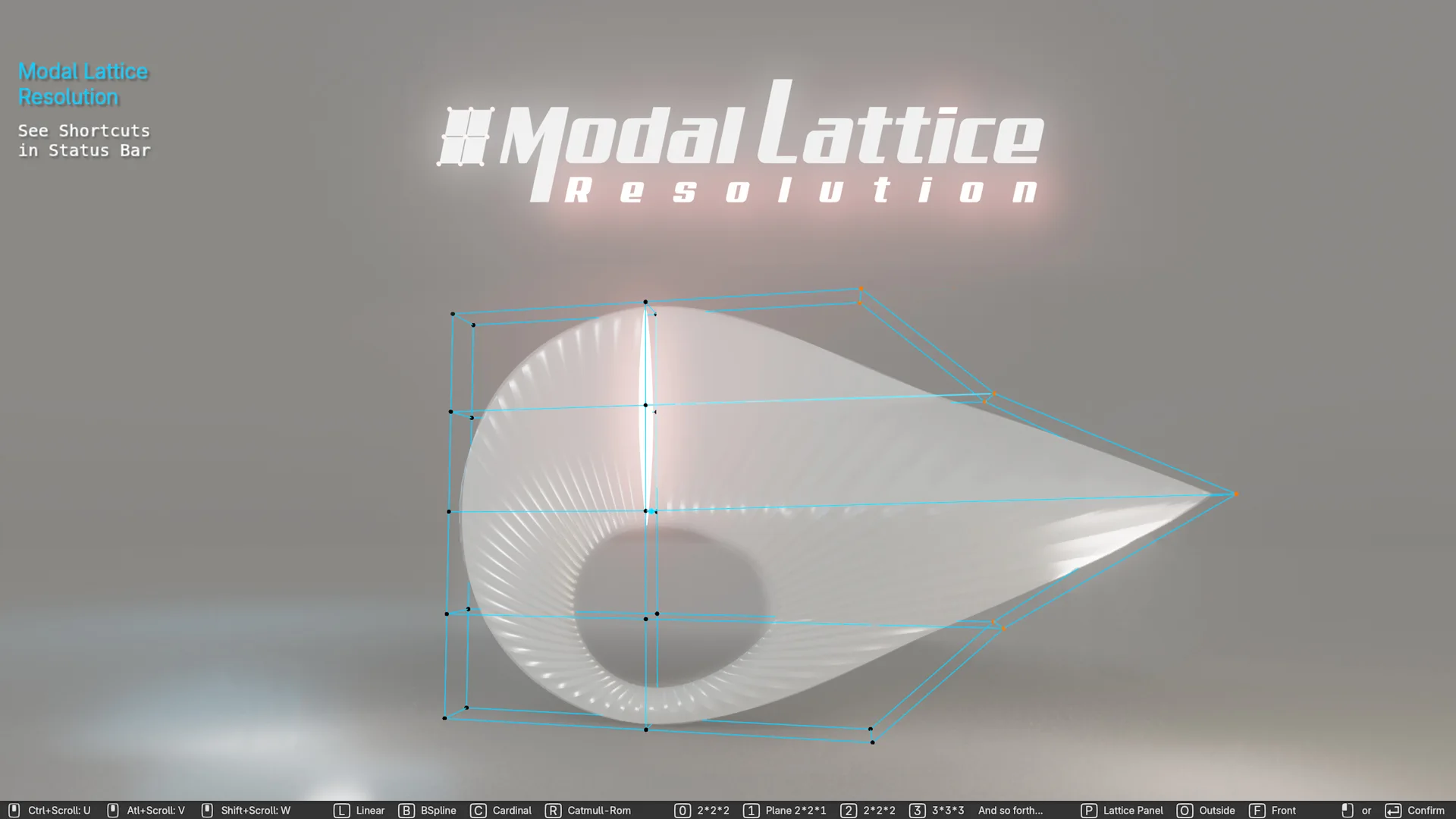
Fit Lattice orients a lattice around selected objects or edit-mode components, using the active object’s orientation or world space. Select Lattice Users finds objects affected by a lattice; Reset Lattice restores it, and Apply Lattice applies the modifier to objects using it.
Set Origin positions and orients an object’s origin from selected mesh components. Rebuild Local Axis fits an oriented bounding box to selected mesh geometry and can sample nearby objects to encourage consistent axes across related meshes. OBB Match uses oriented bounding boxes to match a mesh’s position, rotation and scale to another mesh, including cases where applied rotations or different local axes make ordinary bounding-box matching unsuitable.
Explode Mesh prepares intersecting geometry for baking by separating it. Its clustering system analyzes object bounding boxes so related objects, such as high- and low-resolution meshes with nearly identical spatial bounds, can remain synchronized as the surrounding geometry is separated. Spread Objects arranges objects along a line or grid. Duplicate Source to Selected copies the active source to each selected destination object's world location, rotation and scale. The operator supports linked duplicates, independent copies and collection instances, with an option to include the source’s child hierarchy.
Curves, materials and sculpting
Curve tools add Geometry Nodes modifiers to resample an edge or curve and turn an edge or curve into a pipe. The pipe tool can create UVs and use a custom profile. Other operators separate curves by loose parts, align curve directions, offer finer control for smoothing tilt and convert tube geometry back into a center curve.
Material utilities remove empty slots, keep only the active material, remove materials and slots, or collapse materials with identical properties. Multiresolution sculpt tools work across selected objects: Delete Lower makes the active subdivision level the base, Rebuild Subdivisions rebuilds a chosen number of levels, and Separate By Loose Parts preserves multiresolution sculpt data during separation.
Camera rendering and review
Camera Tools lets you build and reorder a list of selected cameras or all cameras in a scene, then render the list to the configured Output folder. Each camera can have its own resolution and frame range. Options include viewport-preview rendering, animation mode, separate folders per camera and stamping the camera name on rendered images. Progress is tracked, and Esc can cancel a render, including an animation render.
The Video Sequence Editor utility Split and Offset takes an image sequence, splits its frames and offsets the resulting strips by a chosen number of frames. This can help arrange review material when comparing renders with a plate or scan at regular intervals.
Who may find H3D Toolkit useful?
The toolkit may suit Blender artists who regularly move between tasks such as UV checking, object preparation, modeling, baking and rendering. Its specific operators also suit narrower needs: for example, an artist may want the UV error checker, lattice utilities or multi-camera queue without using the rest of the toolset. Check the relevant operator’s context and options in the tool overview before adding it to an established workflow.
Version notes
The product listing specifies Blender versions 5.1–5.3. Its FAQ says Blender 4.5 is not supported, and Extrude Border Edge is listed for Blender 5.2 and later. Requirements can differ by operator, so check the current product listing and documentation for the Blender version and tools you plan to use.