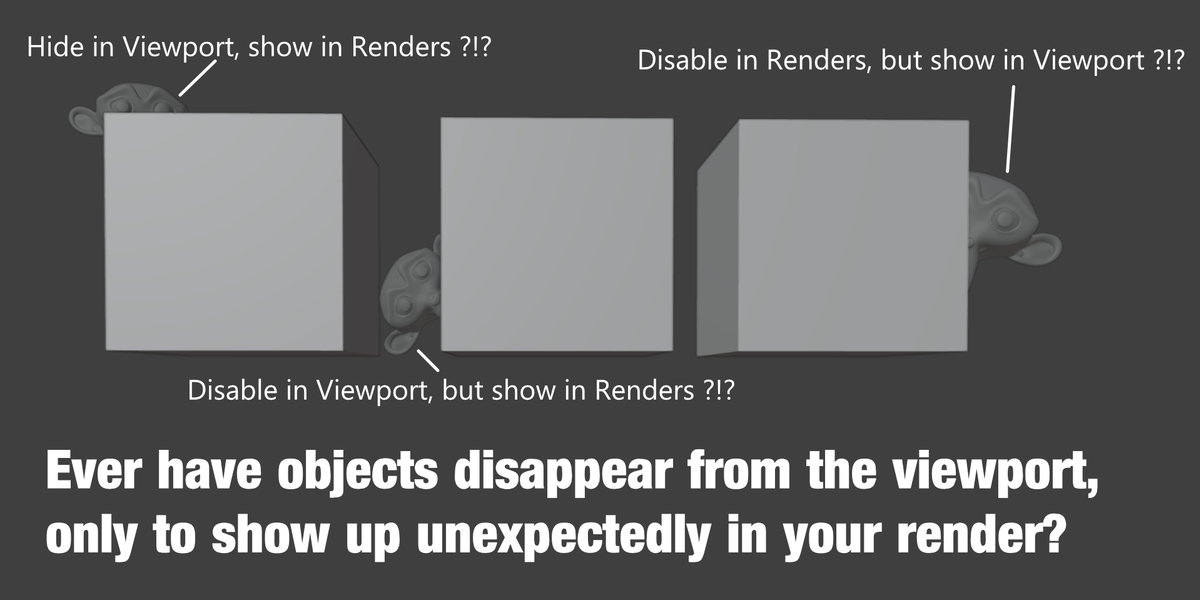
Hide & Seek 2.0 is a Blender add-on for finding and managing objects that are hidden or disabled in a scene. Refresh the filtered list to see which visibility state applies, then inspect objects, change individual flags or isolate an item. The version 2.0 documentation describes separate controls for viewport visibility, viewport disabling and render visibility.
Find the visibility state that applies
In a crowded scene, an object can be absent from view for different reasons. Hide & Seek separates those cases so you can filter and edit them individually:
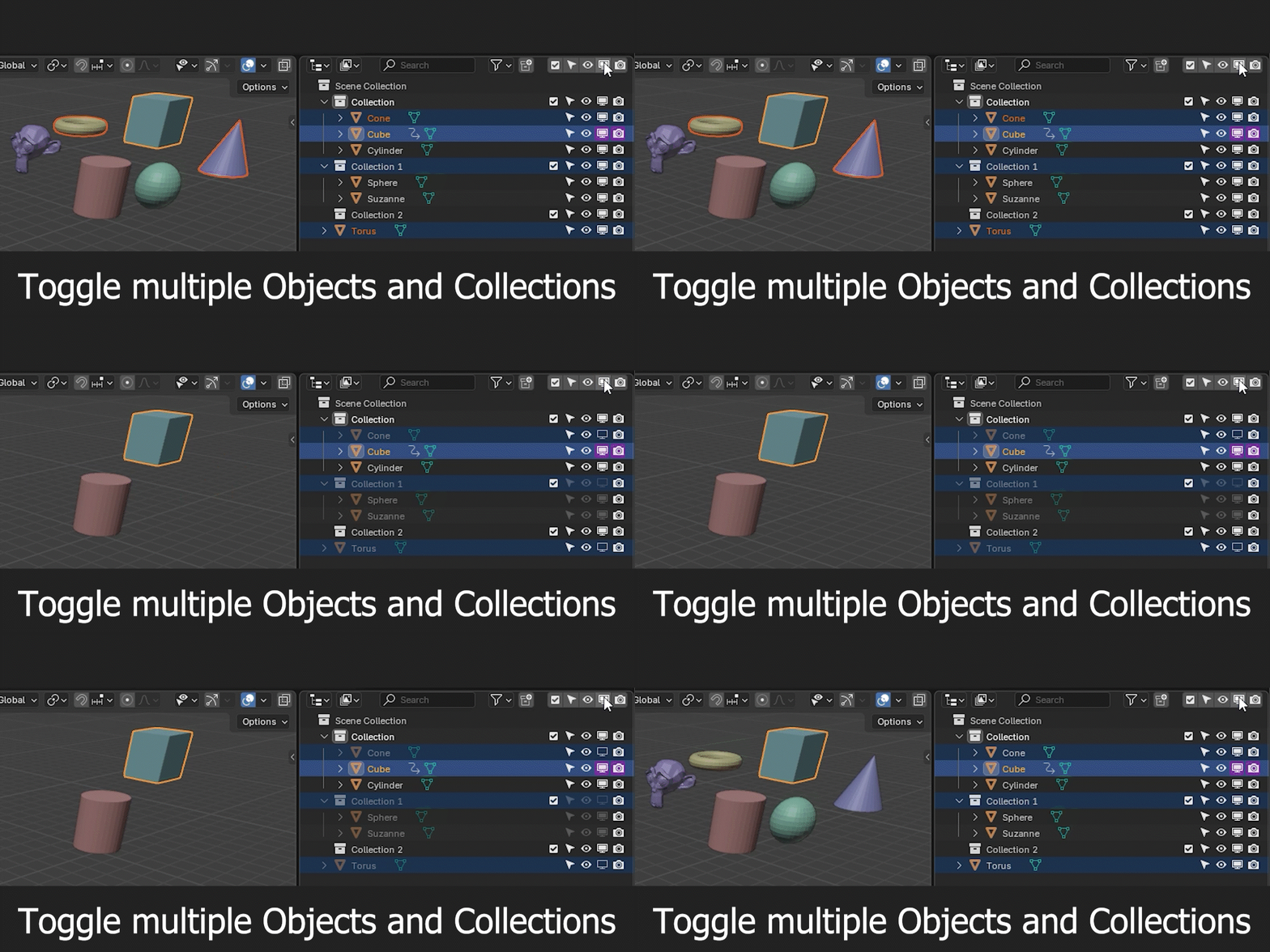
- Eye: objects hidden in the viewport with the standard visibility toggle.
- Monitor: objects disabled in the viewport, which the documentation says are also excluded from selections and simulations.
- Camera: objects disabled in renders, including objects that remain visible in the viewport.
Choose the filters, then press Refresh Filtered Objects to update the list. Live counters show the number of objects in each category. By default, the list shows the flag that caused an object to be hidden; Show All Flags reveals all three flags so you can edit another state from the same row.
Preview an object or isolate it
Click an object's name to preview it temporarily, then click again to hide it. Clicking a visibility icon changes that specific flag directly. Isolate Mode hides the rest of the scene while you inspect one listed object; exit the mode to restore the earlier visibility state. An optional Green Surface highlight makes a selected or previewed object easier to spot among small, detailed parts.
Organize a group in the Outliner
Create or update a Hide & Seek collection to gather the objects currently shown in the list. They remain linked to their original collections by default. Unlink All temporarily removes those links, leaving the objects in the Hide & Seek collection; Relink All restores the original collection links. This gives you a temporary way to focus on a filtered group without permanently reorganizing the scene.
Match render visibility to the viewport
Match Render to Viewport copies the viewport's visibility to render settings. An object hidden in the viewport with the Eye or Monitor state will also be disabled for the final render. The control changes to Restore previous Render; click it to return the render visibility settings to their earlier state.
Version and setup details
The Superhive listing names Blender 4.4 through 5.2 and marks the add-on as Blender Extension Compatible. Check the product listing for current compatibility and download details, especially for newer Blender releases. AnyPlugins lists Hide & Seek as free, and Superhive's product details identify the license as GPL. After downloading the add-on ZIP, the documentation says to install it through Blender's Edit > Preferences > Add-ons menu, enable Hide & Seek, then open the N panel in the 3D Viewport and select its tab.
Hide & Seek suits Blender users who need to locate hidden objects, check why an object is missing from a render, or temporarily focus on one item or group. Its controls are most useful when the scene contains several visibility states that are difficult to track through the Outliner alone.