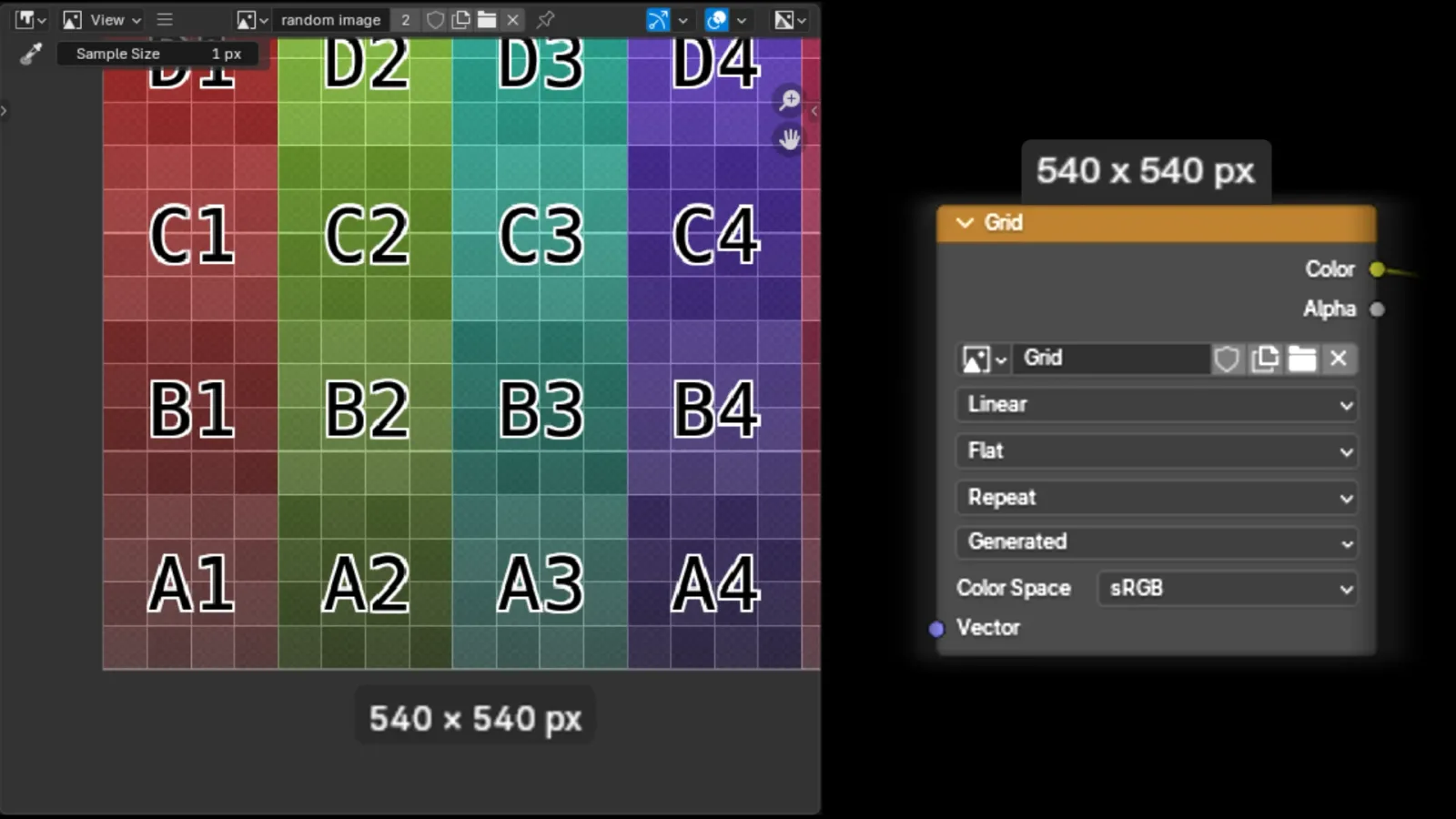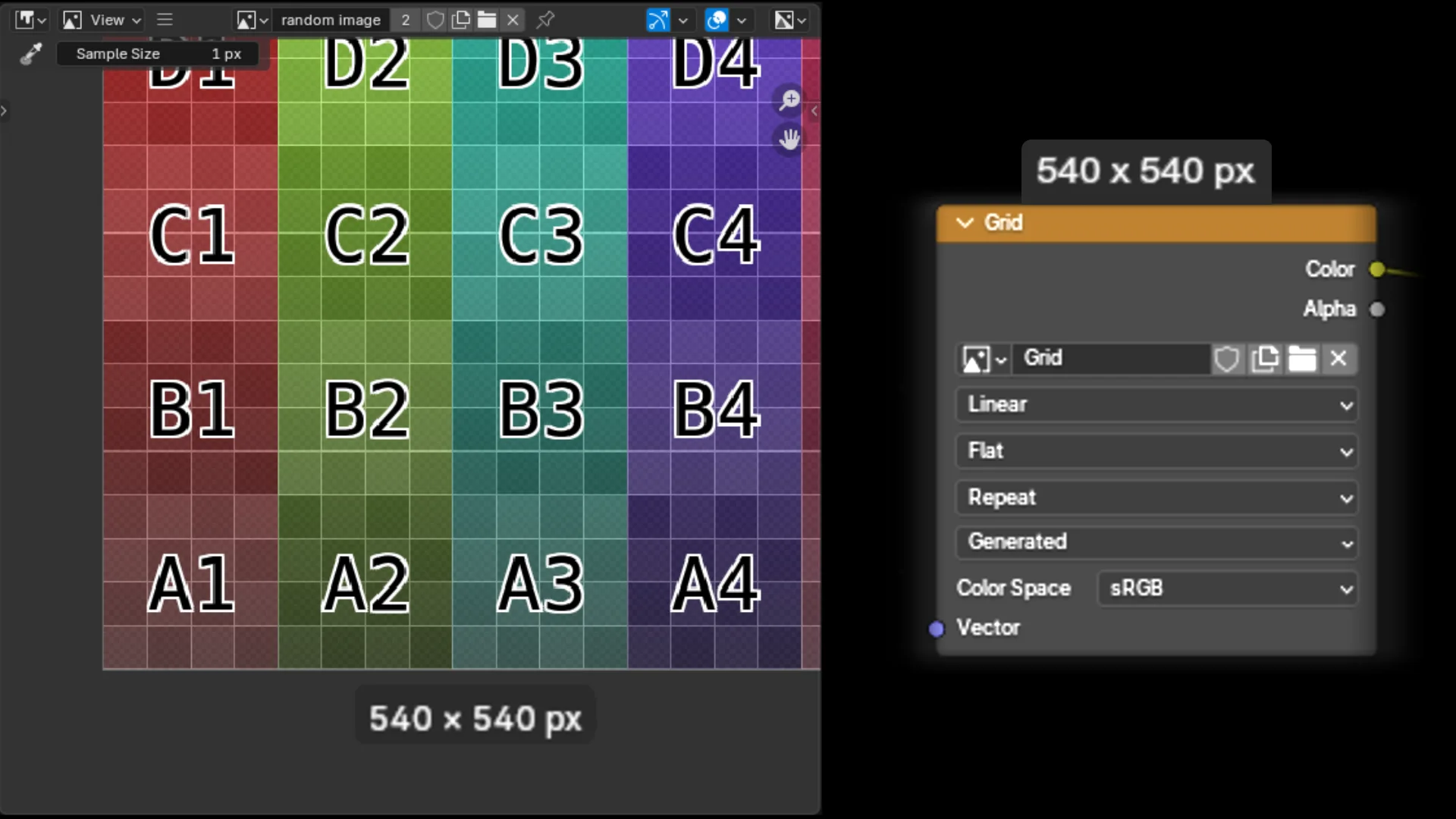
Image Dimensions Viewer displays image dimensions inside Blender's Node Editor and Image Editor. In the Node Editor, it puts a label above each Image Node that has an image selected. In the Image Editor, the label can sit above or below the image. This keeps the dimensions visible while you inspect a node graph or image.
Turn labels on where you need them
In the Node Editor, open the Overlays dropdown and enable Image Dimensions. A node without a selected image has no label. In the Image Editor, the label appears below the image by default; change its origin to place it above instead.
Set the two overlays independently
Open Edit > Preferences > Add-ons to adjust the appearance. Node Editor settings include font size, padding, corner radius, X and Y offsets, background color, and text color. Image Editor settings include font size, padding, corner radius, vertical offset, origin, and background and text colors. Configure each editor separately to place the labels where they are easy to read.
Compatibility and installation
The available listing reports compatibility with Blender 4.2 LTS and newer. Check the Blender Extensions listing for current compatibility and package details before installing. The listing describes installing by dragging the add-on into Blender or choosing Install from Disk in Blender's extension preferences.
The catalog notes a reported positioning issue: labels may misalign on Retina displays or when a node sits inside a frame. Check the project issue tracker for current reports.