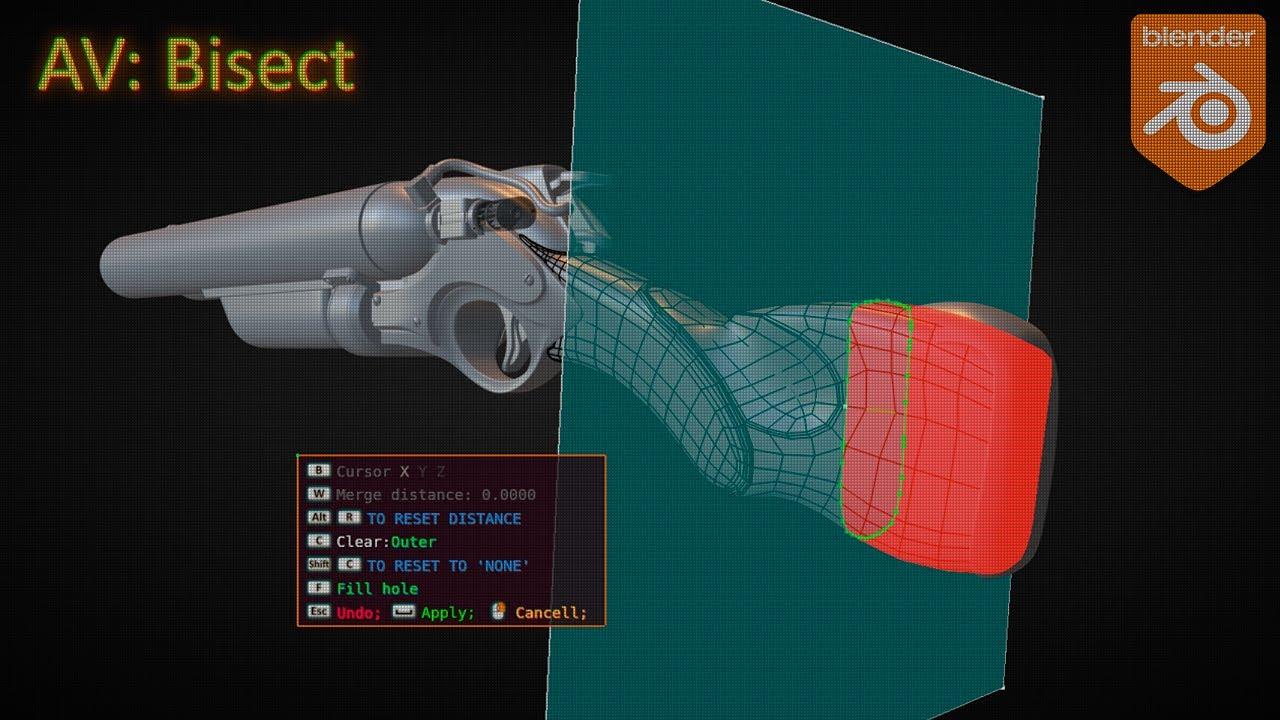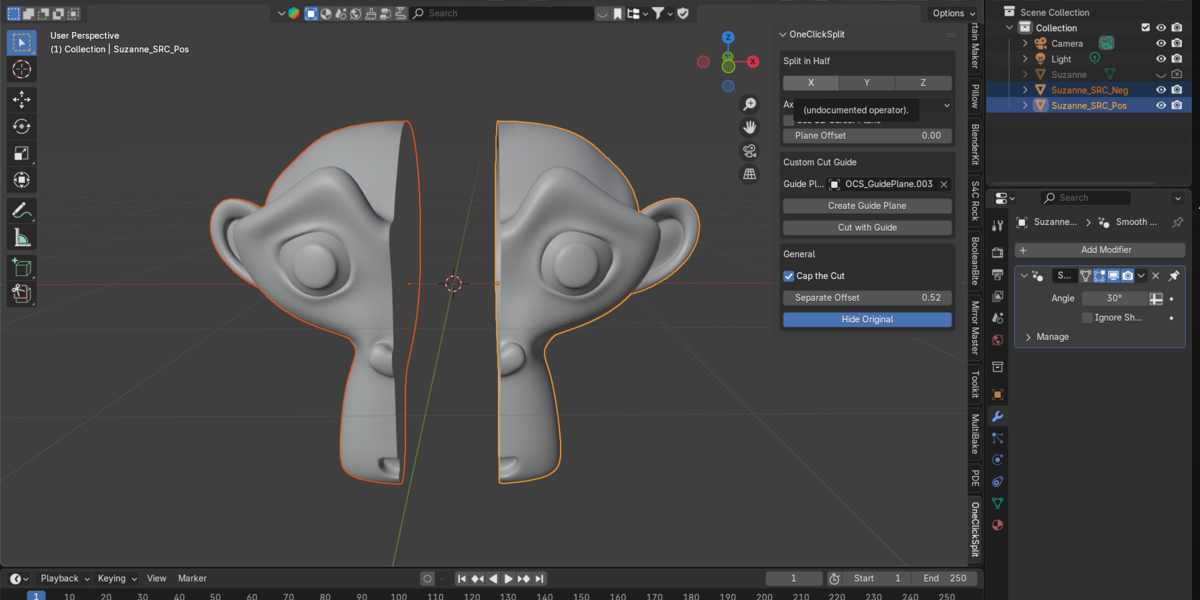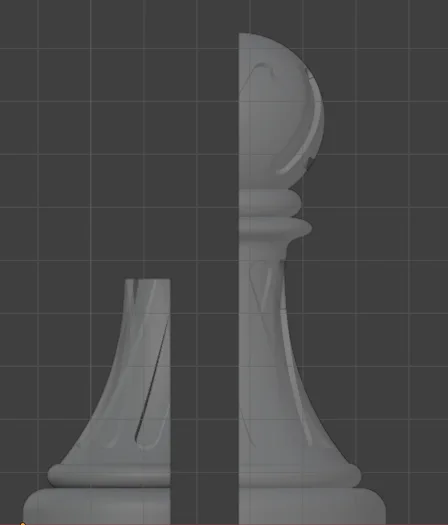
Laser-Cut, also listed as Laser Cut Pro 2.0, is a Blender add-on for cutting selected meshes by drawing a line in the 3D Viewport. A live laser preview shows the cut path as you draw. The tools include bisect cuts, parallel cuts and mirrored cuts across the X, Y or Z axis.
Draw and apply a mesh cut
Install the add-on from its ZIP file through Blender’s Edit menu, Preferences, then Add-ons. Enable Laser Cut Pro; its controls appear in the 3D Viewport sidebar under the Laser Cut panel. Select one or more mesh objects before starting, since the tool needs a mesh target.
- Open the Laser Cut panel and set the cut options.
- Click
Laser Cutto activate the tool. - Press the left mouse button to set the starting point, then move the pointer to see the laser preview.
- Release the left mouse button to apply the cut. Right-click or press Escape to cancel.
The Real Cut setting determines whether the operation applies a bisect or stays in preview mode. Tolerance controls bisect precision, while laser thickness adjusts the appearance of the laser lines. For a preview without changing geometry, the documentation recommends turning Real Cut off.
Parallel cuts and mirror axes
Laser-Cut can make between 1 and 64 parallel cuts, with spacing controls for the distance between them. Mirror-axis cutting can reflect a cut across X, Y or Z. The documentation also describes clean bisect operations using Blender’s bmesh.ops.bisect_plane. A glowing red emissive curve previews the cut, and laser line objects make the cut path visible.
These tools are aimed at mesh work such as hard-surface modeling, sci-fi details, props, VFX slicing and concept modeling. Parallel cuts can help lay out repeated grooves or panel lines; mirror-axis support applies a corresponding cut across a selected axis.
Compatibility and documentation
The product listing gives Blender compatibility as versions 3.0 to 5.1, and identifies the license as GPL. The included Laser Cut Pro documentation has installation steps, control descriptions and troubleshooting notes. It says the tool works in the 3D Viewport; if the preview does not appear, check that you are there and have a mesh selected. For jagged cuts, the documentation suggests lowering tolerance.
See the Laser-Cut product listing for the current product details.