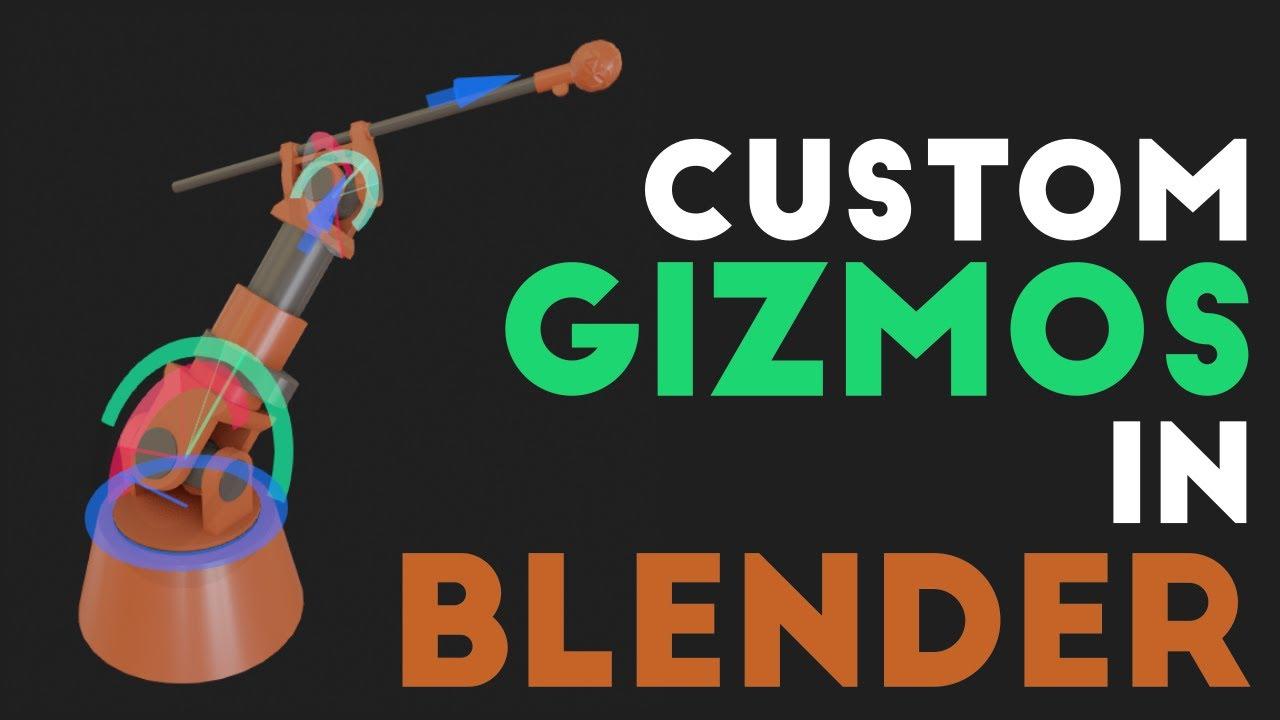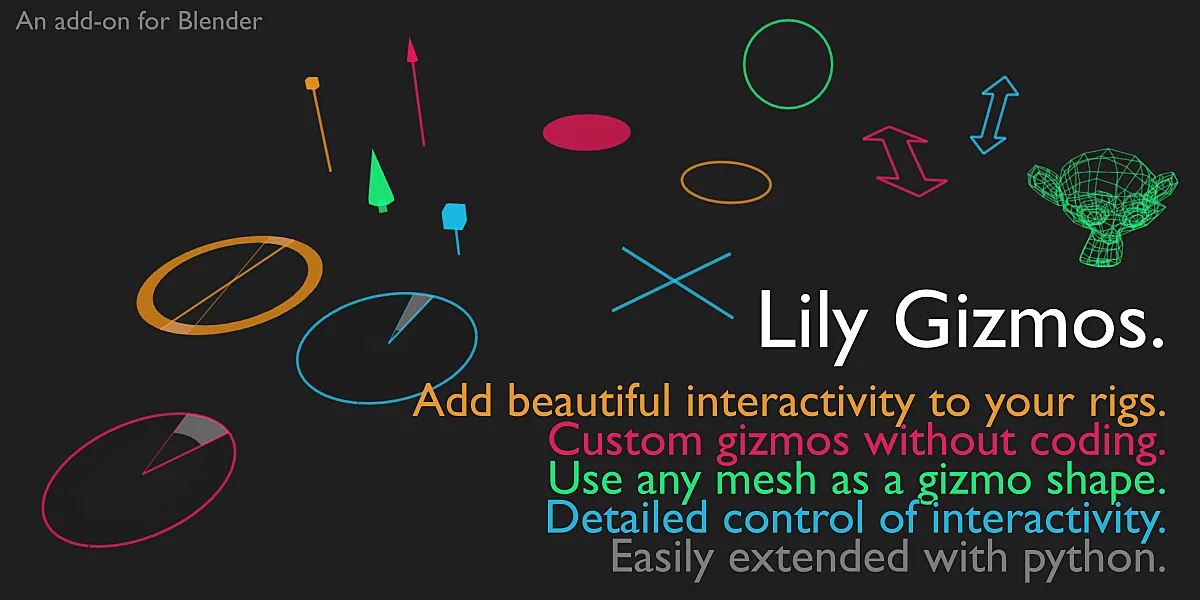
Lily Gizmos is a Blender add-on for creating custom viewport gizmos: handles for interacting with parametric shapes and rigs. The product listing says you can create them without Python scripting. Start with an Empty object, enable LilyGizmo in its properties, then connect the gizmo to the property you want to control.
Set up a gizmo in Blender
- Create an Empty object and enable LilyGizmo in the Empty properties.
- Choose an Angle gizmo or a Move gizmo in 1D, 2D, or 3D. The type determines how viewport movement changes the target parameter.
- Set one or more targets. A target is a component, such as X, Y, Z, or W, of a property on an object.
- Move or rotate the Empty to position and orient the gizmo in the scene.
Targets can include object or bone properties such as location, rotation, and scale. The documentation also describes custom property targets and points to developer tooltips for identifying properties beyond those standard transforms. If the handle is misplaced, try resetting the Empty to the origin.
Customize the handle and its placement
You can change a gizmo's color and shape, including importing a shape from any mesh. This lets a custom handle look distinct from the object or rig it controls. The same gizmo can drive a property on an object or a bone, so it can put rig controls directly in the viewport.
Angle gizmos need care when they follow a target object. The documentation recommends parenting the gizmo to the target's parent, rather than directly to the target, or using a Copy Location constraint. Direct parenting can make rotation difficult to control when the gizmo follows the same object whose rotation it drives. Move gizmos usually sit at the origin for the coordinate they control.
Extending Lily Gizmos
Developers can add a custom widget by creating a file in the add-on's Gizmos directory. The product FAQ suggests copying an existing file as a starting point; this option is for people who want to extend the add-on with their own Python gizmo.
Compatibility and license
The Superhive product listing identifies Élie Michel as the creator, lists GPL as the license, and documents Blender 2.83 and 2.9. Those version entries do not confirm compatibility with newer Blender releases, so check the listing or current documentation before installing. The documentation includes setup details and troubleshooting steps.