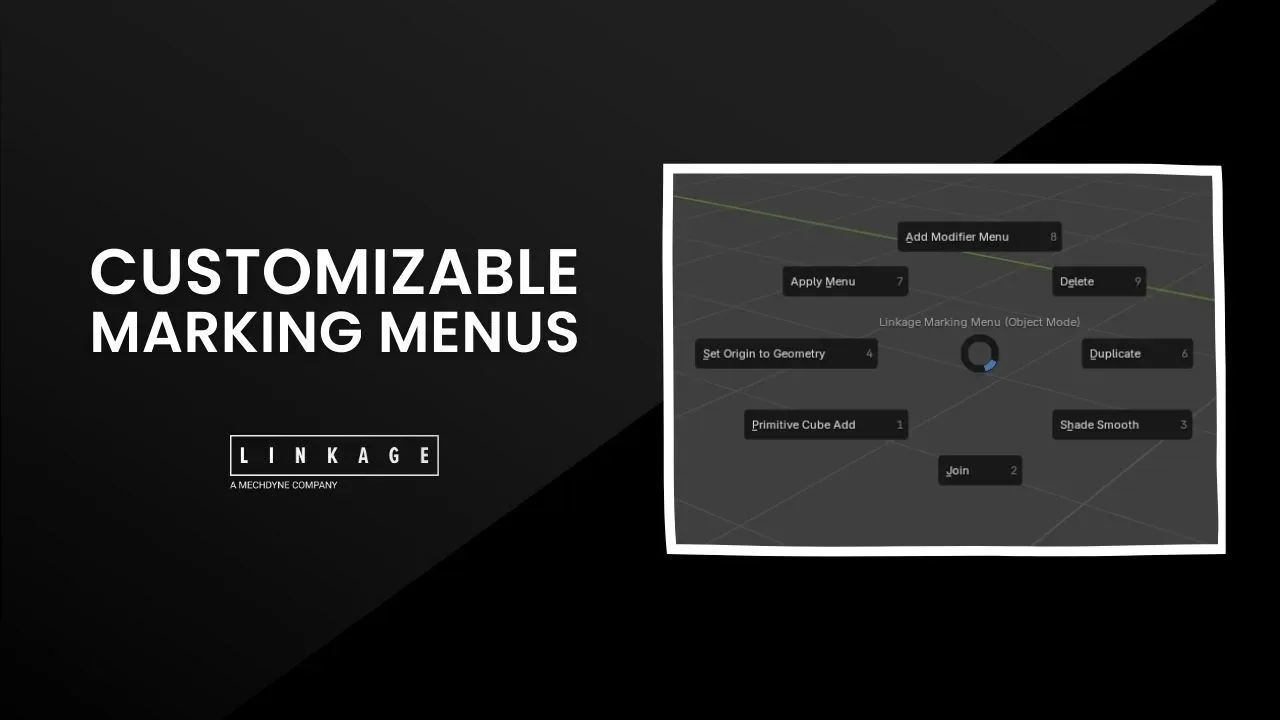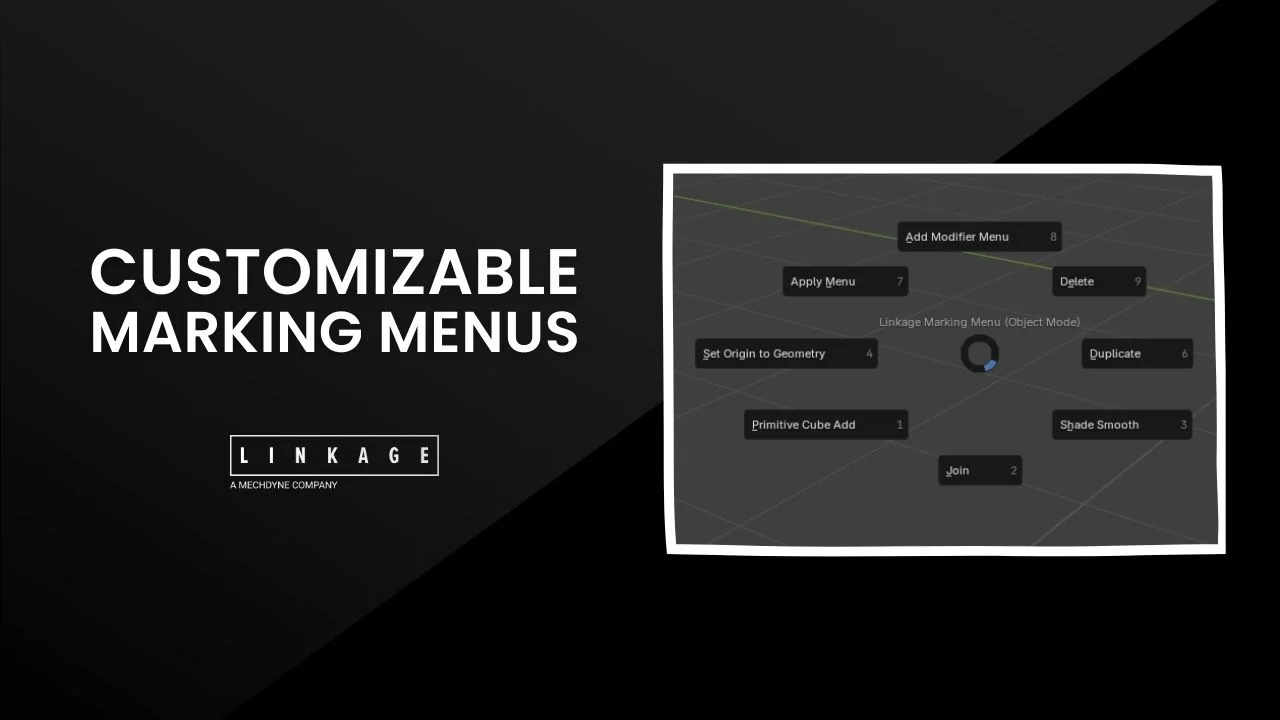
Linkage Marking Menu is a Blender add-on for opening customizable marking menus in the 3D viewport. It provides menus for Object Mode and Edit Mode, so you can reach selected tools without searching through Blender's regular menus. The Blender Extensions catalog describes it as a customizable marking menu for those modes. The menu setup guide covers its menu slots, shortcut bindings and preference controls.
Three menus, assigned by mode
The setup notes list three menus: Object Mode 1, Object Mode 2 and Edit Mode. Their shortcuts are:
- Object Mode 1: Shift + Ctrl + left mouse button.
- Object Mode 2: Shift + Ctrl + right mouse button.
- Edit Mode: Shift + Ctrl + left mouse button.
Object Mode 1 and Edit Mode share the left-button combination, with each menu assigned to its respective mode. Since the shortcuts use modifier keys and mouse buttons, check how they fit with your existing Blender shortcuts before relying on them.
Choose tools for each menu
Configure the menu items in the add-on preferences. In the items dropdown, choose a preset tool or select Custom Operator. If you select Custom Operator, search for the operator you want.
This setup lets you choose tools by context. For example, you could put object-level actions in an Object Mode menu and mesh-editing actions in the Edit Mode menu. The useful distinction is the separation between those contexts; the add-on does not require you to use the same list in both.
Compatibility and license
The Blender Extensions listing identifies the current catalog release as version 1.0.5, with Blender 4.2.0 as the minimum version and a GPL-3.0-or-later license. Check the listing for current release details before installing, especially if you use a newer Blender version.
Who may find it useful
Linkage Marking Menu may suit Blender users who repeatedly reach for a small set of tools and want them available from the viewport. Its separate Object and Edit mode menus can help keep tools organized by context. If you prefer keyboard-only shortcuts or already rely on the listed mouse combinations, review the controls before adding it to your workflow.