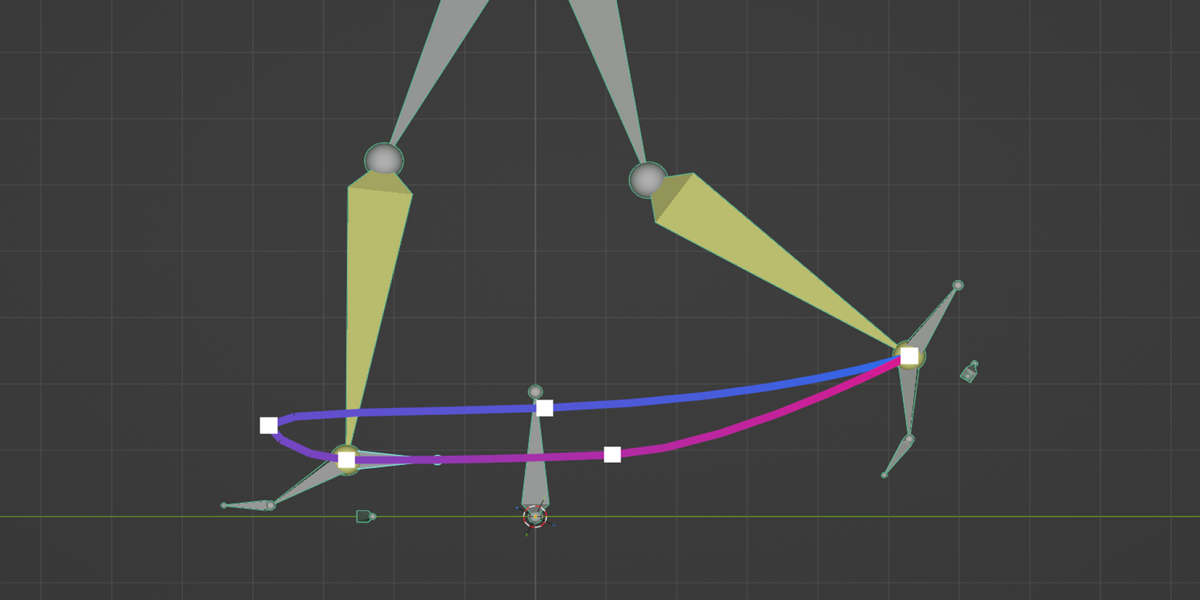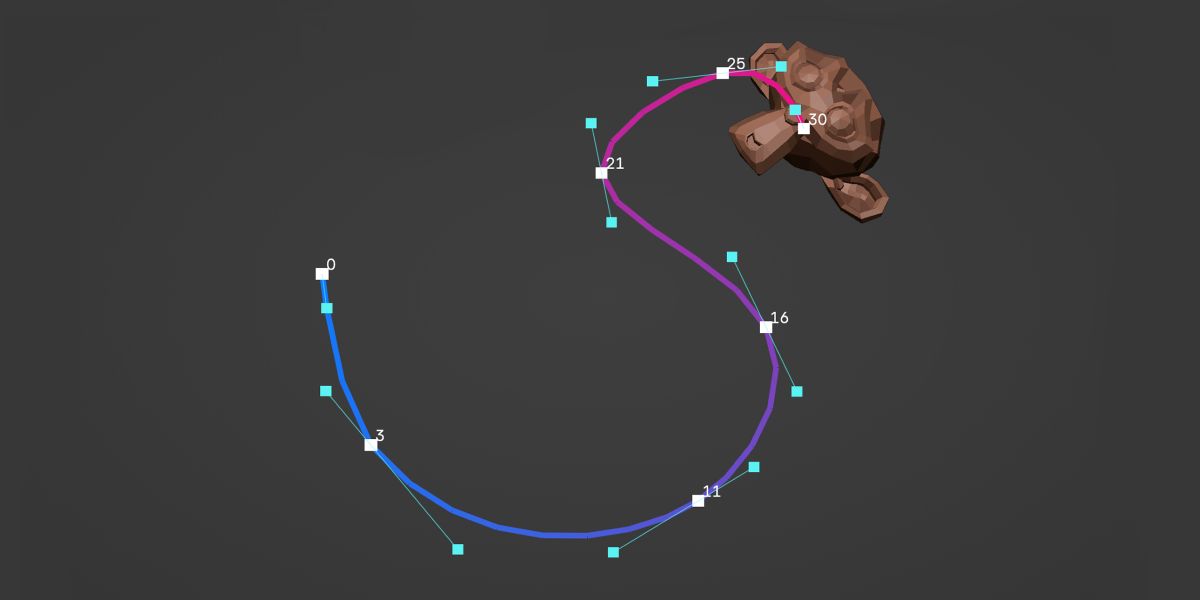
Lz Motion Path by Bookyakuno is a Blender add-on for editing animation directly in the 3D View. Drag keyframes on the visible motion path, adjust their timing, and shape movement with handles without leaving the viewport.
Edit keyframes on the path
Drag a keyframe point to move it. Hold Shift to snap the movement to the nearest X, Y, or Z axis; the add-on also shows the change from the starting point. To match another point's axis, hold Shift+Ctrl and hover over that point while dragging.
Adjust timing and preview motion
Alt+drag a keyframe to move it along the timeline and change the interval between it and the surrounding keyframes. While you drag, the curve's color indicates movement speed. Alt+drag on the curve to move the current frame along the path as a simple preview, or Alt+click a point to jump to its frame.
Shape the curve and add keys
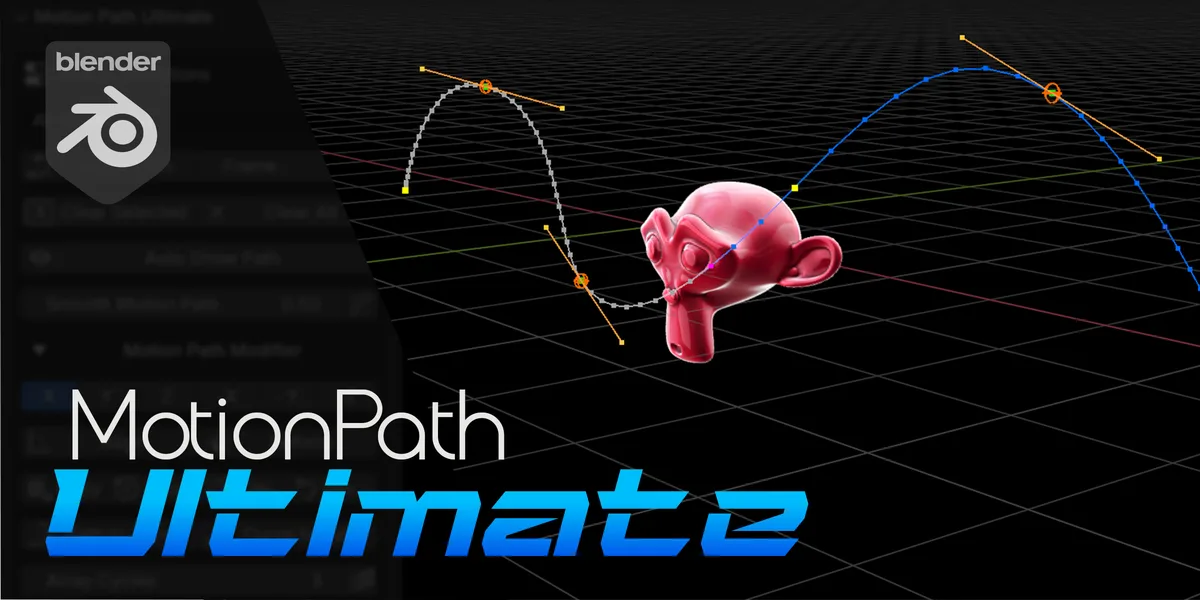
Click a keyframe to show its motion path handles, or hold Ctrl to display all handles. The virtual handle edits a curve generated by the add-on rather than a Graph Editor handle. Blender recalculates the motion from that virtual curve and reflects the result in the actual keyframes.
Press I on the path to insert or remove a keyframe. The active keying set determines which channels are inserted, and the key mapping can be changed in the add-on settings.
View several paths in the 3D View
Use the pinning list to display motion paths for multiple bones and objects while editing. Pinned paths are view-only; select the object itself to edit its path. The menu is available in Object Mode, Pose Mode, and Armature Editing Mode, from the 3D View's N sidebar under Addons > LZ Motion Path or from the center header. Turning off the 3D View overlays also hides the motion path.
The Superhive product listing identifies Blender 5.1–5.2 compatibility and a GPL license. Check the listing for current details.