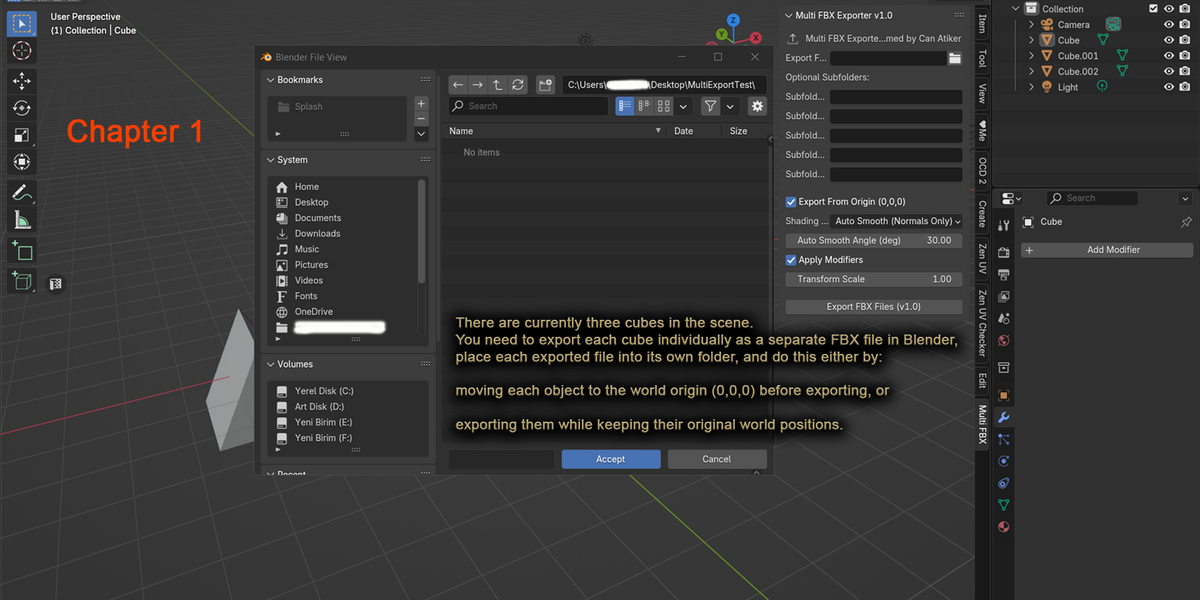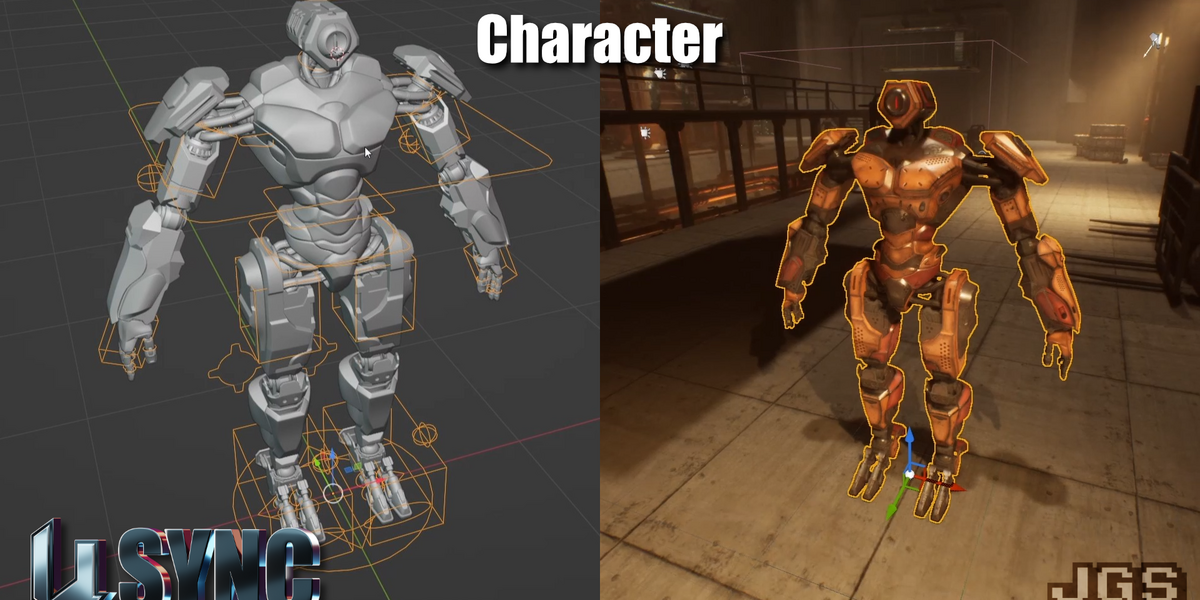
Make It Unreal by La Caverne guides Blender asset preparation and FBX export for Unreal Engine. Choose a single selected mesh or the whole scene, set pipeline options, then run the preparation steps together.
What the pipeline handles
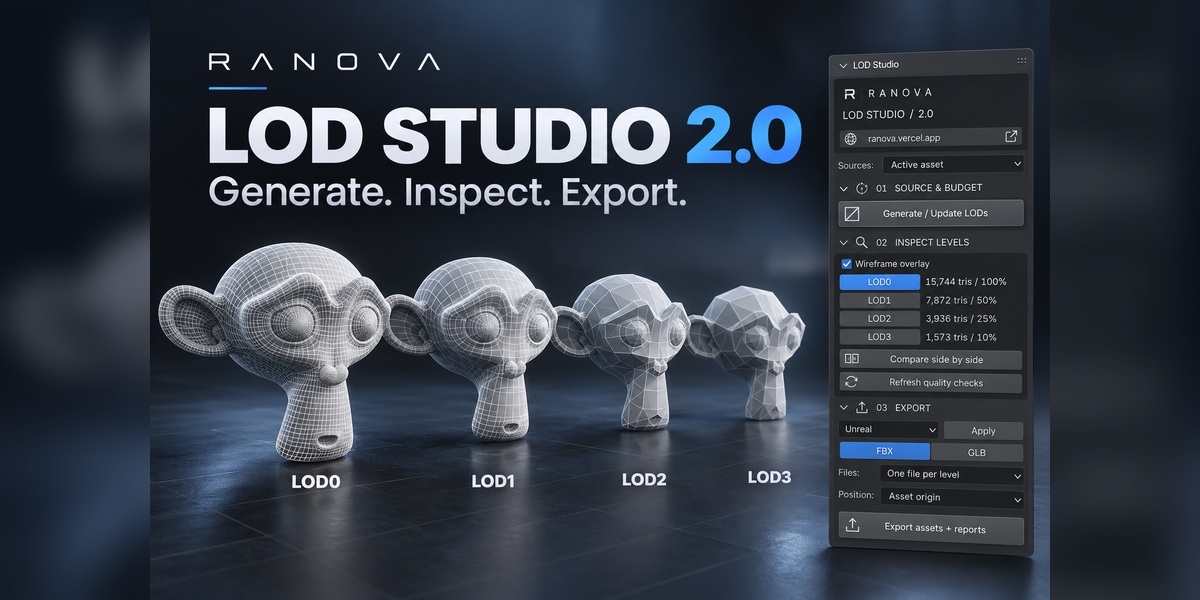
The add-on prepares the base mesh, recalculates normals outward, applies naming logic, organizes collections, generates LODs and UCX collision meshes from your settings, validates the asset, builds an export queue, and exports FBX. A Quick Tutorial is available in the add-on interface.
From Blender scene to FBX
- Choose Selected Mesh to process the active asset, or Whole Scene for a scene-wide run.
- Set the LOD count and reduction ratios.
- Choose collision options, including the collision type and center behavior.
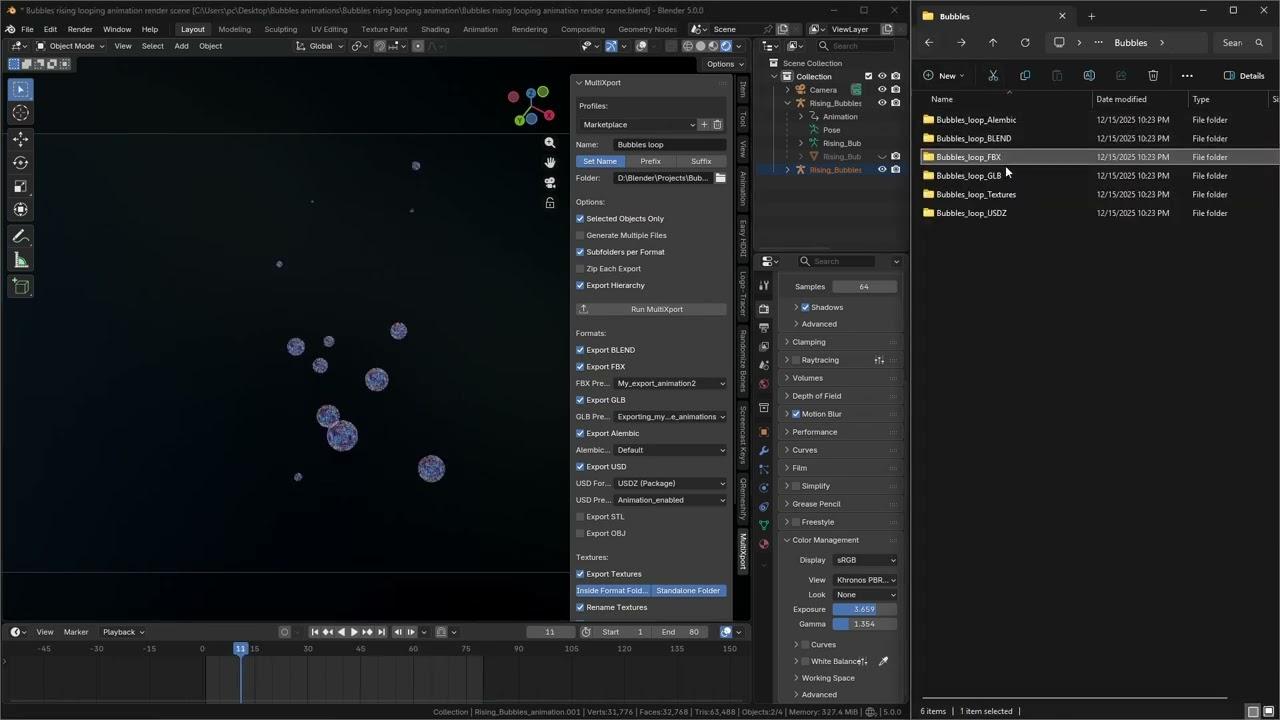
- Set the export folder and export options.
- Click Make It Unreal, then import the exported FBX into Unreal Engine.
Because LOD and collision generation use settings you define, choose those rules for the assets and project before starting the run. The selected-mesh option suits individual props; Whole Scene supports batch preparation when multiple objects need the same workflow.
Who it may suit
Make It Unreal is aimed at environment, prop, and technical artists, as well as indie teams and marketplace creators preparing Blender assets for Unreal. It brings repeated preparation steps into one guided run, which can help teams apply a consistent process across individual assets or larger scenes.
Blender version and license
The Superhive listing names Blender 5.1 and a GPL license. Check the product listing for current compatibility and license details. The published documentation includes installation and quick-start steps.