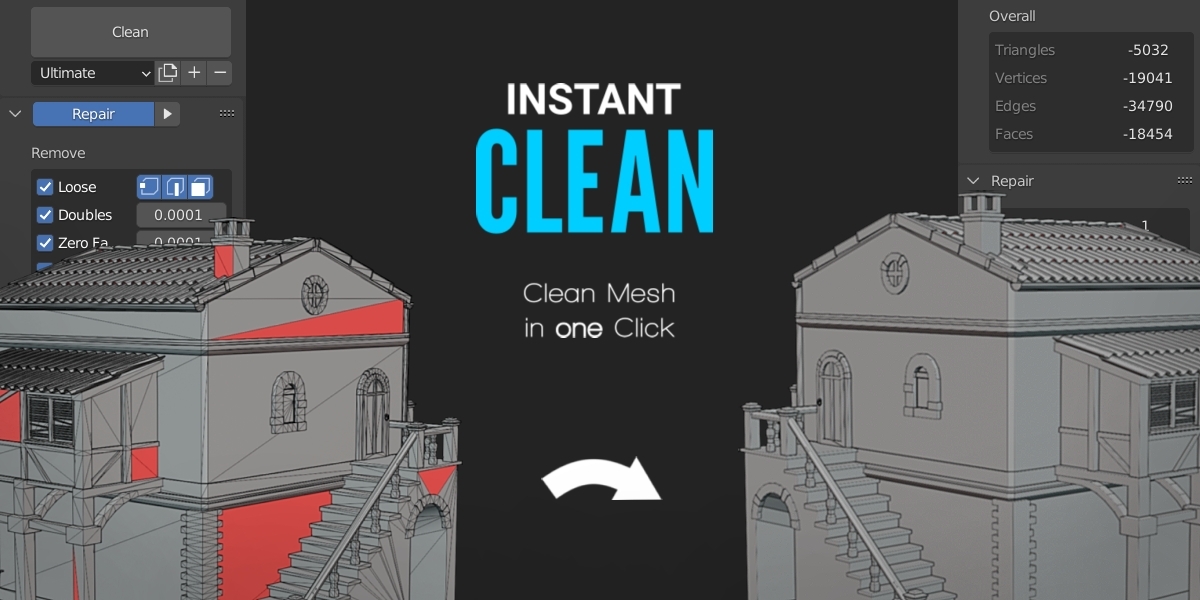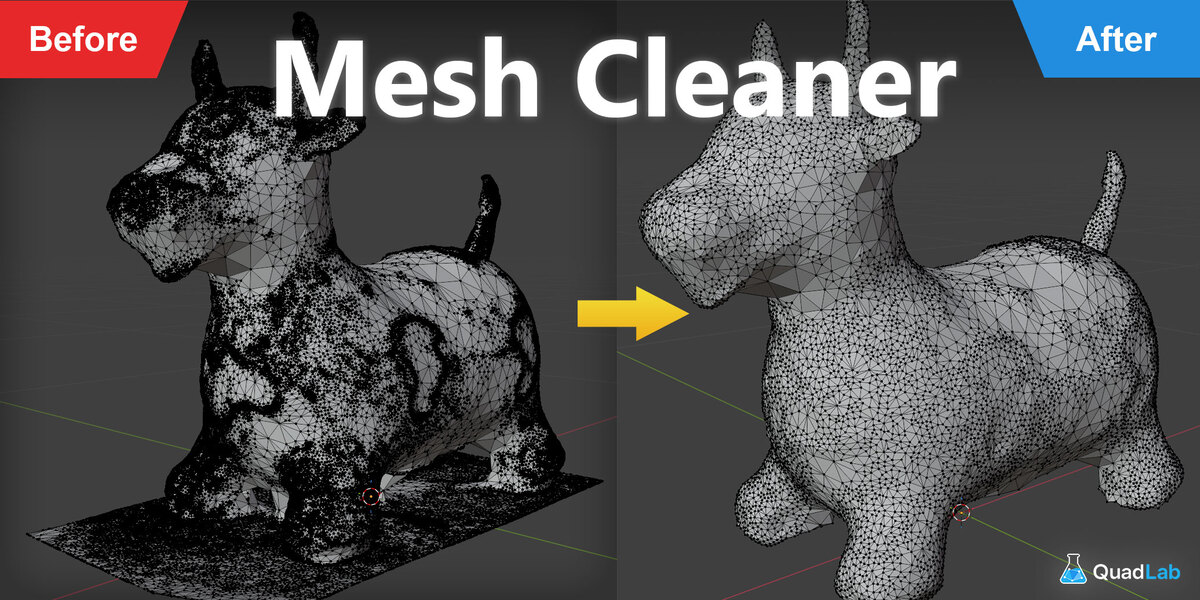
Mesh Cleanup Tool is a Blender add-on by 3Z Axis for cleaning and inspecting mesh geometry in Edit Mode. Its operations cover duplicate vertices, degenerate geometry, loose elements, redundant edges and face normals. The Superhive product listing and its documentation describe workflows for game asset preparation, fixing imports from CAD or other DCCs, reducing geometry for performance, 3D printing cleanup, technical and hard-surface modeling, and finalizing assets for export.
The add-on groups these controls in one interface, works on multiple selected mesh objects and has no external dependencies. Its actions are undoable, so you can inspect a result and use Blender's undo command if a cleanup changes the mesh in an unwanted way.
Cleanup and inspection options
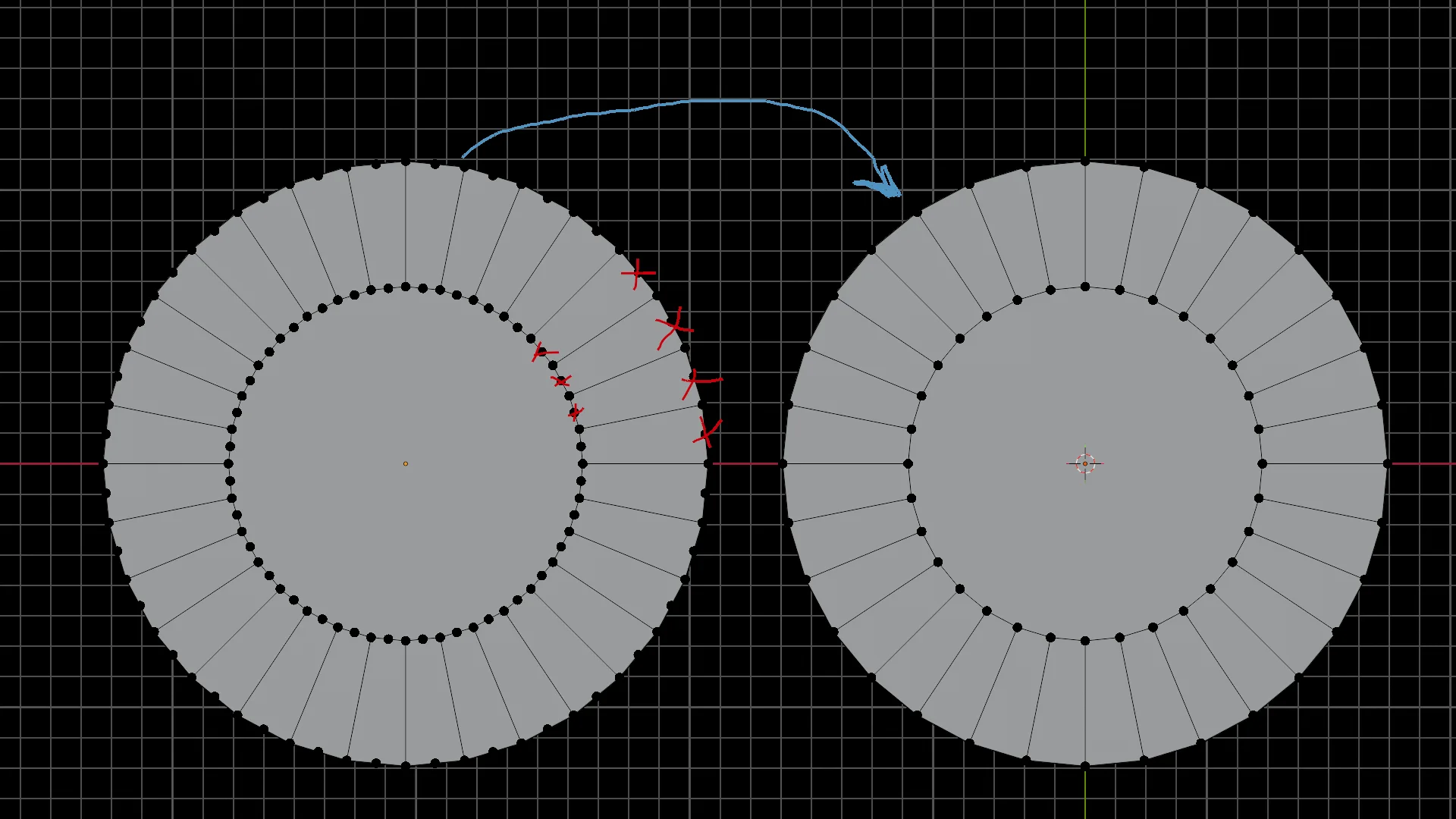
- Remove Doubles merges overlapping or duplicate vertices. Set the merge distance to control how close vertices must be.
- Dissolve Degenerate removes zero-area faces and unnecessary edges.
- Delete Loose Geometry removes disconnected vertices, loose edges and isolated faces.
- Smart Dissolve dissolves vertices connected to only two edges in a straight line; it dissolves edges that do not affect mesh shape according to an adjustable angle threshold.
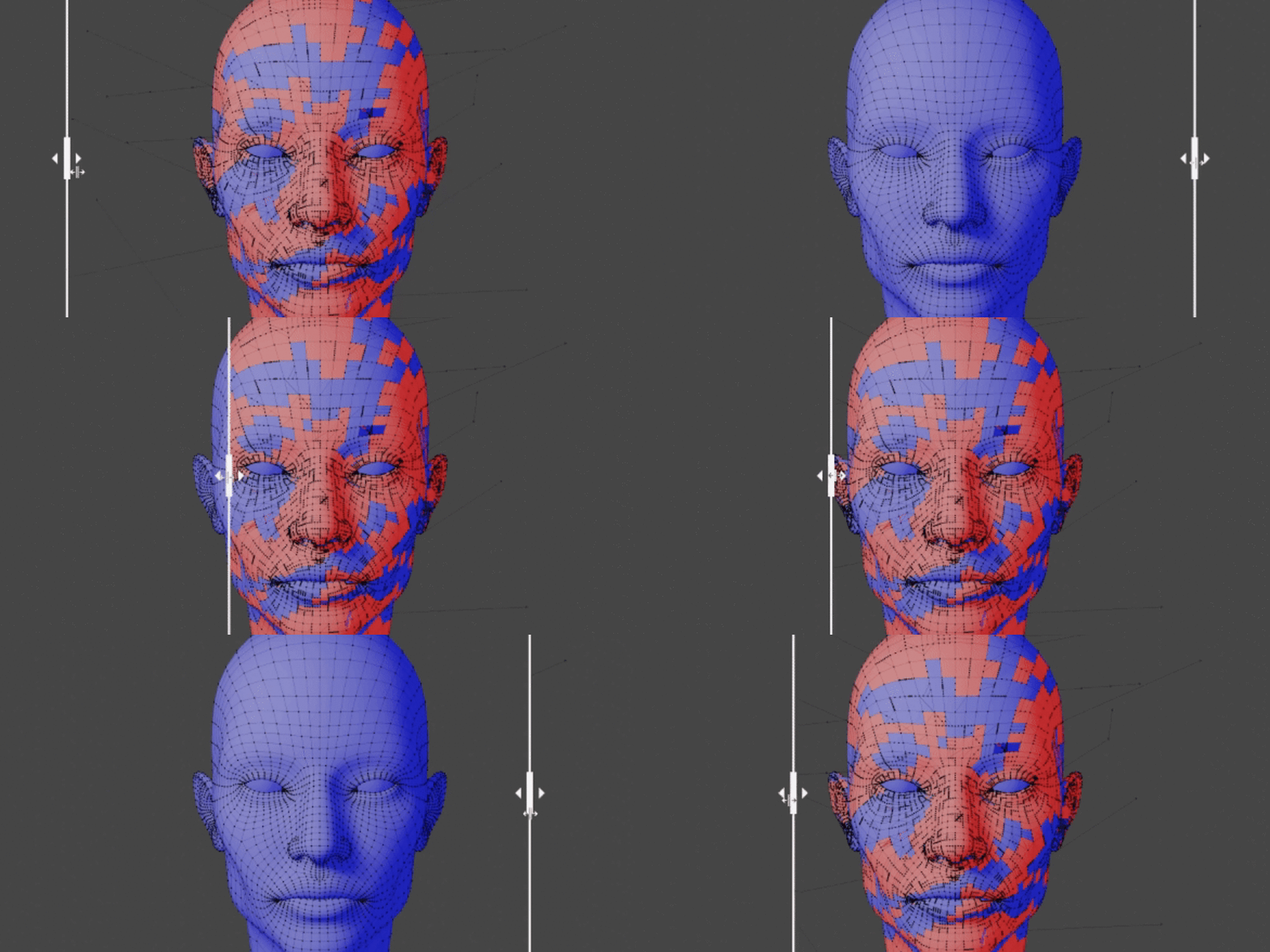
- Recalculate Normals rebuilds face normals, with an option to flip them.
- Select Problem Areas can select non-manifold edges, non-planar faces, triangles or n-gons for review. These selections help you inspect geometry; the tool does not remove triangles or n-gons by default.
Live View, also called View Selected in the documentation, frames selected problem areas in the viewport for inspection after cleanup.
Opening the tool in Blender
Install the add-on ZIP through Edit > Preferences > Add-ons and enable Mesh Cleanup Tool. Select a mesh, enter Edit Mode, then press Shift + M or use Blender's F3 search for Advanced Mesh Cleanup.
If the shortcut appears to do nothing, check that Blender is in Edit Mode and a mesh object is selected. A clean mesh may have no geometry for the cleanup operations to change; use the problem-area selection options to inspect it.
When to adjust the settings
The merge distance and dissolve angle affect which vertices and edges are changed. Review those values before running cleanup on a mesh where small details matter. The product FAQ specifically advises caution with dissolve thresholds on dense or sculpted meshes, since an aggressive threshold can remove intentional detail. For triangles, n-gons and other selected issues, inspect the result and decide whether any manual changes are needed.
Compatibility and license
The Superhive listing reports Blender compatibility from 2.8 through 4.5 and lists the license as GPL. Check the current product listing for availability.