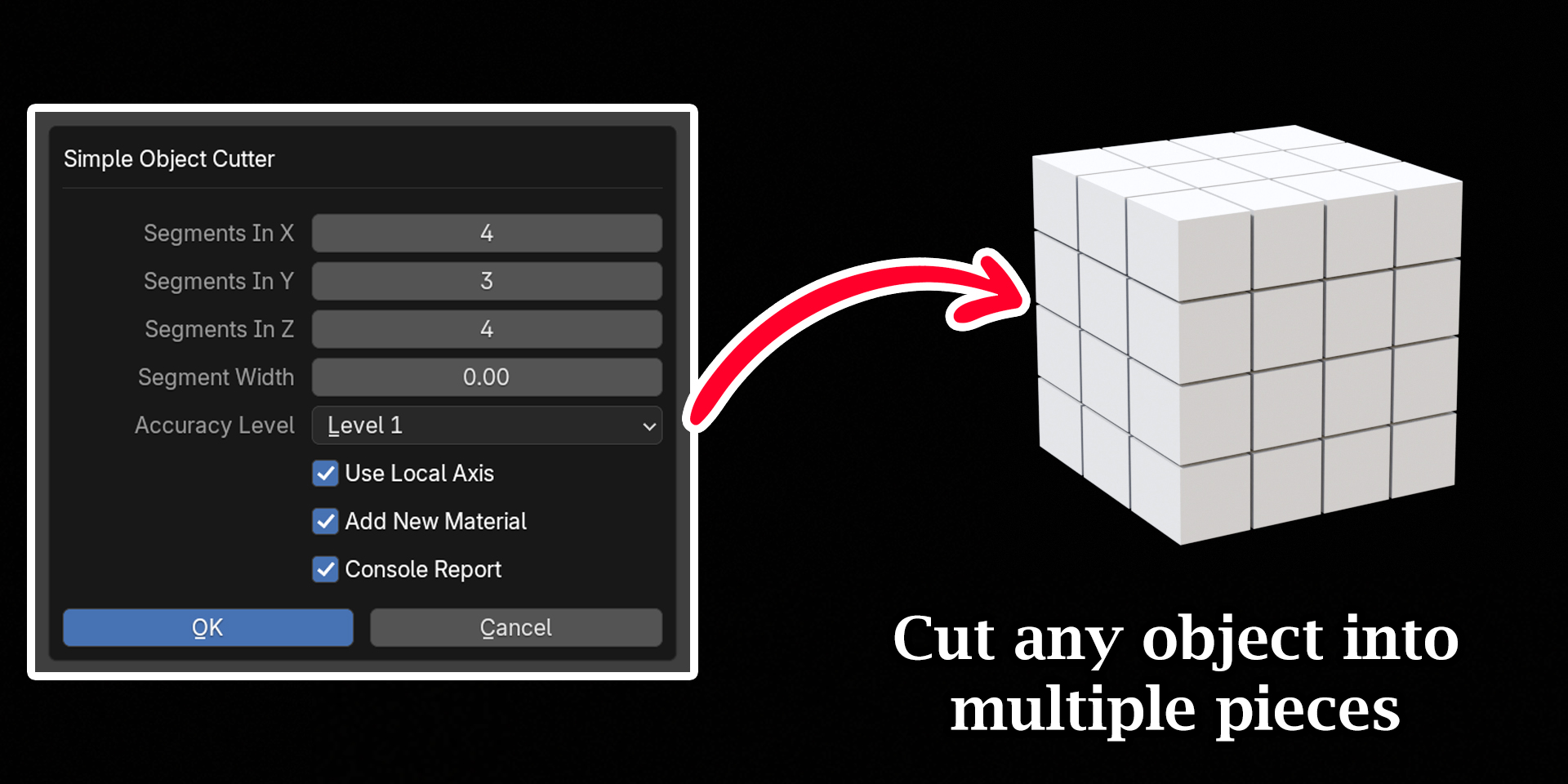
Meshcutter is a Blender add-on from CreateVisions for slicing selected meshes into separate objects. It handles separation and cap faces in the background, so you can make cuts without entering Edit Mode or cleaning up disconnected geometry by hand. It uses Blender's built-in cutting operations, and the result depends on the cutter and mesh. Read the Meshcutter documentation.
Choose a cutting mode
Last Selection as Cutter: Select the target mesh or meshes first and a cutter object last. With a flat cutter whose name contains “Plane” and Global Cut on, the plane sets the cut direction and the cut passes through the mesh. Turn Global Cut off to use the plane's position and size for a Boolean cut.
All Selected Cut the Last One: Select multiple cutter objects first and the target mesh last. Meshcutter applies the cutters to that target and separates the resulting parts. With flat cutters whose names contain “Plane,” Global Cut on makes each plane cut through the target by its direction; with Global Cut off, each plane’s size and position determine a Boolean cut. Global Cut has no effect for regular mesh cutters.
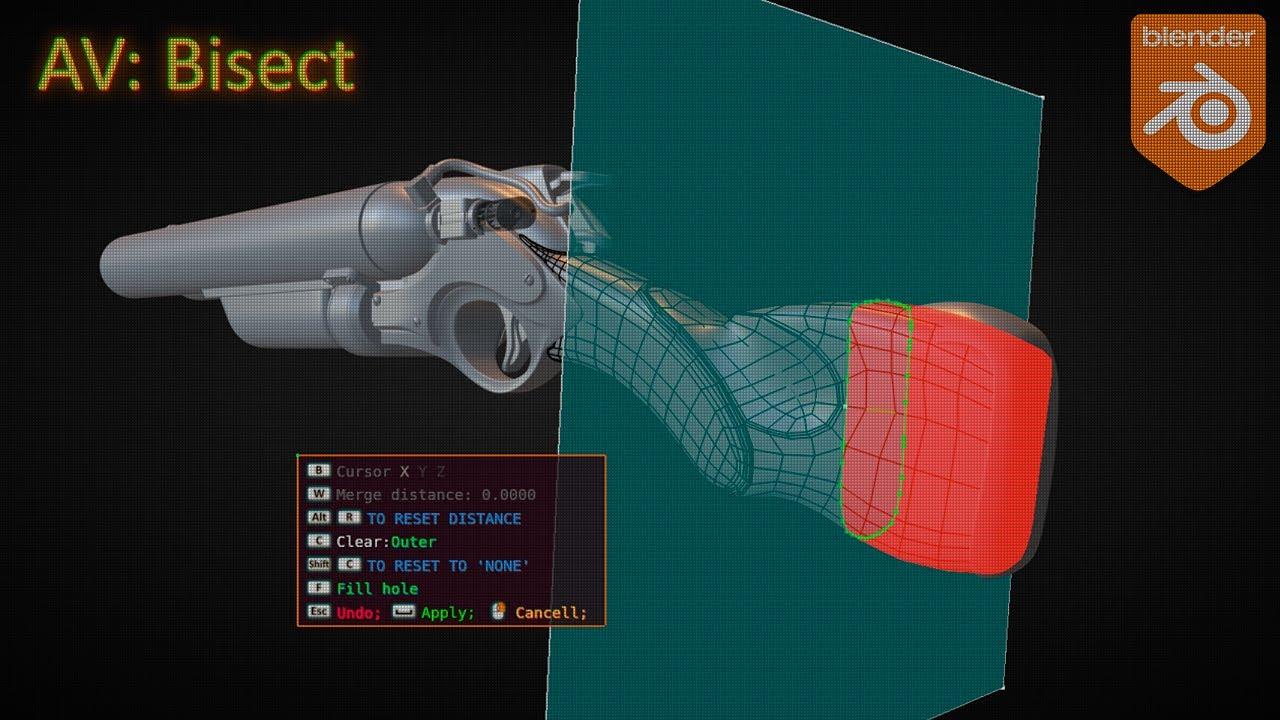
Bisect Cut Mode: Draw one line across the selected meshes, or place several points for a more complex cut. The selected meshes are cut and separated automatically.
Draw or Project Mode: Draw a Bezier or linear spline, circle, rectangle, or polygon over selected geometry. The spline stays editable and can be reused to project the same cut onto other meshes.
Place cuts with snapping
In Bisect Cut Mode, hold SHIFT to snap to vertices or edges. When both are nearby, Meshcutter gives the vertex priority. Hold CTRL to snap the cut line in 15-degree steps. Cut points stay attached to the mesh surface while you zoom or pan, and RETURN finishes the cut without adding another point.
Use orthographic view for Cut Selected, Start Bisect Cut, Draw & Cut, and Project & Cut. Perspective can distort where the cut appears on the mesh. Press Numpad 5 to switch between perspective and orthographic view.
Compatibility and installation
The 1.6 release supports Blender 4.4, 4.5, and 5.x. It comes as one download and adjusts to the Blender version in use. To install it, open Edit > Preferences > Get Extensions, choose Install from Disk from the menu, and select the downloaded ZIP file. Installing a newer copy replaces the older version.
Working with dense meshes
Meshcutter works with high-poly geometry. CreateVisions tested it on a 3-million-polygon scan model. Processing time varies with mesh density, cutter type, and curve complexity; fine Bezier cuts can take longer. During a dense cut, Blender may appear unresponsive while it works in the background, so wait before closing it. Some complex cuts take a minute or two.
See the Meshcutter FAQ for troubleshooting Global Cut, Project & Cut, and keeping only the overlapping part.