MMatcher analyzes an audio input and a reference, then adjusts the input toward the reference's spectrum, loudness, and stereo field. Its documented workflows cover mix and master matching, headphone and monitor correction, and dry electric guitar or bass tone comparisons. The result is a measured starting point to refine by ear.
Match a mix to a reference
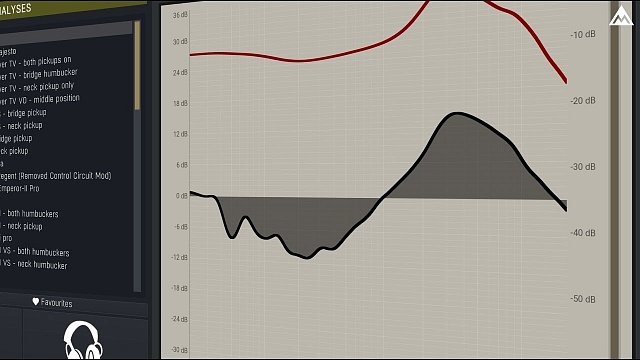
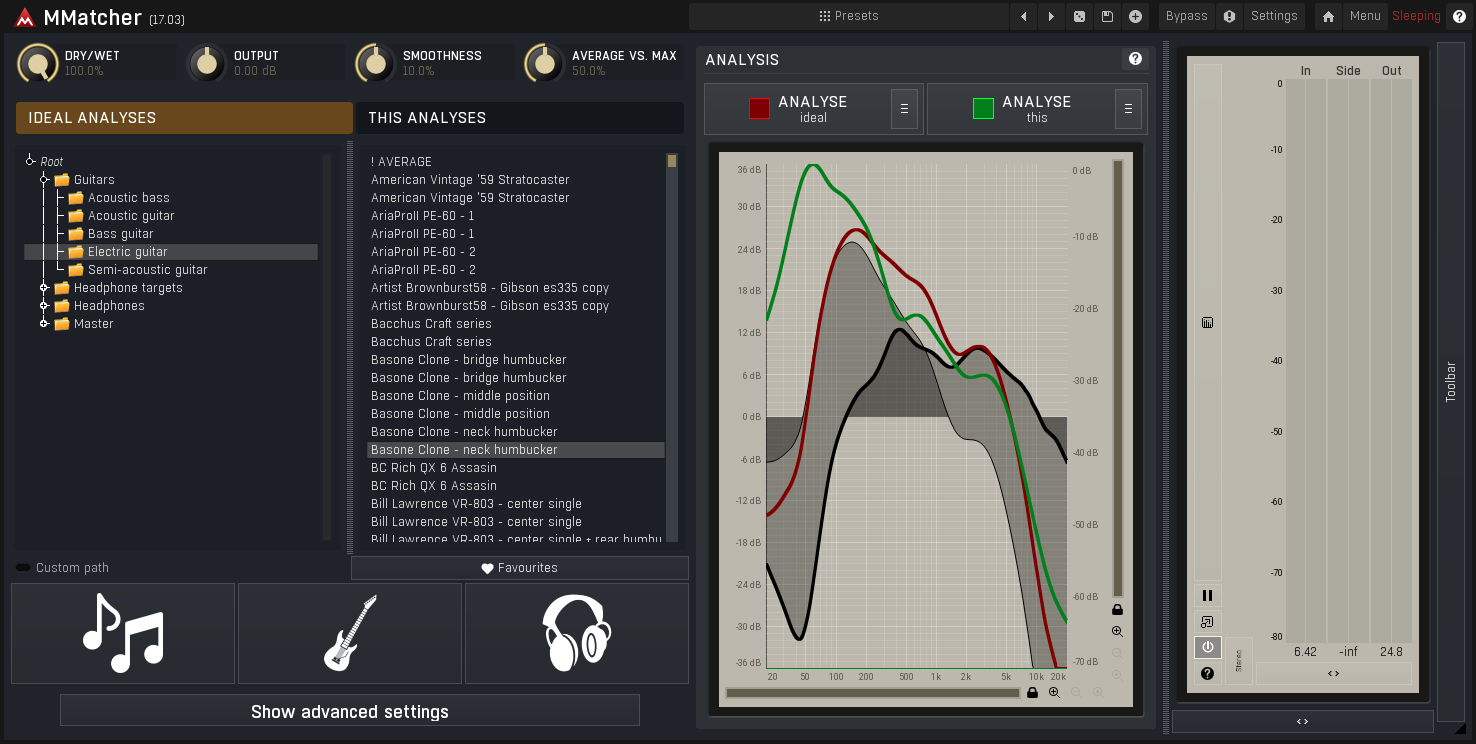
In Song mode, choose a supplied reference analysis or analyze a song file. Play your mix through MMatcher for as much of the track as practical, including at least its loudest section. After analysis, the plugin calculates a match for the spectrum, loudness, and stereo field. Lower Smoothness makes the match follow the reference spectrum more closely, which may be unhelpful when the mix and reference use different keys or instruments. Average vs. Max sets the balance between the average spectrum and the maximum from the temporal average.
Correct headphone playback
For headphone mixing, place MMatcher at the end of the monitoring chain. Select your headphone model under Input analyses, then choose a target under Reference analyses. The manual suggests the Default reference if you are unsure; All headphones average and All headphones median are alternatives for mixes intended for headphone listeners. If your model is missing, you can import a manufacturer frequency-response CSV. The manual also describes measuring with pink noise and a flat-response microphone, but warns that this approach may be inaccurate without the specialized fixtures and calibrated microphones used for headphone measurements.
Build a monitor correction profile
MMatcher can create a correction profile from studio monitor measurements. Use a flat-response measurement microphone and a test signal with equal levels across frequencies, such as pink noise or sine sweeps. The manual uses the Headphones setup for this procedure: capture an analysis at one ear position, repeat for the other ear and any nearby listening positions you want to include, then average the saved analyses. Load the average as Input analysis and choose Flat as the reference. This can help compensate for monitor and room response, but it cannot resolve extreme differences between listening positions, strong standing waves, or excessive echoes. Acoustic treatment may still be necessary.
Compare guitar and bass tones
For guitar or bass, start with a dry input and analyze the instrument across its playing range. MMatcher includes a community-created collection of dry electric guitar and bass references to audition against that analysis. You can also save your own analysis for later use. This workflow is suited to tone comparison and experimentation; each instrument and playing style differs.
Compatibility and licensing
MeldaProduction lists Windows 10 or 11 (64-bit) with 64-bit VST, VST3, or AAX hosts and an Intel or AMD CPU with SSE2; for macOS 10.14 or newer (64-bit), it lists 64-bit VST, VST3, AU, or AAX hosts and Intel, AMD, or Apple Silicon CPUs. Linux is not directly supported; Melda says Wine may work if `.wine/drive_c/windows/Fonts/` contains Microsoft TrueType fonts. Check the MMatcher support page and host requirements for your setup.
The MMatcher product page offers a trial. MeldaProduction's general licence terms describe a 15-day fully functional trial for commercial software, followed by demo mode with limitations unless activated. Activation uses a licence file and does not require a hardware dongle or an internet connection. The licence is personal: its owner may activate it on their own computers, but only the licence owner may operate the software. The MMatcher manual covers the analysis controls and setup steps in more detail.