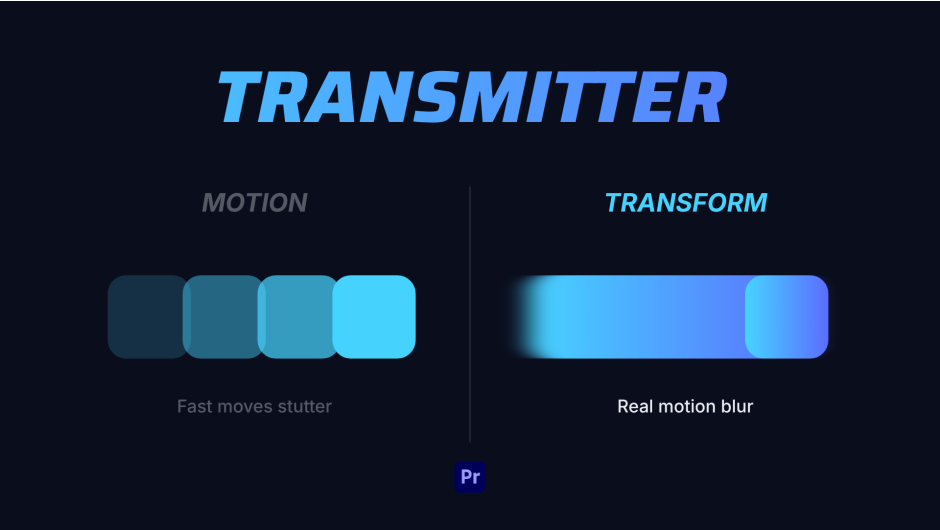
Motion to Transform is a UXP panel for Adobe Premiere Pro that transfers animation from the Motion controls to the Transform effect. It moves Position, Scale, Rotation and Anchor Point values with their keyframes, preserving timing so you can continue the animation in Transform-based controls.
The panel is useful when you want to animate quickly in Motion, then prepare the work for Transform finishing or motion blur. It can add the Transform effect when needed. See the Key-Farmer product page for current product details.
Transfer Motion animation from a clip or graphic
- For version 1.0.3, confirm Premiere Pro 25.6.4 or later is installed, then open a sequence and select the video clip or graphic to process.
- In Premiere Pro, open Window > UXP Plugins > Motion to Transform.
- Choose Manual, All Magic or All Magic Copy Only.
- In Manual mode, select the properties and choose an action for each one.
- Before applying, save or duplicate important sequences if you have already animated the processed properties in Transform; existing keyframes for those properties may be replaced. Optionally enable the 180-degree shutter setting, click Apply and review the Report panel.
Choose how the animation is transferred
Manual mode lets you choose which Motion properties to transfer. Copy leaves the original Motion animation in place. Copy + Remove transfers the animation, removes its original keyframes and resets the processed Motion properties. All Magic uses a faster copy-and-remove workflow for supported Motion animation. All Magic Copy Only transfers supported animation while keeping the original Motion animation.
Compatibility and price
Version 1.0.3 requires Premiere Pro 25.6.4 or later and supports macOS and Windows. Key-Farmer lists a $4.99 launch price through Adobe Exchange and says pricing may change. The Quick Start guide covers installation and the first transfer.