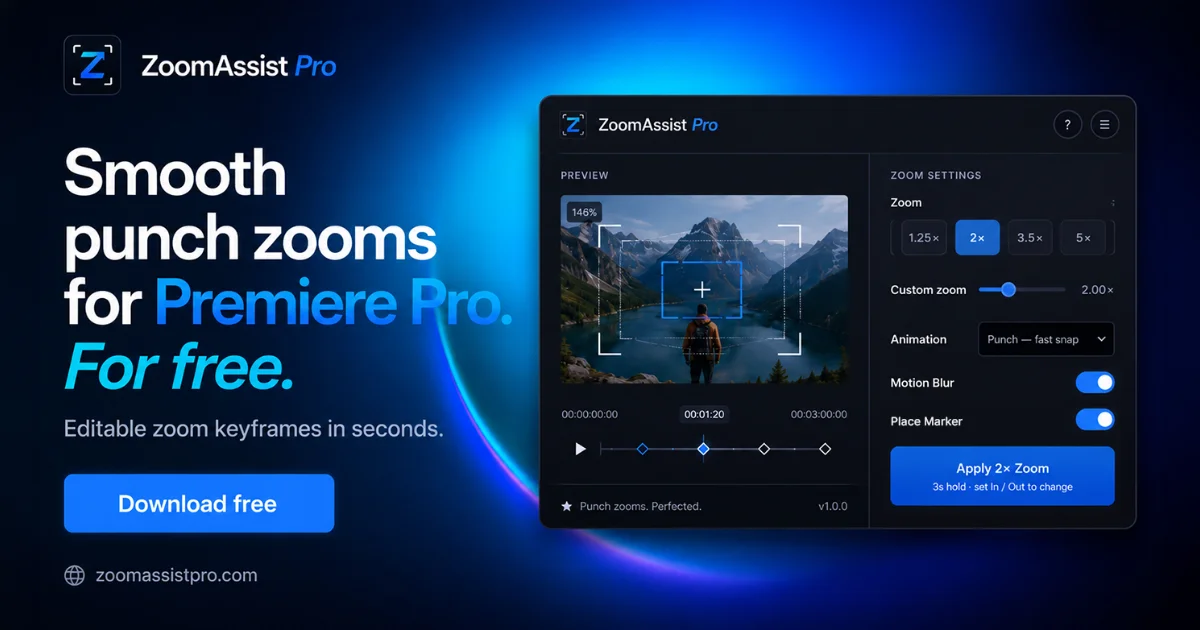
ZoomAssist Pro is a free UXP plugin for Adobe Premiere Pro that creates punch zooms from a chosen point in a clip. It writes the movement as editable Scale, Position, and Anchor keyframes, so the zoom remains in your timeline for later adjustments.
The workflow suits screen recordings, tutorials, course videos, social clips, and product demos, where a zoom can direct attention to a control or detail. You choose the focus in a captured frame, then apply the move to a selected clip inside Premiere Pro.
How to create a punch zoom
Start with the clip and moment you want to emphasize:
- Select the clip in the timeline and move the playhead to the intended point.
- Capture a frame, then click the preview to set the zoom's focus point.
- Choose a preset and set the zoom scale. Use the sequence In and Out points if the zoom should hold longer.
- Turn on motion blur or add a timeline marker if useful, then apply the zoom to the selected clip.
Choose a motion style
The four presets give the movement different pacing. Choose one to suit the shot, then adjust its scale and timing if the default does not fit.
- Cinematic uses a slower, deliberate move for interviews, narrative beats, or product reveals.
- Smooth has a balanced pace for general editing.
- Punch moves quickly for a beat, reaction, or short social clip.
- Instant snaps in quickly for a brief emphasis.
You can set a custom zoom scale. Motion blur is optional. Use In and Out points to control the hold; timeline markers can show where a zoom was applied.
Keep the zoom editable
When applied, ZoomAssist Pro writes Scale, Position, and Anchor keyframes directly onto the selected Premiere Pro clip. You can refine the framing or timing in the edit afterward. The zoom is created in the timeline, so there is no separate baked-in export workflow to manage.
Check setup details
For the current Premiere Pro requirements and installation options, check the Adobe Exchange listing or the developer's install guide before installing.