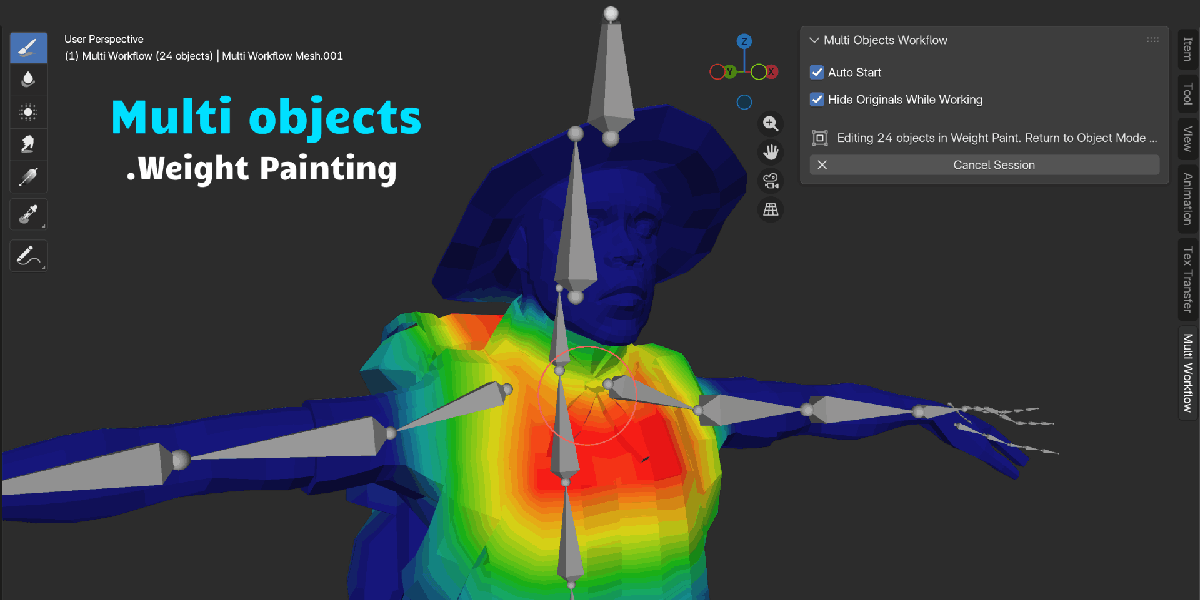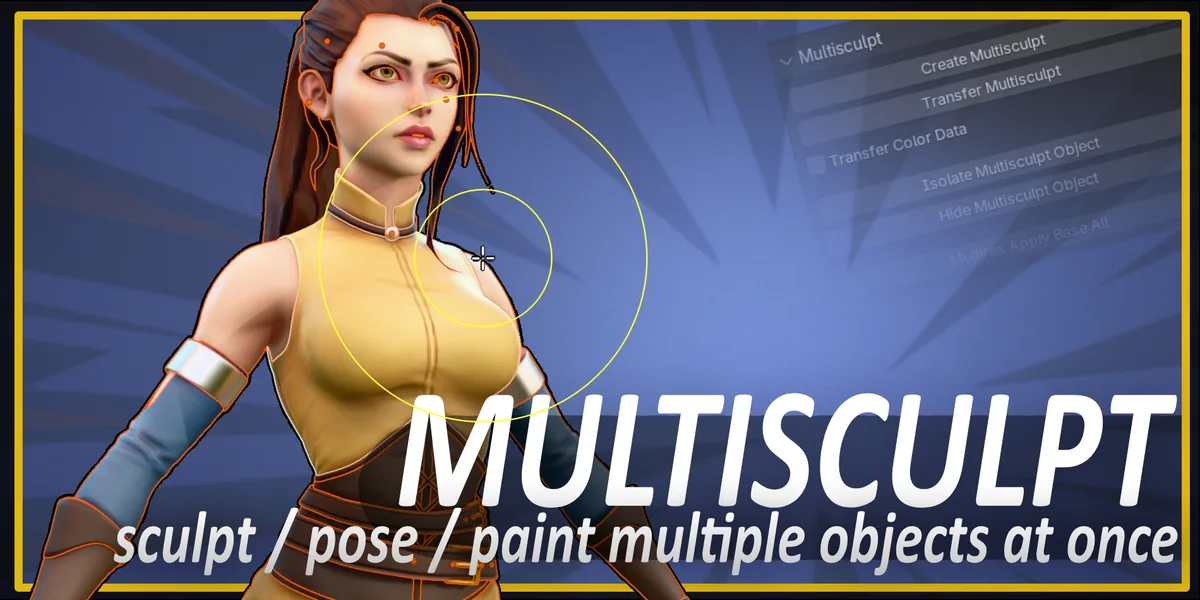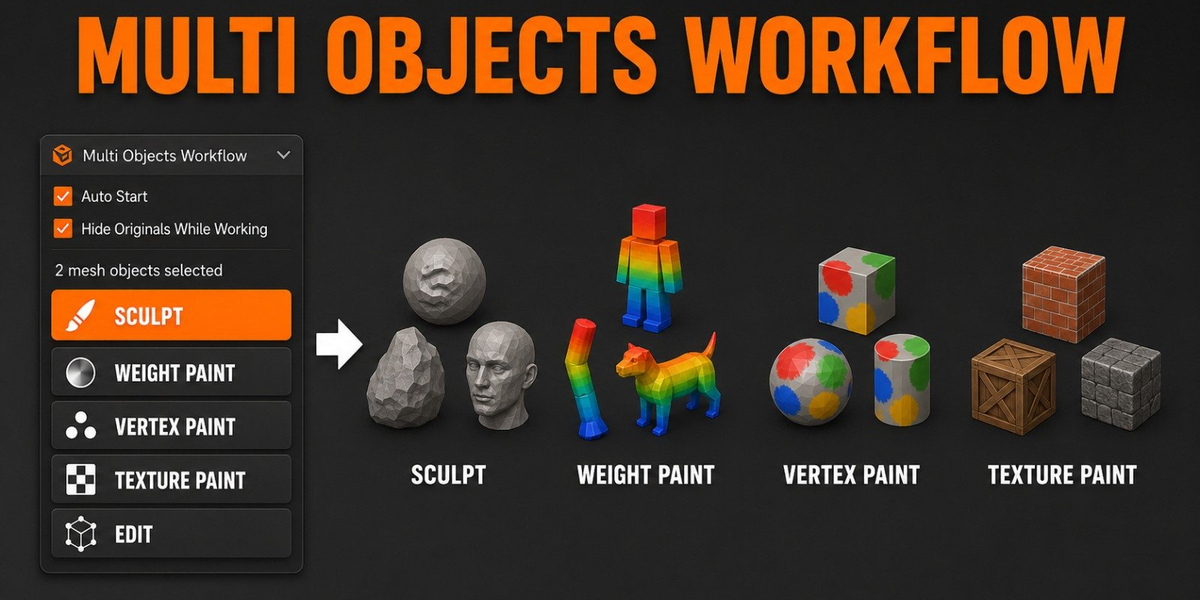
Multi Objects Workflow lets Blender artists sculpt, paint, weight paint, and edit across multiple mesh objects in one session. It builds a temporary combined mesh for editing, then transfers supported changes back to the original objects when you return to Object Mode. This suits assets such as characters with separate clothing and armor pieces, modular environment kits, and multi-part props that need to remain separate objects.
How a multi-object session works
- Select the mesh objects you want to edit and start a session.
- Work on the temporary mesh across object boundaries.
- Return to Object Mode to finish the session and transfer supported edits to the original objects.
The add-on hides the original objects while the temporary mesh is active, then removes that mesh when the session ends. Auto Start can begin a session when you switch modes with multiple objects selected. Cancel removes the temporary mesh without writing session edits back to the source objects, according to the product listing.
Supported editing modes
- Sculpt Mode: sculpt across seams and separate mesh boundaries.
- Weight Paint: paint deformation weights across objects such as a character's body, clothing, and accessories. Vertex groups are remapped for the working mesh and modified weights transfer back to the originals.
- Vertex Paint: paint color attributes across the selected meshes.
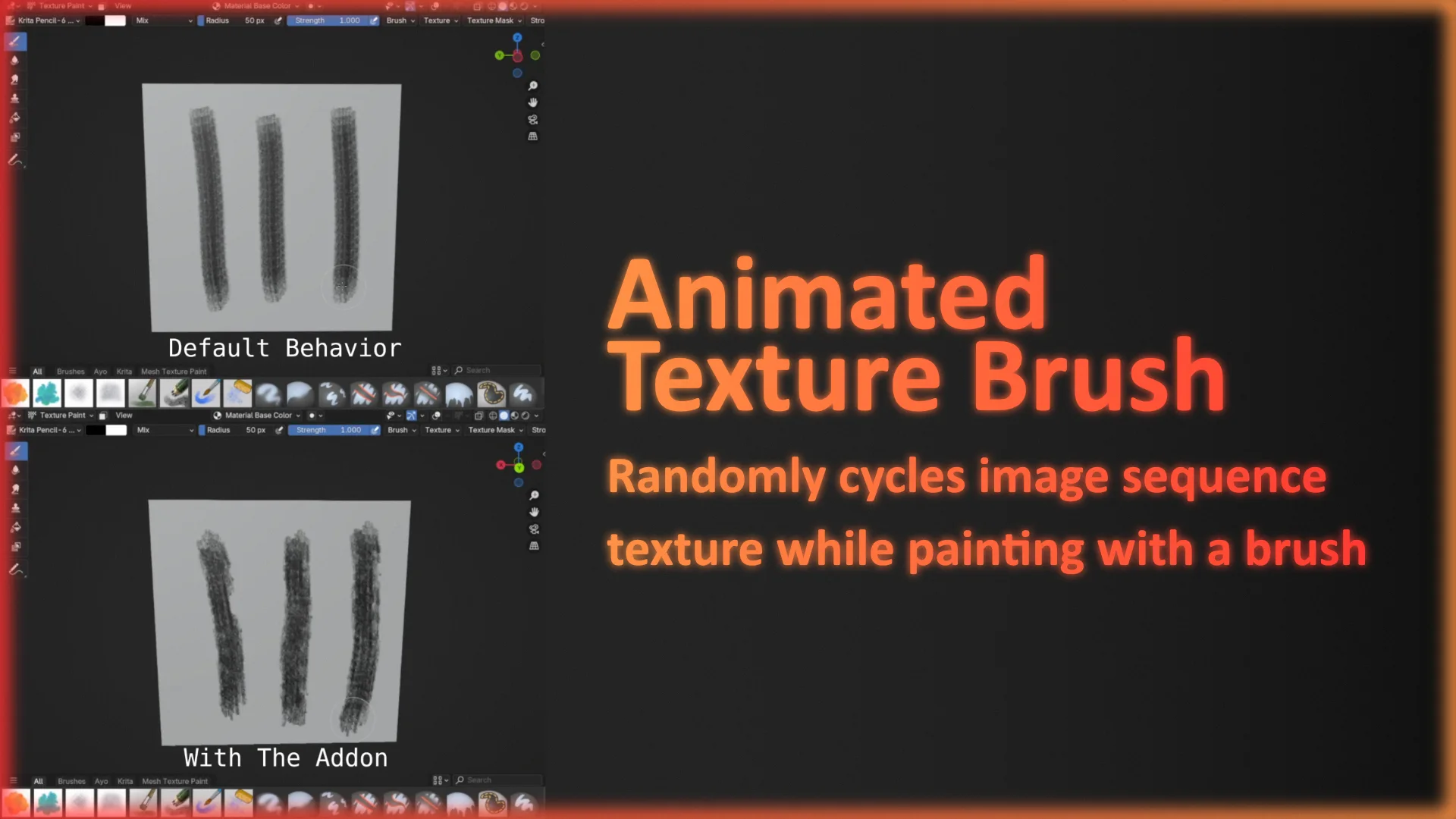
- Texture Paint: paint to image textures referenced by the objects' materials.
- Edit Mode: work on topology across parts, with weight and attribute transfer where supported.
What happens to object data
The product listing says each original object keeps its modifiers, UV maps, materials, and vertex group organization. Material slots are mapped into the temporary mesh, and UV maps carry through the session. Sculpt edits update the shape-key basis while retaining existing relative offsets, according to the listing.
Attribute conflicts between objects can prevent some attributes from transferring; the add-on reports these skips in Blender's console. It also detects topology mismatches. Operations such as dynamic topology, remeshing, vertex deletion, or adding geometry can trigger a skipped transfer, so changes made to the temporary mesh may not reach the originals. Check the current documentation before relying on topology-changing edits in a session.
Compatibility and license
The Superhive product listing reports Blender compatibility from version 3.0 to 5.2 and identifies the license as MIT. Check the listing for current compatibility and license details before installing. The AnyPlugins catalog entry also summarizes the workflow and supported modes.