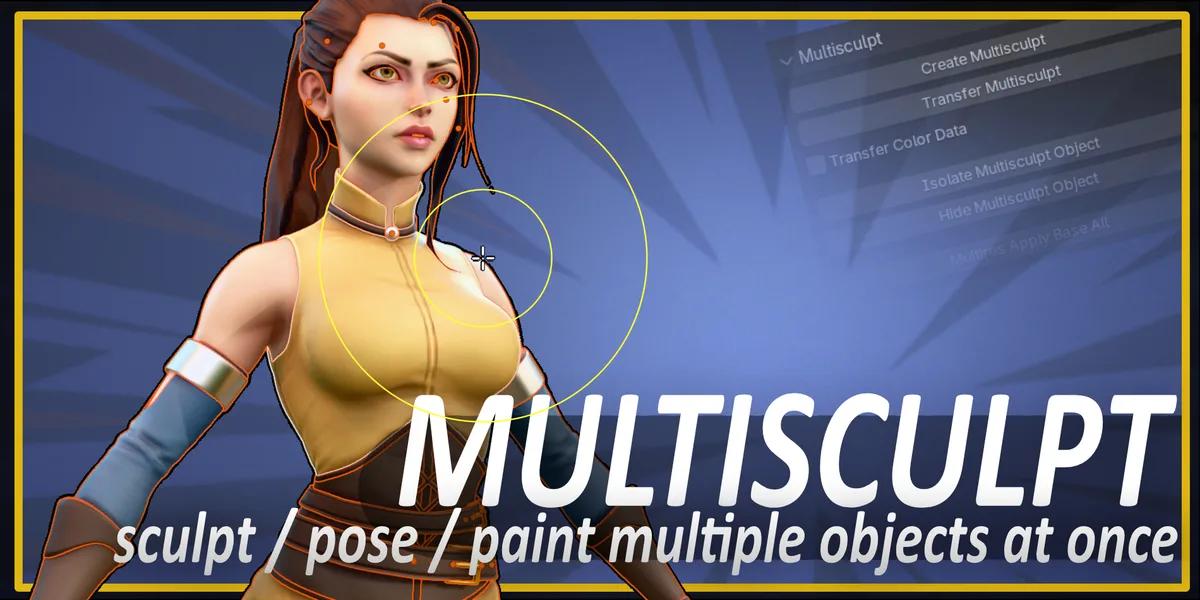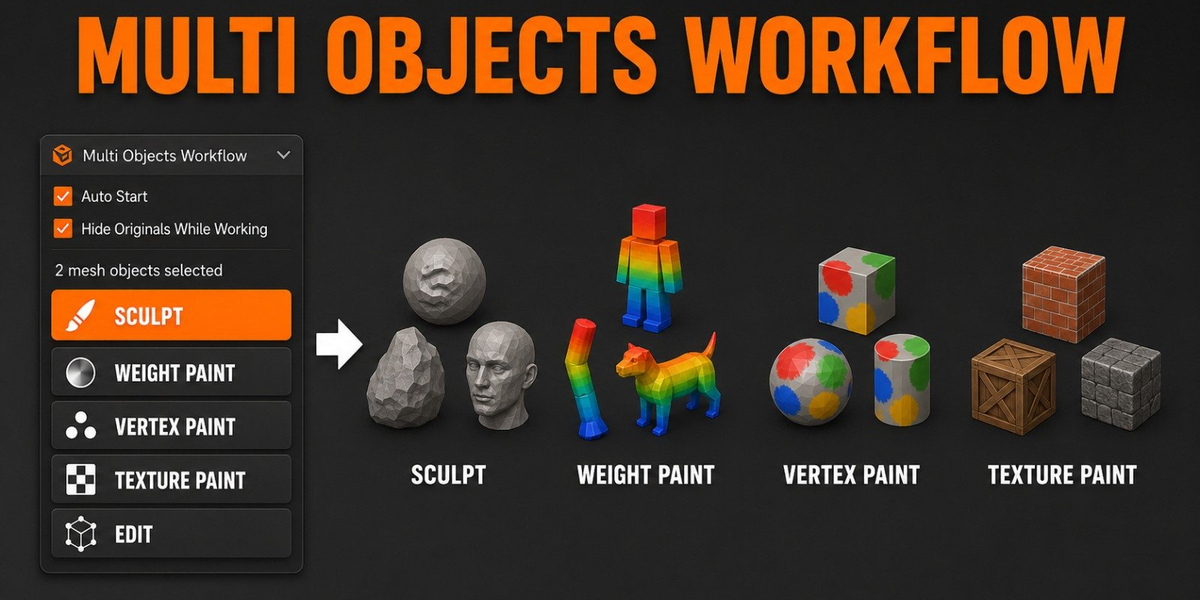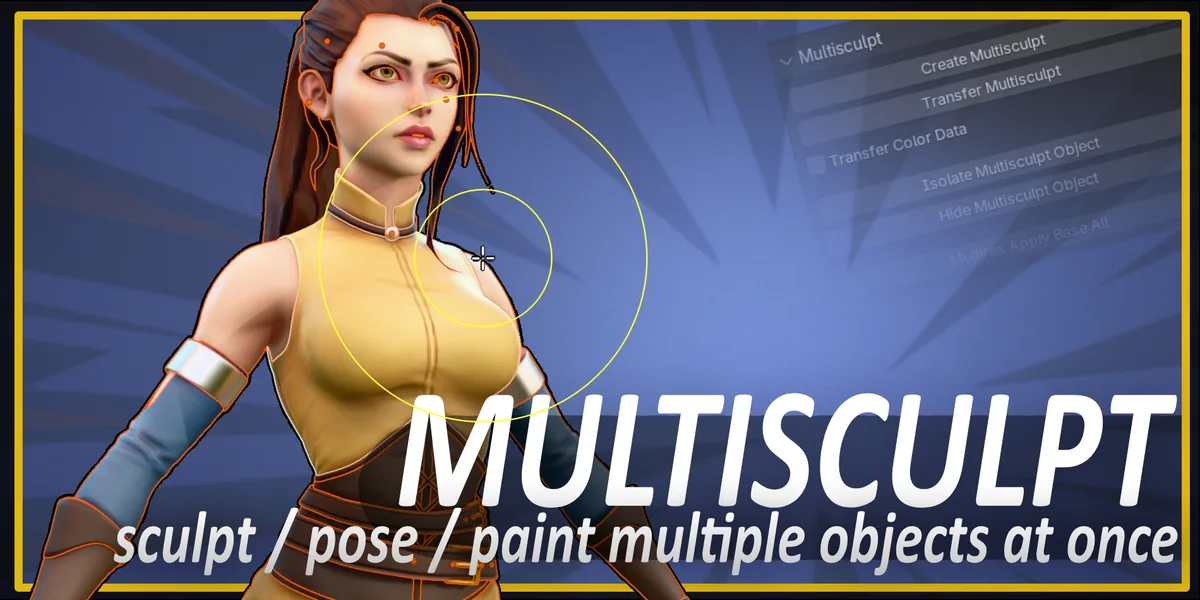
Multisculpt is a Blender add-on by lolpoly for sculpting, vertex painting, texture painting, and weight painting across several mesh objects. It creates an editing proxy from your selection, then transfers changes back to the original objects while preserving their modifiers, transformations, materials, UVs, vertex colors, shape keys, and other custom attributes.
Edit several objects through one proxy
Select at least two mesh objects and create a Multisculpt proxy from the default-enabled Modes Pie Menu or the Multisculpt panel in the N-panel. Non-mesh objects in the selection are filtered automatically, and the originals are hidden while you work. When you are ready, use the panel's Transfer Multisculpt control to send the changes back.
The workflow depends on keeping the mesh topology consistent: do not change the vertex count of the proxy or the original objects before transferring. That rules out operations such as extruding, beveling, or deleting geometry during the proxy session. Sculpting and painting edits can then be transferred to the separate source objects.
Modifiers, colors, and vertex groups
Multisculpt preserves the originals' modifiers, including Multires. The Keep Common Modifiers option also carries modifiers shared by all selected objects onto the proxy. It is intended especially for armature modifiers, so you can work across rigged meshes while retaining their pose. Mirror, Bevel, and Boolean modifiers can produce unexpected results when combined on the proxy; the original modifiers remain preserved.
Color and vertex-group transfer have their own controls in the N-panel. Colors move from the proxy's active color attribute to each original object's active attribute, creating one if needed. Different color domains and data types are handled automatically. Vertex-group data transfers only to objects affected by each group.
Multires and shape-key workflows
For objects with a Multires modifier, you can choose to work at the current sculpt subdivision level instead of the base geometry. Transferred edits return to that same level and are not automatically applied to the base. The Multires Apply Base All button runs Apply Base on selected objects with Multires, applying existing Multires displacement to the base level so a new proxy matches the visible subdivision; the button skips objects with shape keys. Version 2.0 also runs Apply Base automatically when creating a proxy for objects with Multires. Color transfer is skipped for objects using a Multires level because Blender does not support vertex colors on those subdivision levels.
For Blender 5 and later, the listing says version 2.2 can keep shape keys on entry and transfer deformations to name-matching keys on the originals. The version 2.1 notes list transfers to a new key, the active key, or the basis, with an option to account for deformations from existing shape keys.
Compatibility and documentation
Superhive lists compatibility with Blender 4.2 to 5.2 and a GPL license. To install, drag the Multisculpt ZIP into the Blender viewport, or open Preferences, select Get Extensions, choose Install from Disk from the upper-right menu, select the Multisculpt ZIP, enable Enable on Install, then press Install from Disk. The official Multisculpt documentation covers the controls and transfer steps. Check the product listing for current compatibility and release details.