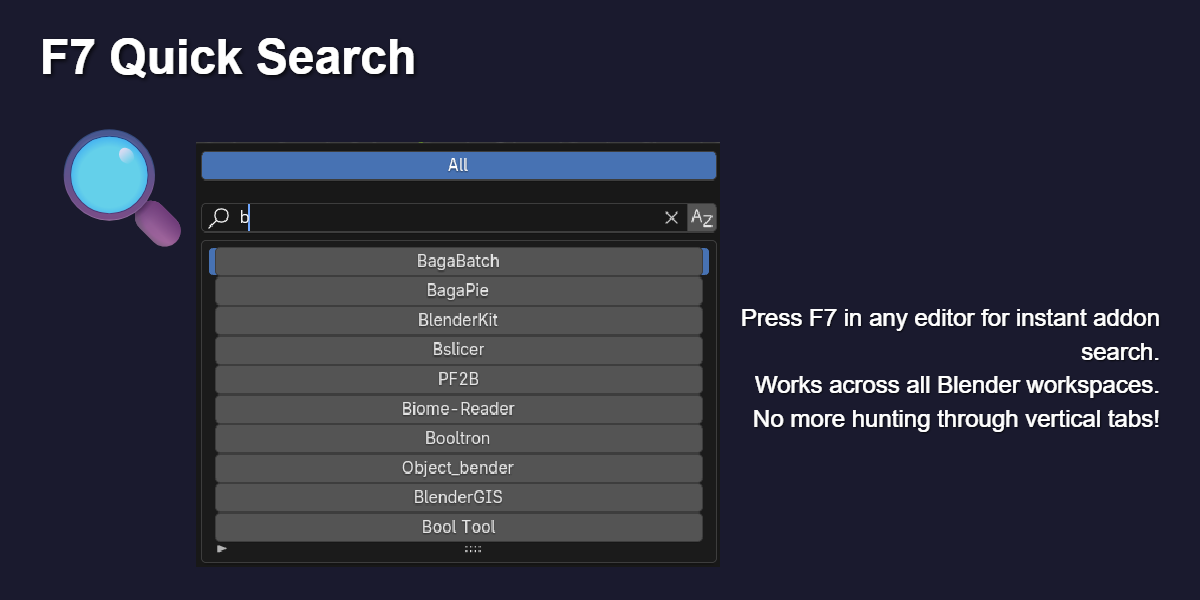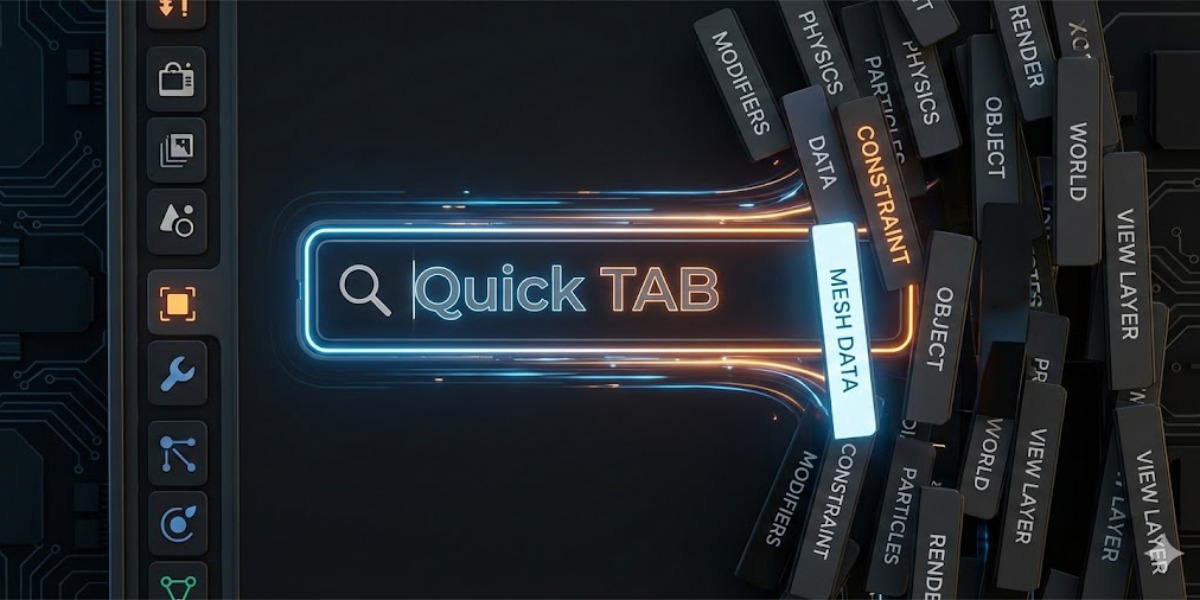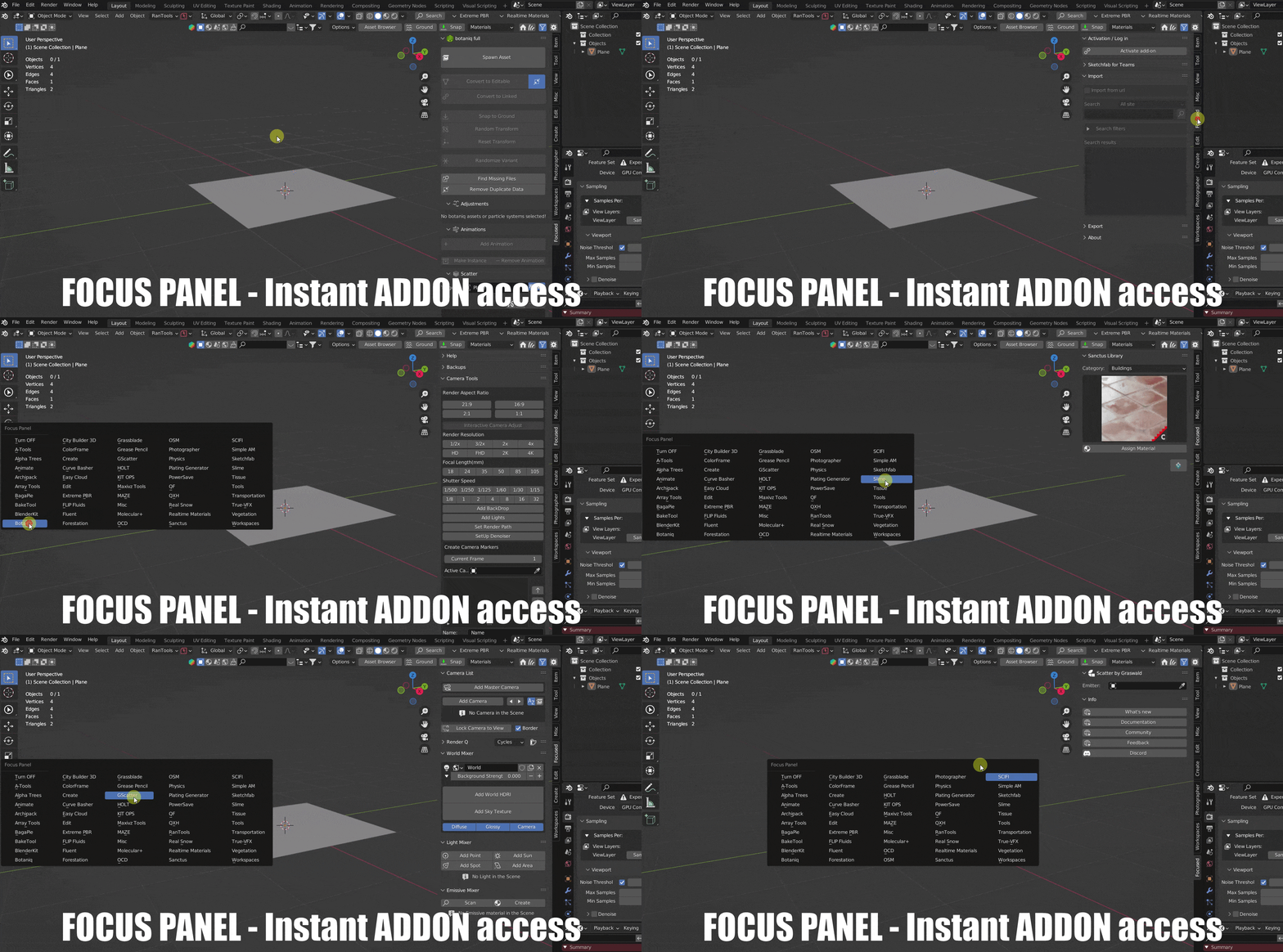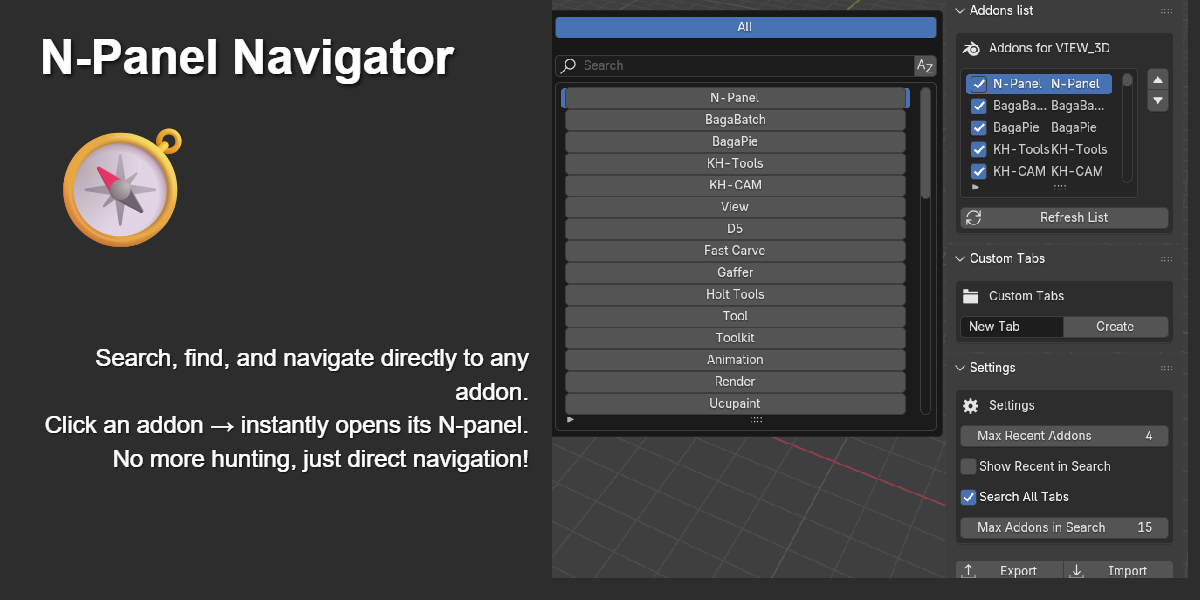
N-Panel Navigator helps Blender users find installed add-ons with panels in supported editors and open those panels directly. Press F7 to search, then select a result to expand its panel in the N-panel. The product documentation describes support across 13 or more editor types.
Search and open panels across supported editors
The popup filters add-ons by name and shows those available in the current editor or workspace. It also keeps recently used add-ons handy. In a crowded sidebar, users can open an add-on panel without manually browsing categories such as Tool, Edit, or Modifier.
Group add-ons into custom tabs
Create tabs for particular workflows, rename them, reorder add-ons, and choose a default tab for each editor. The popup can sort the list alphabetically and search across tabs when that option is enabled. The recent list holds up to 10 add-ons. Settings can be exported and imported for reuse or sharing.
Panel organization is experimental
A separate option attempts to move add-on panels out of crowded shared categories and into their own sections. It can be toggled for individual add-ons, but results depend on how each add-on is built. The product listing describes navigation as stable; if panel organization causes trouble, disable it to restore the original layout.
Compatibility and setup
The product listing shows Blender 4.2–4.5, while the version 1.0.0 documentation describes Blender 4.2 and later. Check the developer’s listing for your exact Blender release. The listing identifies the license as GPL, and the version 1.0.0 documentation specifies GPL 3.0.
Install and enable the add-on, then press F7 to try the search. For its organization controls, open the N-panel tab named N-Panel. If the list is empty, use Refresh List in the settings and check that the add-ons are enabled. An add-on must provide a panel in the current editor to appear.