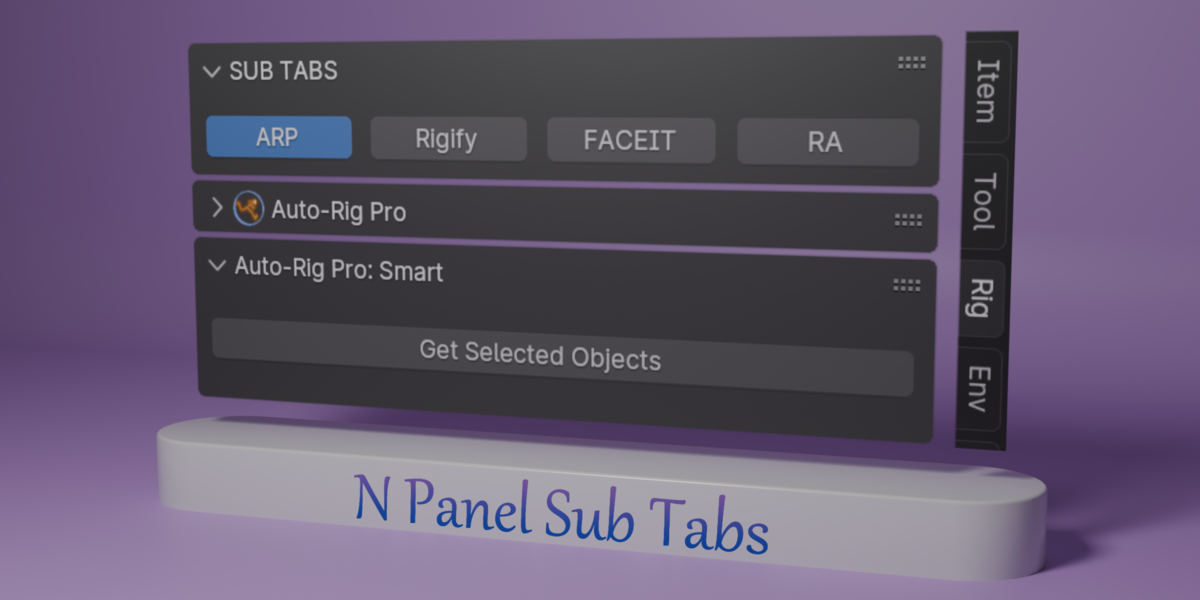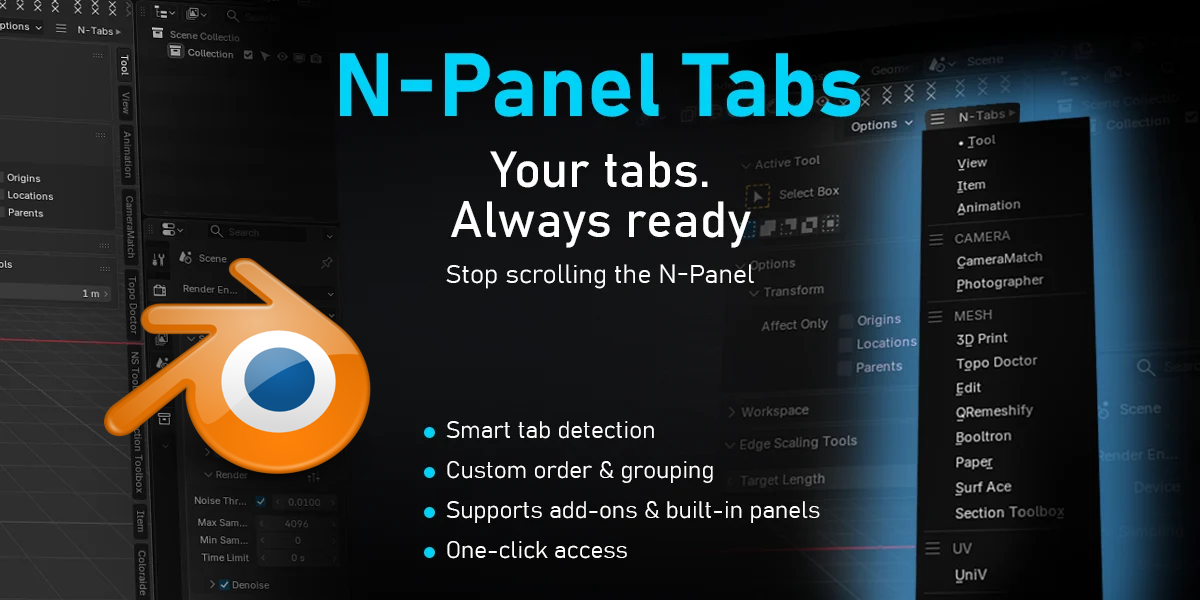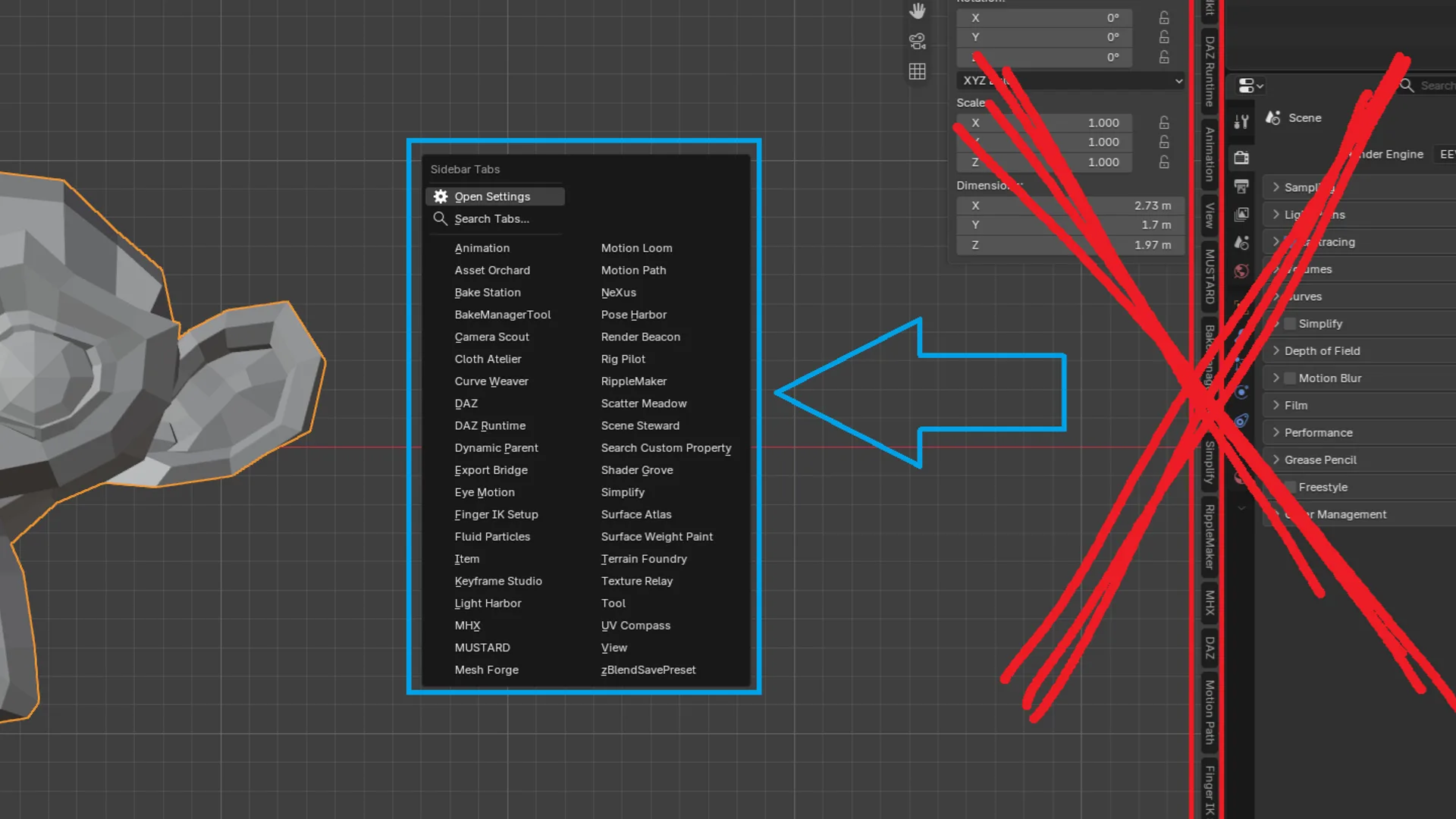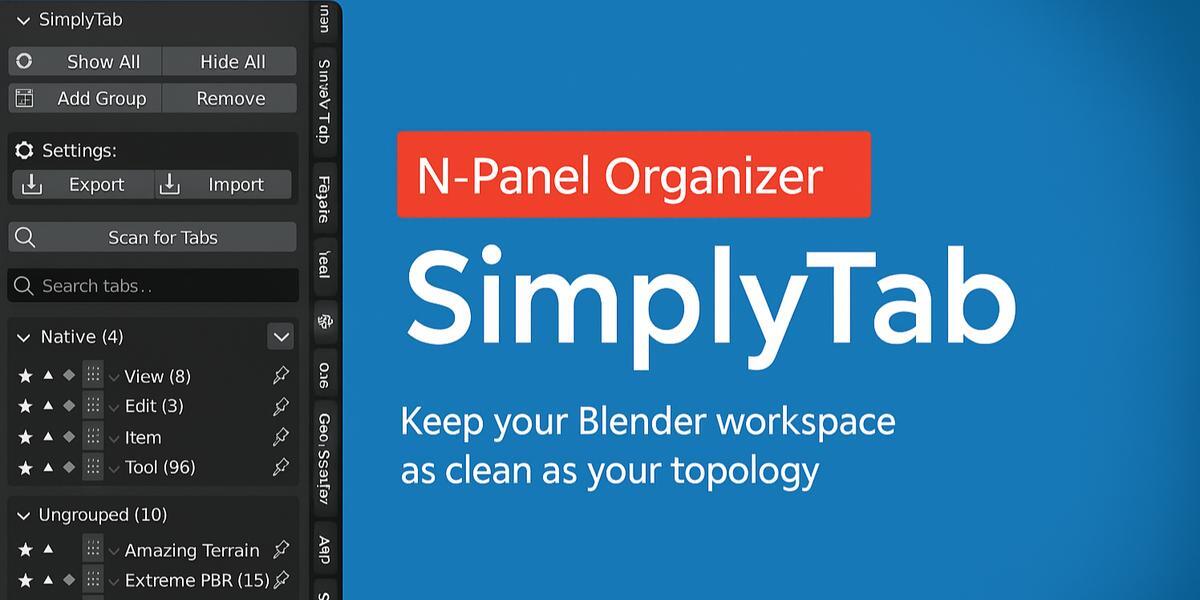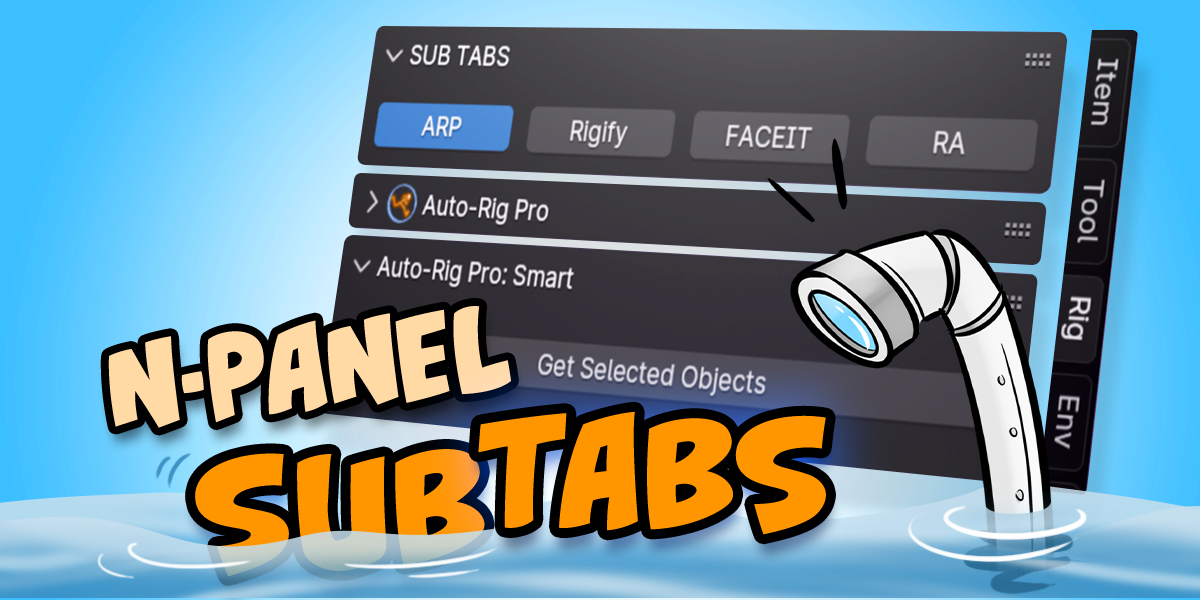
N Panel Sub Tabs is a Blender add-on for organizing tabs in the right sidebar, also called the N Panel. It lets you group tabs into categories and switch between them from a Sub Tabs Panel. The N Panel is separate from Blender’s left toolbar and header.
The add-on manages tabs, not add-ons directly. An add-on may contribute no N Panel tab, one tab or several; a tab may also contain panels from more than one add-on. See the product page for an overview.
Group tabs around a task
Create categories for related tabs, such as rigging or materials, then add and reorder tabs to suit your work. A tab can belong to more than one category, but its panels appear in the last category where you enabled it. To keep several tabs active in one category, hold Shift while selecting a tab. The documentation dates this option to version 1.1.0.
From version 2.0, you can make separate settings for workflows or workspaces. Switch settings manually, or set a matching expression to choose one when you change workspaces. The expression uses Python’s fnmatch pattern rules. When several settings match, the add-on checks the list from the end; if none match, it keeps the previous setting.
Apply settings and adjust preferences
After enabling the add-on, manage categories and tabs in the editor header. Add, rename, remove and reorder categories; fold them individually or together; and reorder tabs. Apply your changes with the Apply button, or enable Auto Apply On Settings Close. Add-on preferences include the maximum number of tabs per row, startup behavior and Exclude Tabs for panels the add-on should leave alone.
Supported editors and compatibility
N Panel Sub Tabs works with the N Panels in the VIEW_3D, IMAGE_EDITOR and NODE_EDITOR editor types. The product listing reports Blender 3.0 through 5.3 compatibility and a GPL license. Its documentation lists version 2.2.0, dated November 15, 2026, with a fix for importing settings in Blender 5.3. Check the documentation and product FAQ for current details.
Only one add-on should apply settings to the N Panel at a time. To use another manager, uncheck Auto Apply On Startup, restart Blender, and do not apply N Panel Sub Tabs settings manually. In version 1.x, HardOps and BoxCutter may still need their tab names restored in their add-on preferences. Some add-ons use their own panel arrangement and may need their tabs added to Exclude Tabs; restart Blender after changing that preference. If a tab is enabled but its panels are missing, check that the contributing add-on is enabled and that its panels’ requirements, such as selecting an object or using a particular mode, are met.