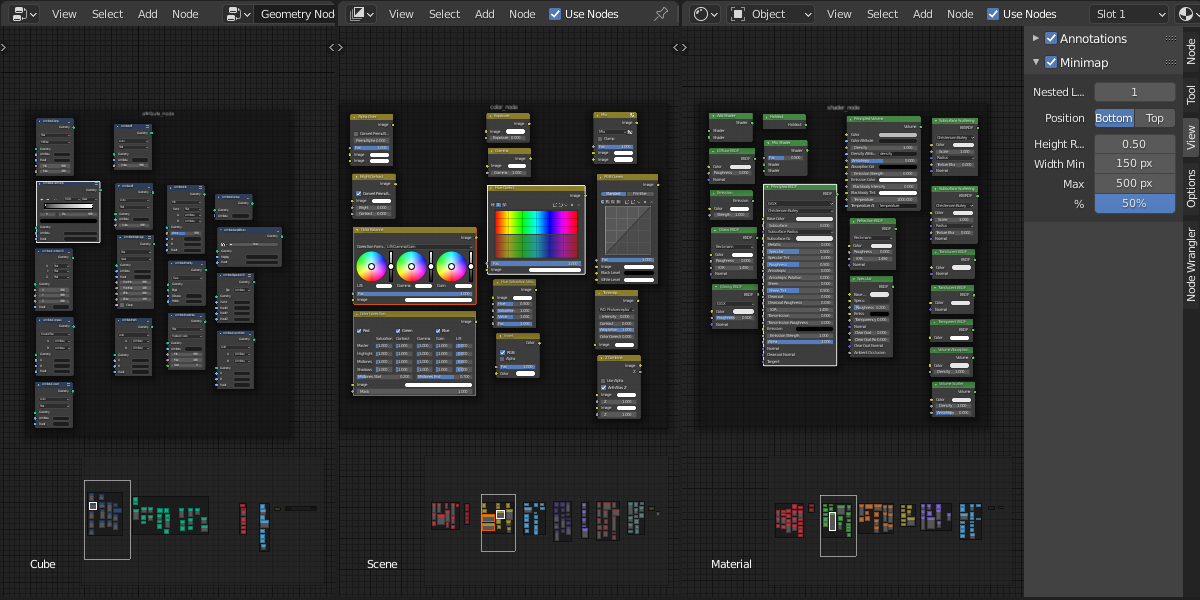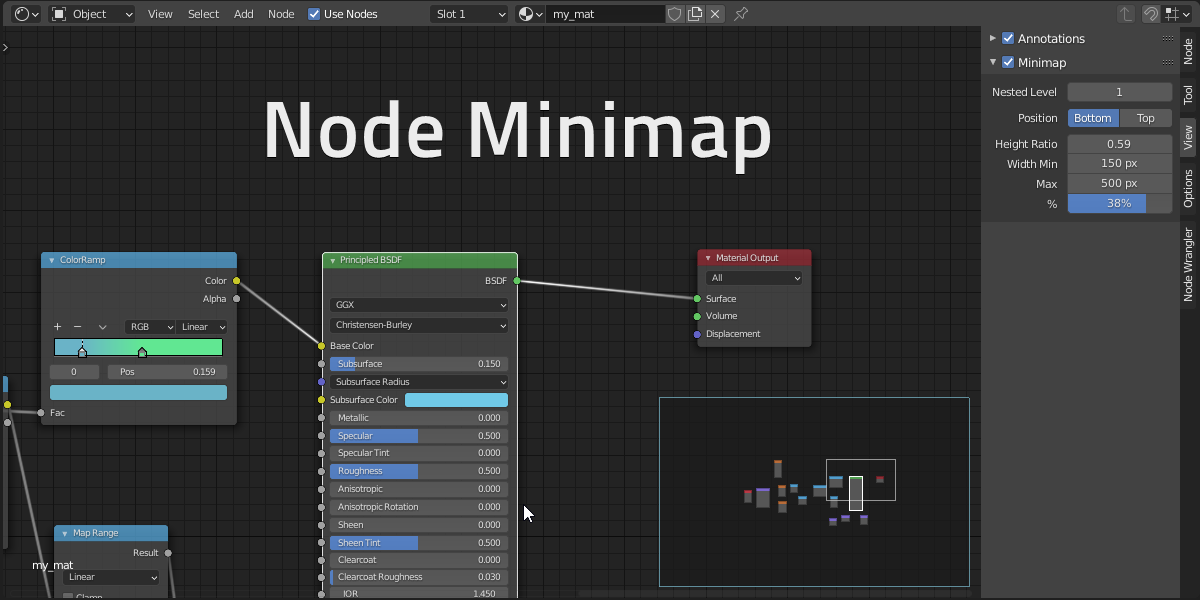
Node Minimap adds an interactive overview of the node tree to Blender’s node editors. Move through the map with the middle mouse button, then use its view of the graph to reorient yourself in a large setup.
Navigate and read the node map
Node Minimap works with all node trees. It colors nodes by type and shows custom node colors, so the map retains visual cues you may already use in the editor. Active and selected nodes are highlighted to help you find the parts of the graph you are working on.
To move around, hover over the minimap and use the middle mouse button (MMB). The add-on’s product FAQ documents this navigation control.
Adjust the view for a dense graph
Frames can make a node tree harder to scan at a glance. The Nested Level Display setting controls how many framed nodes appear, based on how many parent frames they have. Raising or lowering the displayed level changes how much of that frame structure appears in the minimap.
Toggle the minimap from the node editor sidebar: press N, open the View tab, and use the Minimap section. You can turn off activation at startup in the add-on preferences if you prefer to open it only when needed.
Set size, height, and colors
The minimap’s size is a percentage of the node editor’s width. Minimum and maximum pixel widths clamp that value, which keeps the map within the bounds you choose as the editor changes size. For a fixed pixel width, set the minimum and maximum to the same value. The Height ratio setting adjusts its height.
Size options are available in both the add-on preferences and the sidebar panel. The preferences also let you set the canvas background and outline colors. See the Node Minimap documentation for the listed controls.
Blender compatibility and license
The Superhive listing shows Blender 4.5–5.2, marks Node Minimap as Blender Extension Compatible, and lists the license as GPL. Check the product listing for current compatibility details before installing, since supported Blender versions can change.