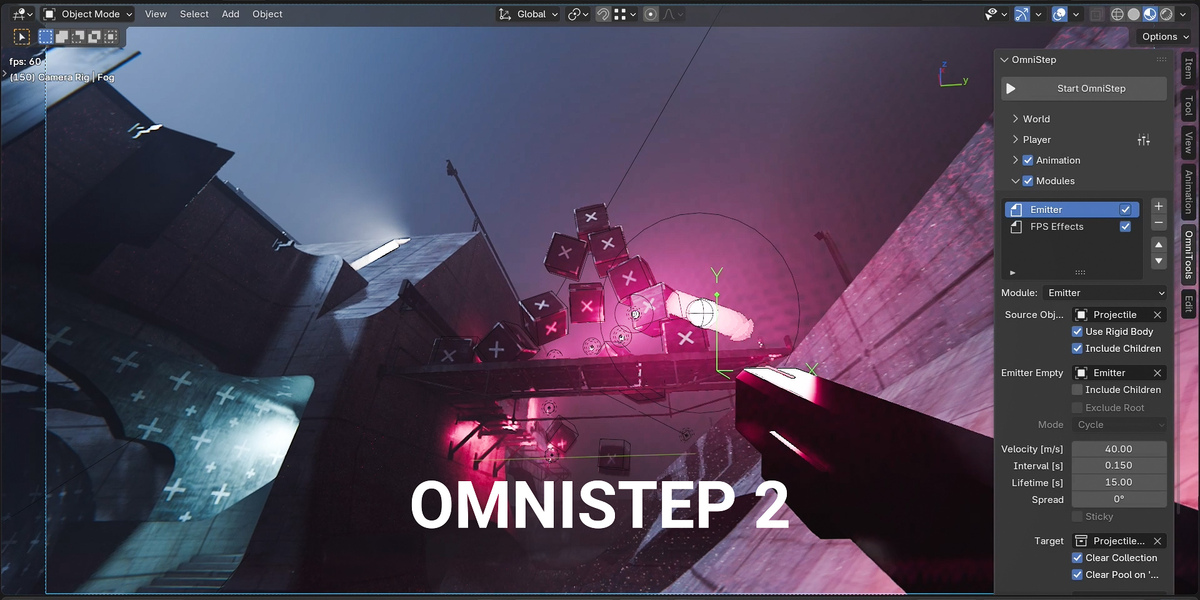
Omnistep 2 is a modular first-person controller for exploring Blender scenes, prototyping interactive animation, and recording walkthroughs or fly-throughs. Start it from your scene without scripting or a complex collision setup, then use walk or fly movement to inspect the space.
Move through a Blender scene
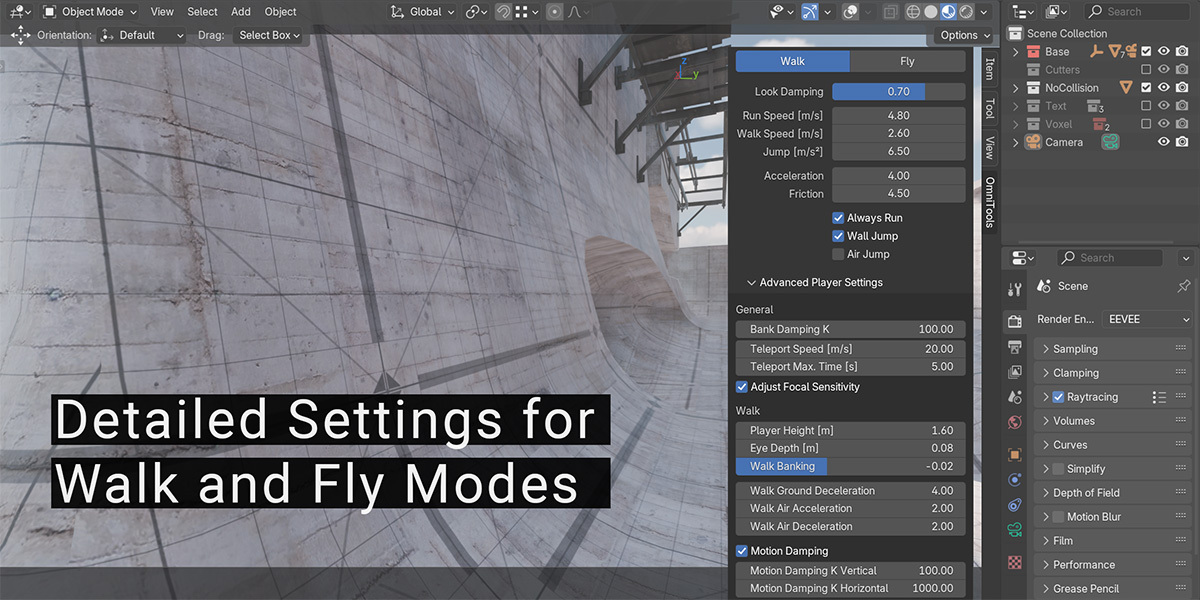
Walk mode has adjustable gravity, speed, acceleration, friction, and air control, with motion damping for stairs and uneven ground. Fly mode uses physics-based movement with mouselook and radial controls; collisions can be enabled or disabled. The capsule collision system uses a BVH tree capable of handling millions of triangles and supports animated objects, instanced collections, and linked library collections. You can also choose which collections to include or exclude.
Record camera movement
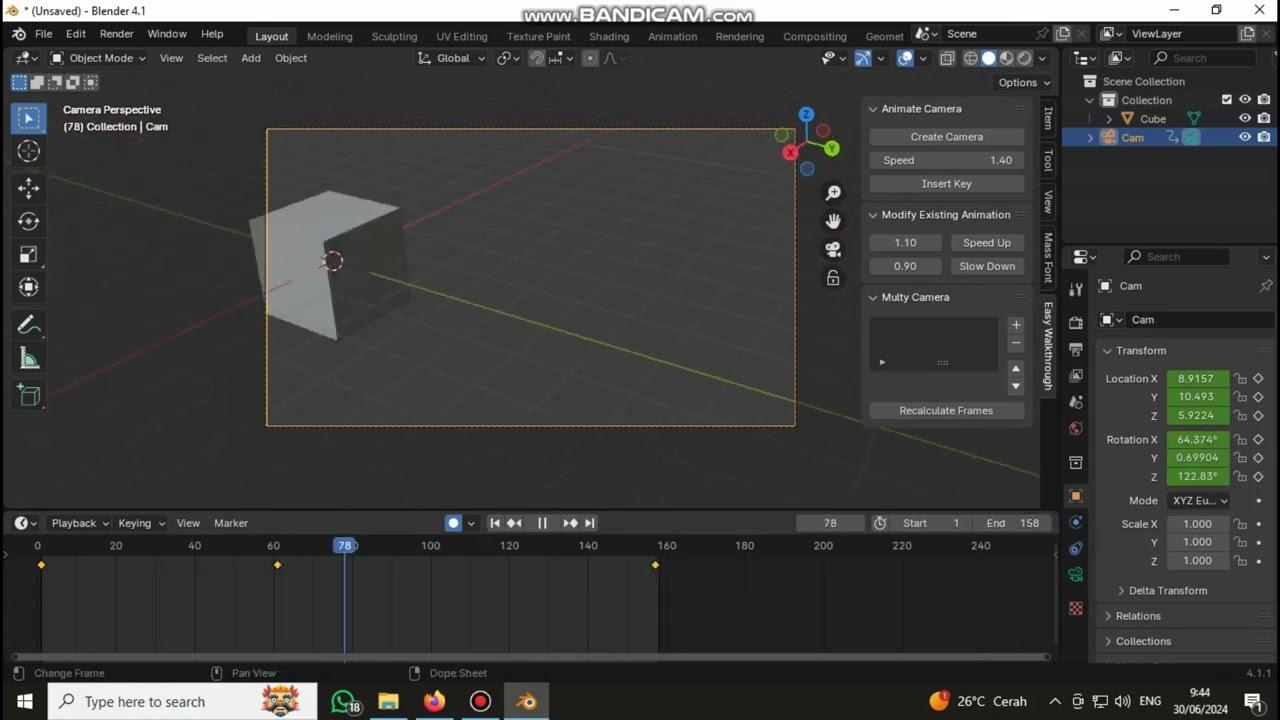
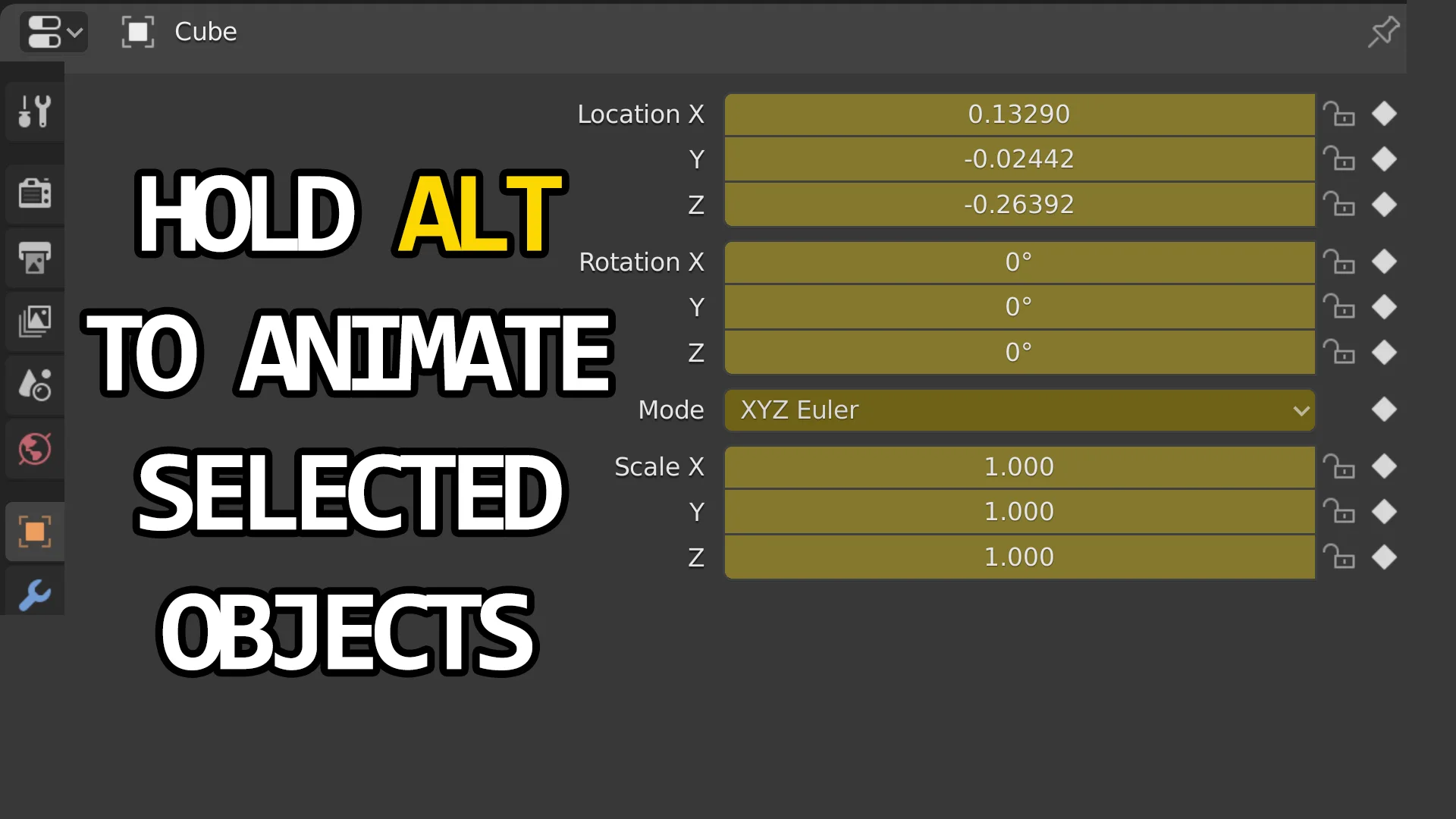
Omnistep 2 records camera motion for walkthroughs and fly-throughs. Buffered recording can capture movement without timeline playback. To film a walkthrough, enter camera view and enable animation recording.
Extend it with modules and scripts
The module system includes a third-person controller, first-person camera effects, an emitter for shooting objects, autofocus, zoom, camera creation, and camera switching. You can import additional modules. Scripting is optional: user-written scripts can extend the exposed game loop and access player parameters and the collision system.
Compatibility and controls
Omnistep 2.x supports Blender 4.5 and newer. The developer says the add-on has been tested on macOS, Linux, and Windows. Gamepad support is specified for Windows through XInput; keymaps and gamepad mappings are customizable. Other settings include mouse sensitivity, invert Y-axis, input smoothing, scale options (metric, imperial, or free), and custom sidebar panel placement. The add-on is frame-rate independent, with support for 120 Hz and higher.
Omnistep 2 runs offline without external libraries. The developer says it does not register application handlers or leave residual scene data beyond its settings configuration. See the product listing for release details, or visit the developer site for demo files and Scripting API documentation.