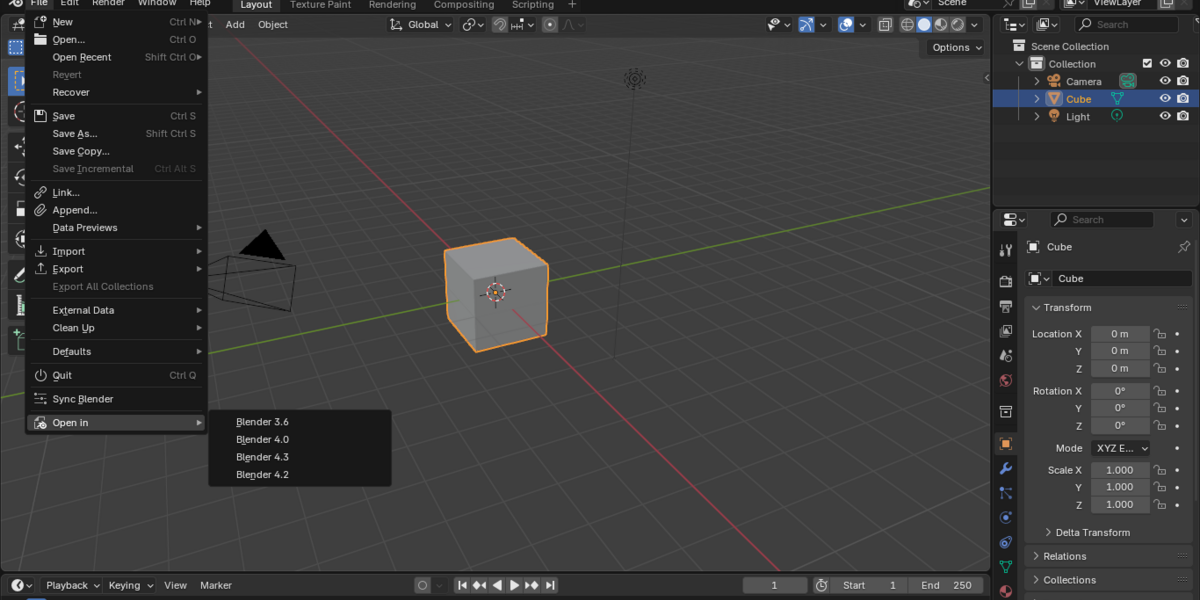
Open In is a Blender add-on by Jishnu Jithu for opening the current project in another installed Blender version. Choose a release from Blender’s File > Open In menu instead of reopening the project manually. The product listing describes the workflow and its version details.
Switch versions from Blender’s File menu
- Open the project in Blender.
- Choose File > Open In.
- Select the Blender version to launch with the current project.
If the project has unsaved changes, Open In temporarily saves it before switching. The listing describes the workflow as non-destructive and says it does not modify the original file.
Install Open In and configure versions
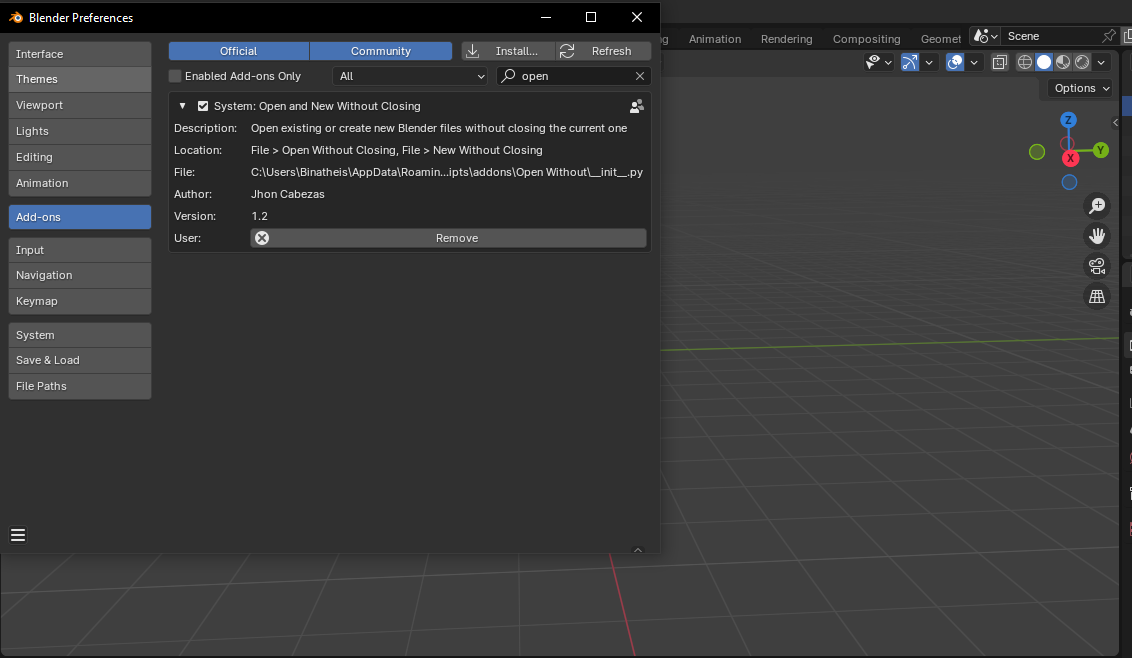
Download the add-on ZIP, then in Blender open Edit > Preferences > Add-ons. Choose Install, select the ZIP file, install it, and enable Open In in the add-on list. Save preferences to keep the add-on enabled across sessions. The installation and preferences documentation covers these steps.
Open In automatically detects installed Blender versions on Windows. You can refresh the detected list in preferences. If an installation is missing, add it by specifying its Blender executable path. Version 1.1.0 also added an option to specify a directory containing portable Blender installations for automatic detection.
Version support and operating systems
The product listing names Blender 4.4, 4.3, 4.2, 4.1, 4.0, and 3.6. It says the add-on is tested on Windows; macOS and Linux support is experimental and needs user testing. Check the listing for current compatibility details before relying on a particular setup.
Version 1.1.0 added preferences backup and restore. It also added a confirmation prompt when opening a file created in a newer Blender version with an older one. The prompt gives you a chance to consider the version change; it is not a compatibility guarantee for every project.
The AnyPlugins listing marks Open In as free, while the Superhive product page lists a GPL license. Check the source pages for current download and licensing terms.