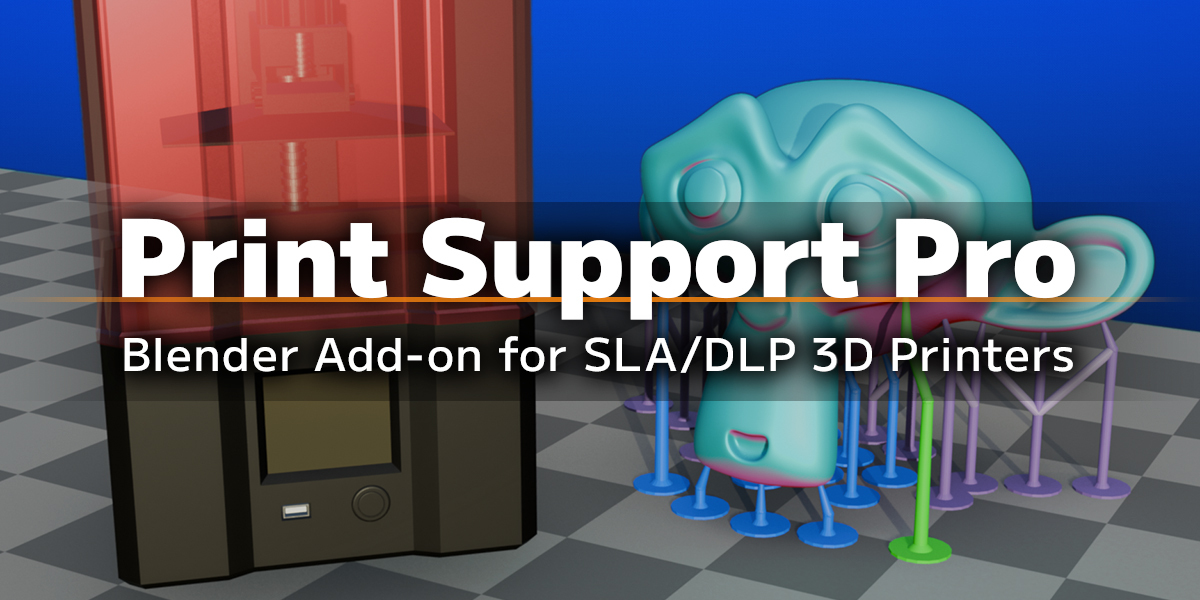
Print Support Pro is a Blender add-on for preparing support pillars for SLA and DLP 3D prints. It combines automatic placement, graphical manual editing, bridging, mirroring, and STL export, keeping support work alongside the model before it moves to a slicer.
It is aimed at print layouts that need more control than automatic supports alone, including small, intricate, or symmetrical models .
Place and refine support pillars
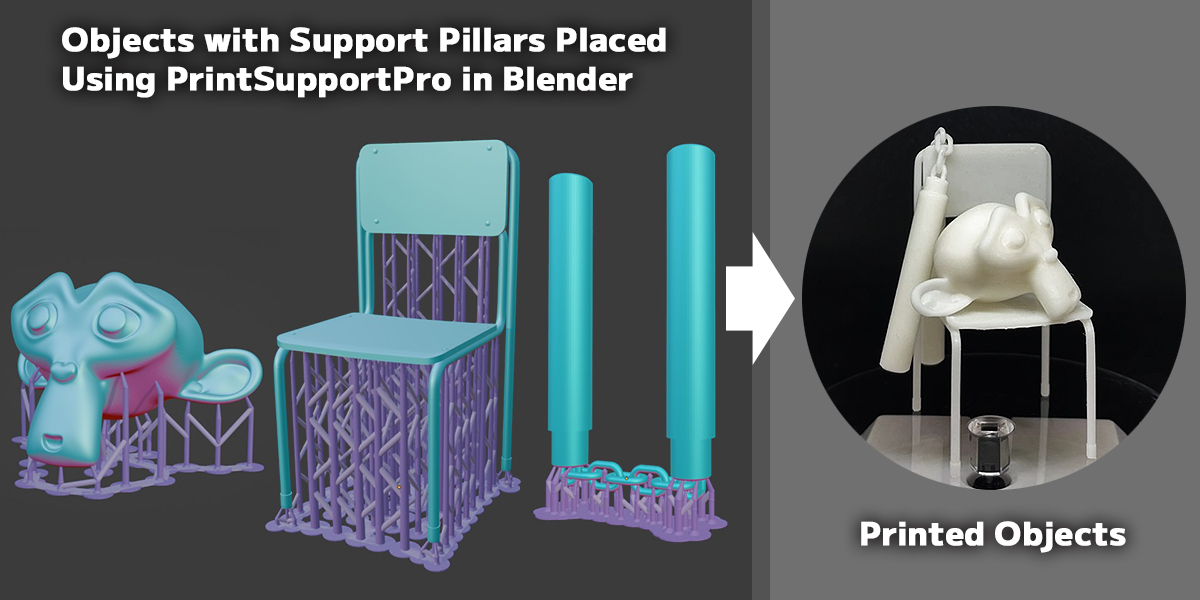
Print Support Pro can place multiple pillars automatically on overhang areas or add a single pillar at the lowest point of an object. Placement markers let you preview proposed positions before generating them, and a critical-only option can show the points where support is essential. Pillars that adhere to the target object appear red and can be deleted or repositioned; pillars placed too close to the ground are flagged because the pillar body may protrude below the build plate. Reduce Tip_Length or raise the object slightly, then place the pillars again.
You can choose among three pillar types: Auto Pillars follow the angle of the model surface, Manual Pillars can be bent with handles, and FIX Pillars have fixed movement. Change types as needed, adjust thickness and base shape in bulk, or add reinforcement pillars as narrow as 0.5 mm. Bridging connects selected pillars. After fixing the layout, Base Connection links their bases; enabling Base Connection to Raft makes one plate under the connected pillars.
Inspect spacing and work across variations
The Distance Ruler displays spacing between a selected pillar and nearby pillars, or between two selected pillars. For object variations, use copy placement or Quick Swap; for symmetry, mirror a placement across the X or Y axis. Mirroring depends on the model being symmetrical along the chosen axis and its origin sitting on the center line.
For high-polygon models, Auto Decimate can create a lighter working model during pillar layout. The original model is restored when the layout is fixed. Heavy decimation can shift placement positions slightly, so check the result against the original shape.
Export supported objects as STL
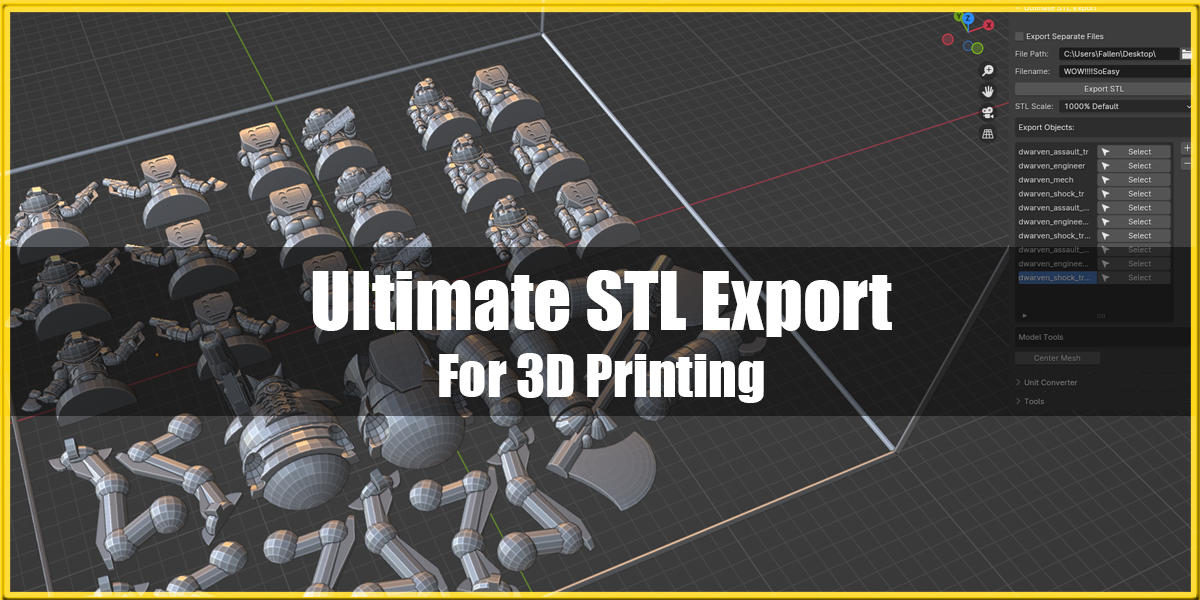
After fixing the pillar layout, export the supported object as an STL for a compatible slicer. Batch export saves multiple selected objects as separate, automatically named STL files in one folder. An option moves their XY positions to the origin for arranging them in slicer software. You can also create a unified raft under connected pillars before export.
Compatibility and setup
The supplied marketplace listing shows Blender compatibility from 3.6 to 5.2. Its documentation says Blender 4.2 and later can also install the add-on from the Get Extensions tab. The add-on requires a working EEVEE environment; if EEVEE is unavailable, material preview may be restricted and some features may not work correctly.