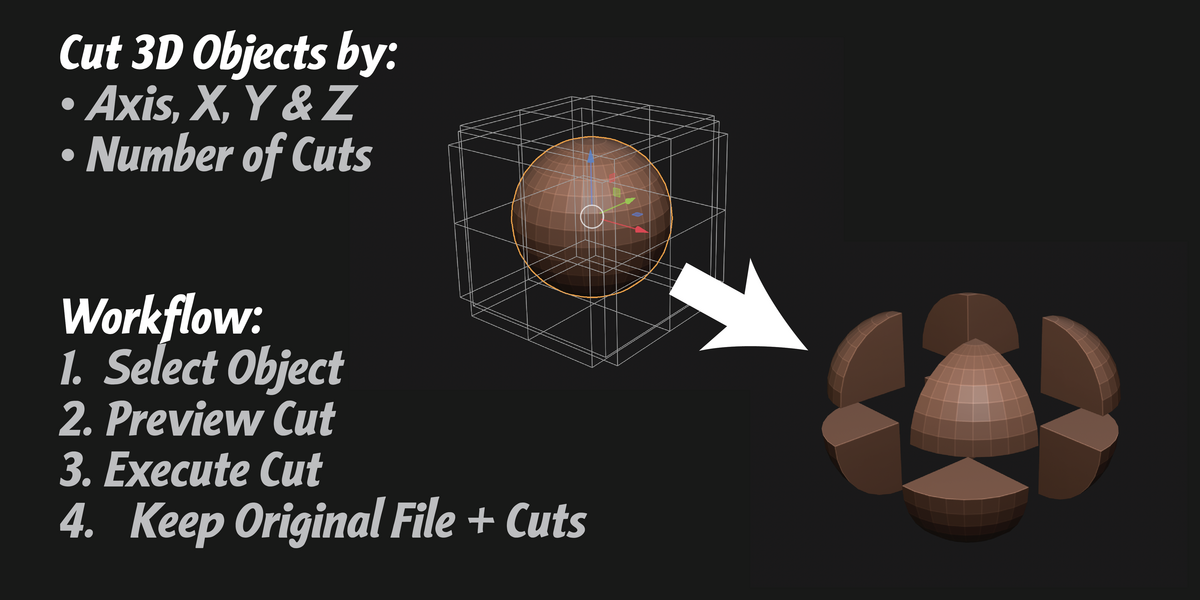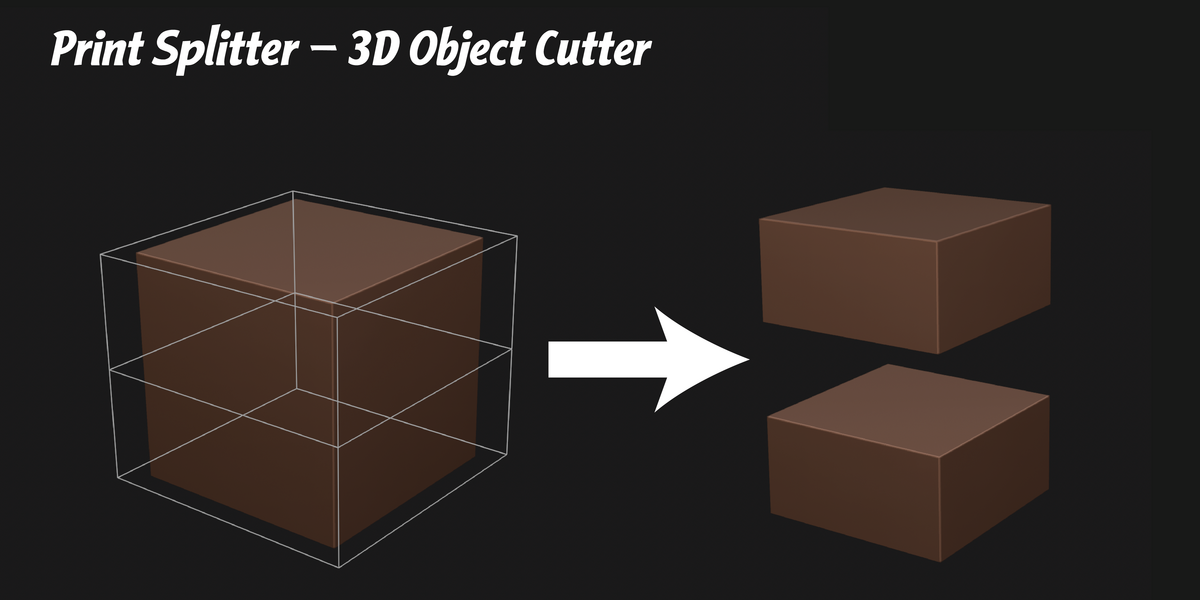
PrintSplitter is a Blender add-on for dividing a mesh into sections for 3D printing. In the 3D Viewport sidebar, choose the number of cuts and their direction, preview the slicing planes, then create the parts. It can cut along the X, Y, or Z axis and supports multi-axis slicing.
How to split a model
Install the PrintSplitter ZIP through Blender Preferences, under Add-ons, and enable it. In the 3D Viewport, press N to open the sidebar and select the PrintSplitter tab. Select the mesh you want to divide, set the number of cuts, and choose one or more axes. X cuts run left to right, Y cuts run front to back, and Z cuts run vertically.
- Choose Preview Cut to see the wireframe boxes marking the slicing planes.
- Check that the planes fall where you want them. If you are slicing along multiple axes, start with fewer cuts to check the spacing.
- Choose Execute Cut to duplicate and slice the mesh. PrintSplitter hides the original object after the operation; you can unhide it in Blender's Outliner.
The PrintSplitter documentation includes the installation steps and controls.
Prepare the mesh for Boolean cuts
PrintSplitter spaces cuts using the model's bounding box. If the object is off-center or has a lot of empty space around it, the cuts may look uneven. The product FAQ recommends applying scale and rotation, then cleaning the mesh. Before slicing, use Ctrl+A and choose Apply All Transforms.
Boolean results also depend on mesh quality. The documentation recommends manifold meshes; open surfaces or non-manifold geometry can produce imperfect cuts. PrintSplitter extends its cutting volumes slightly beyond the mesh to help the Boolean operation pass through it. Preview the planes before executing a cut, especially when the model has several axes enabled.
When PrintSplitter is useful
The add-on is intended for preparing large models that need to be divided for printer build limits. The product listing names sculptures, mechanical parts, cosplay props, and terrain pieces as examples, and mentions both resin and FDM printing. Check the size of the resulting parts against your printer's build area before printing.
The product listing identifies NetMetropolis as the creator, shows GPL as the license, and lists Blender 5.0 as the Blender version. If you use another Blender release, check the current product listing for compatibility details.