Profiler 2.0 Advanced Curve Beveling is a Blender add-on that gives a curve a chosen cross-section, turning it into molding, trim, a casing, a picture frame, or a handrail. It is aimed at architectural visualization and hard-surface modeling, where the same profile may need to follow several curves.
Apply a profile to a curve
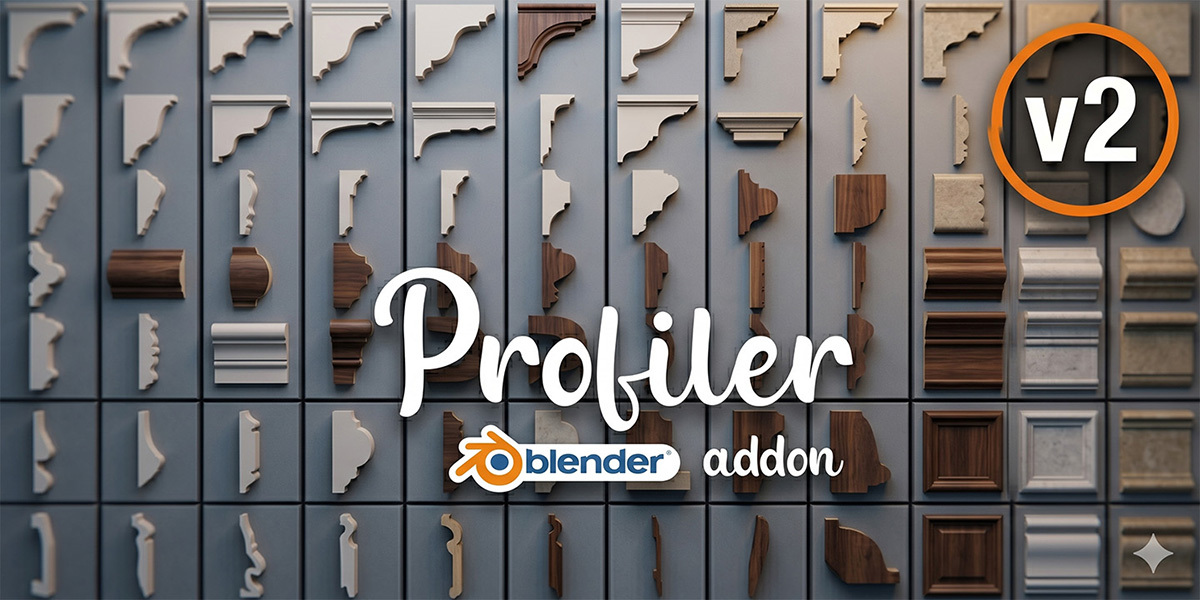
The gallery contains 76 built-in profiles, including crown moldings, baseboards, panel moldings, casings, and cornices. Select a curve, choose a profile, then click Apply Profile. Applying another profile replaces the one already on that curve.
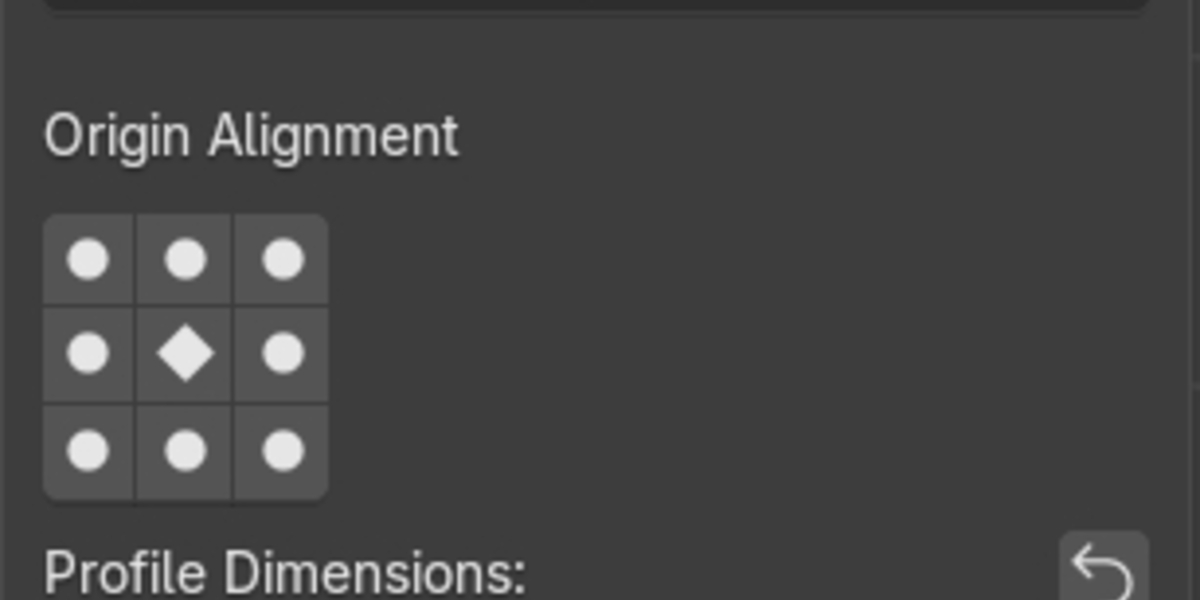
Use the 3×3 origin controls to position the cross-section against the curve. The X and Y dimensions set its width and height. Offset moves the profile sideways or along the curve's local Z axis. Rotate, mirror, and direction controls help orient it; curve and profile resolution adjust smoothness along the path and across the cross-section.
Make trim from mesh geometry
Profiler can convert selected mesh geometry into a curve before applying a profile. In Edit Mode, select a face, edge loop, or boundary, then use Convert to Curve. For example, you can select an upper wall edge for crown molding or a lower edge for skirting. You can also convert a whole object in Object Mode. Then choose a profile and apply it to the resulting curve.
Save custom profiles or import an SVG
Version 2.0 lets you save a curve as a reusable custom profile. Select the curve, choose Save Current, and name it. The profile appears in the gallery with a generated thumbnail. Profiler stores custom profiles in a separate user folder, so they remain outside the add-on's installation folder when you update it. Open profiles are automatically closed into solids when saved.
To bring in a profile drawn in Illustrator, Inkscape, or another vector editor, use Import SVG. This feature depends on Blender's bundled Scalable Vector Graphics add-on; enable it in Blender Preferences if SVG import is unavailable.
Install the version that matches Blender
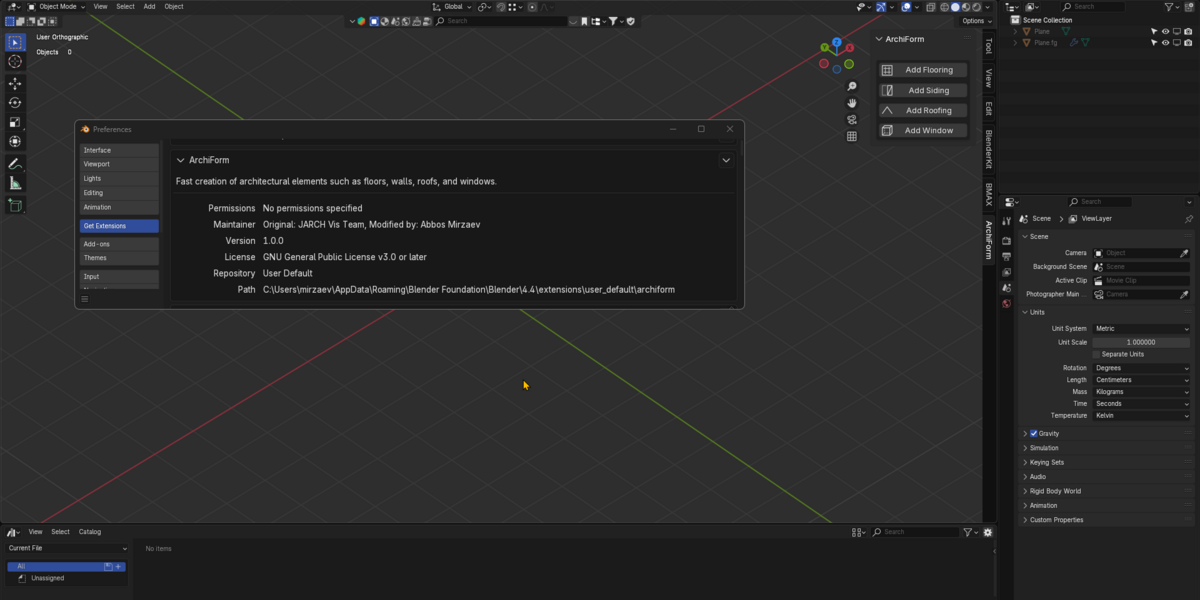
Profiler 2.0 supports Blender 3.6 LTS through 5.2. Use the Extension zip with Blender 4.2 or later, and the classic add-on zip with Blender 3.6 through 4.1. After installing, open the 3D Viewport, press N to show the sidebar, and select the Profiler tab. The Profiler documentation lists the controls and installation steps. The product page lists version support and the free 2.0 update; existing customers can get the files from their Superhive downloads.
Profiler suits Blender projects that need repeatable trim along curves, with a built-in gallery or reusable custom cross-sections. Its mesh-to-curve conversion covers selected edges and faces, while dimensions, alignment, offsets, and resolution provide control over the resulting profile.