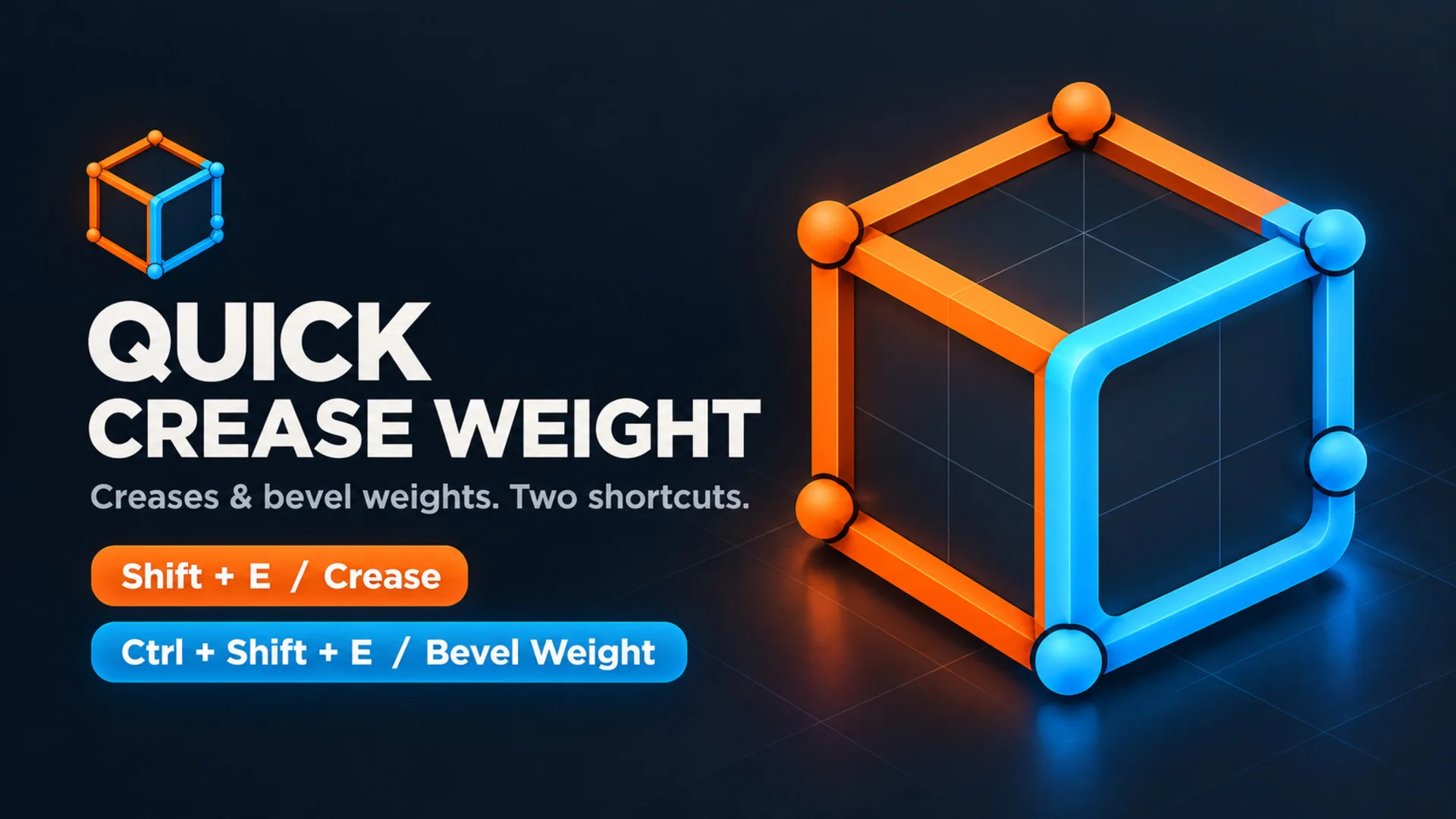
Quick Crease Weight adjusts mesh crease and bevel-weight attributes in Blender Edit Mode. Select mesh elements, invoke the relevant shortcut, then move the mouse horizontally while watching the live value. It edits existing mesh attributes without changing topology or adding modifiers. See the Blender Extensions listing for version and compatibility details.
Adjust creases and bevel weights
In Mesh Edit Mode, select vertices or edges. Press Shift + E to adjust crease, or Ctrl + Shift + E for bevel weight. Release the shortcut keys before using modifier keys to control the adjustment. Horizontal mouse movement changes the value from 0 to 1.
- Hold
Shiftto snap to 0.1 increments. - Press
Ctrlto set the value to 1, orAltto set it to 0. - Left-click or press
Enterto confirm. The operation supports Blender undo. - Right-click or press
Escto cancel and restore the original values. - Use the middle mouse button or scroll wheel to orbit or zoom while adjusting.
What the selection changes
Vertex selection mode edits vertex attributes. Edge and face selection modes edit edge attributes; vertex mode takes priority when selection modes are combined. Only visible, selected elements are affected. Multi-object editing is supported, and shared mesh data is processed once.
The starting value is the average across the selection. After you adjust it, the selected elements receive the same value. Confirming without moving the mouse preserves any different values already present. Cancel restores each element's original value and removes an attribute layer created by that operation.
View the result in Blender
The add-on changes mesh attributes, so a modifier is needed to show their effect. Creases are visible with a Subdivision Surface modifier. For bevel weights, use a Bevel modifier with its limit method set to Weight and the appropriate vertex or edge affect mode.
Shortcuts, HUD, and language settings
The HUD uses orange for crease and blue for bevel weight. In Preferences > Add-ons > Quick Crease Weight, you can change shortcuts, mouse sensitivity, HUD placement and appearance, and hide the HUD, shortcut list, or progress bar independently. Settings are stored in Blender preferences; save preferences manually if automatic saving is disabled.
The default Shift + E binding takes precedence over Blender's built-in crease shortcut in Mesh Edit Mode. Remap or disable the add-on binding in its preferences if you need the built-in shortcut. Disabling the add-on removes its keymap entries. English and Simplified Chinese are supported, with untranslated text falling back to English.
Compatibility and support
Version 1.2.2 requires Blender 4.2 or newer. The extension listing reports 14 integration checks passed on Windows with Blender 4.2.0 and 4.5.4 LTS, plus interactive shortcut, cancel, undo, HUD, and preference checks in Blender 4.5.4 LTS. These results do not cover every operating system or Blender build.
The add-on works offline and requires no account, external service, other add-on, or third-party Python package. It collects no telemetry and requires no special permissions. It is released under GPL-3.0-or-later. For installation details, see Blender's Install from Disk instructions. To report a problem, use the issue tracker and include your Blender version, operating system, selection mode, and steps to reproduce it.