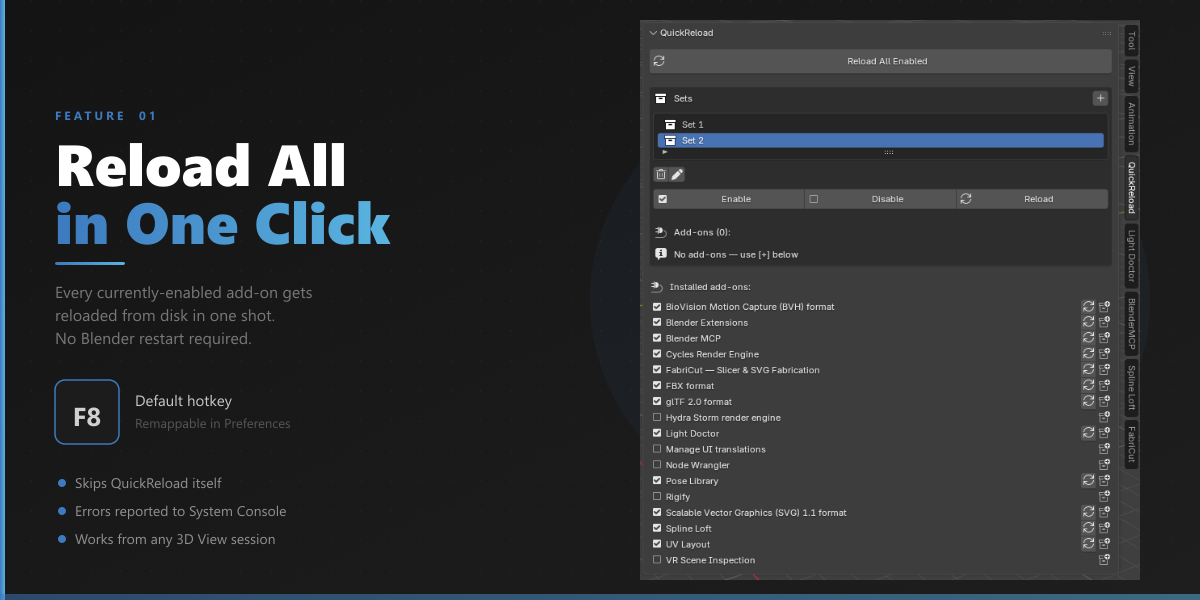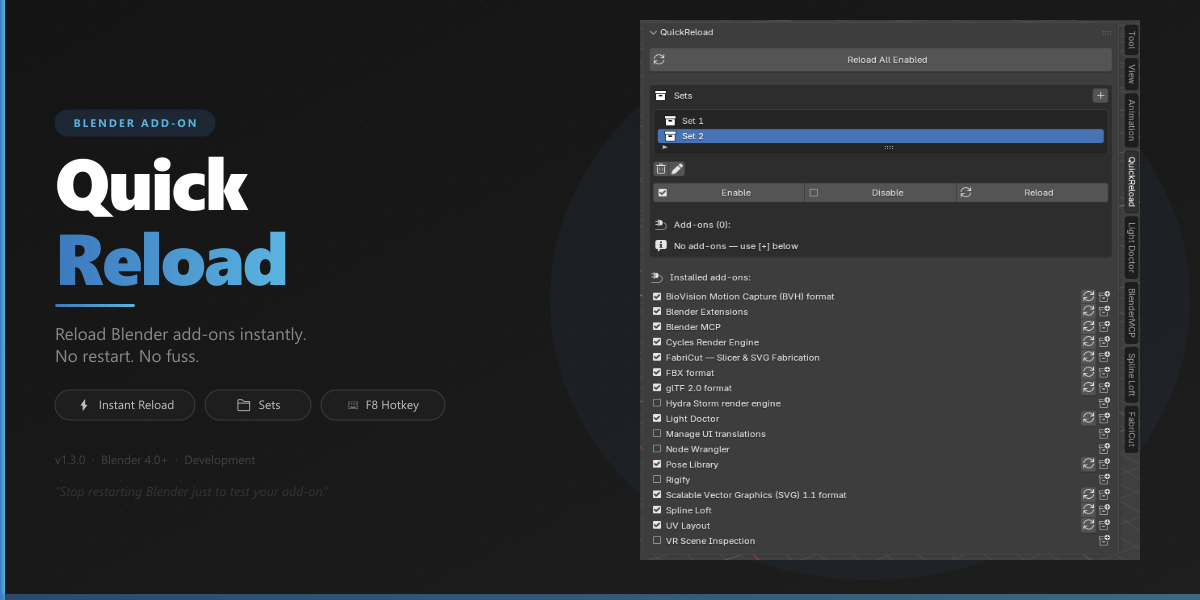
Quick Reload from ZlabyaCodes lets you reload Blender add-ons without closing and reopening Blender. Reload one add-on from the sidebar, refresh all enabled add-ons with a button or the F8 shortcut, or group tools into sets for different workflows.
Reload an add-on from the 3D Viewport
Install Quick Reload through Edit > Preferences > Add-ons, then enable it. In the 3D Viewport, press N to open the sidebar and select the QuickReload tab. Click the reload icon beside an add-on to refresh it individually, or use Reload All Enabled to reload every active add-on. Press F8 anywhere in Blender to reload all enabled add-ons.
This can help when you update an add-on or change its script and want to keep your current scene open. Quick Reload works with classic add-ons and Blender Extensions, according to the product listing.
Group tools with Add-on Sets
Create a named set in the Sets section, then add installed add-ons to it with the plus icon. You can enable, disable, or reload the group together. Sets save automatically and persist across Blender restarts, so you can keep separate groups for tasks such as modelling, rigging, or development. Reload Set acts only on enabled add-ons in that set; disabled add-ons are skipped.
Blender version and extension support
The product listing specifies Blender 5.1 and says Quick Reload works with classic add-ons and Blender Extensions. Its FAQ identifies support for the Blender Extensions system introduced in Blender 4.2. The listing does not provide a broader compatibility range.
Quick Reload is aimed at Blender users who switch between toolsets and add-on developers who want to see script changes without restarting their session.