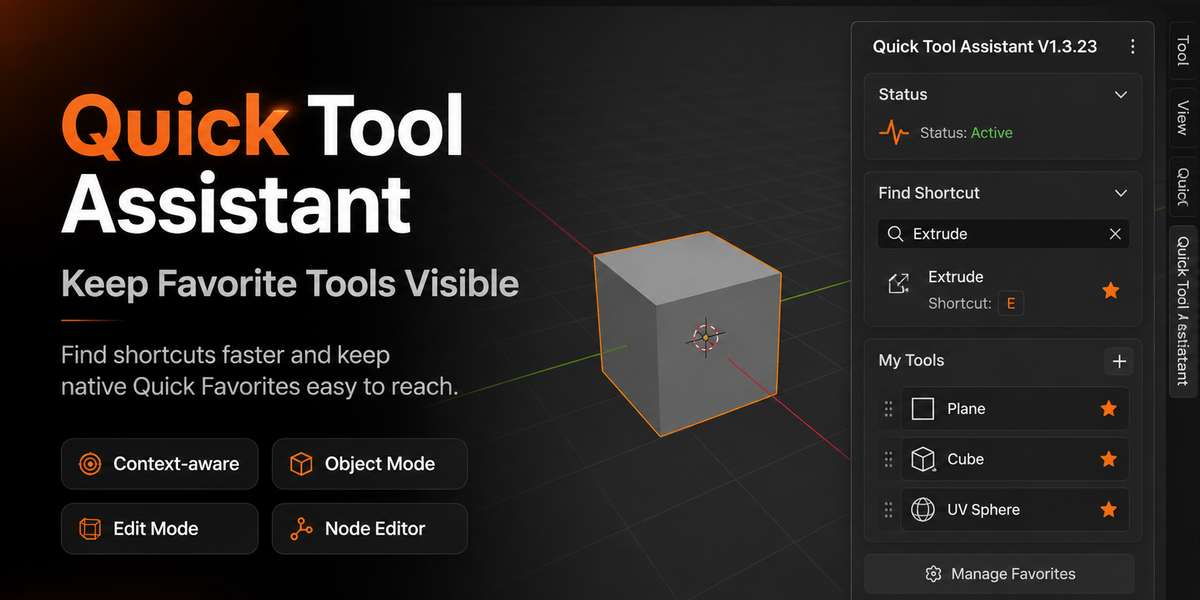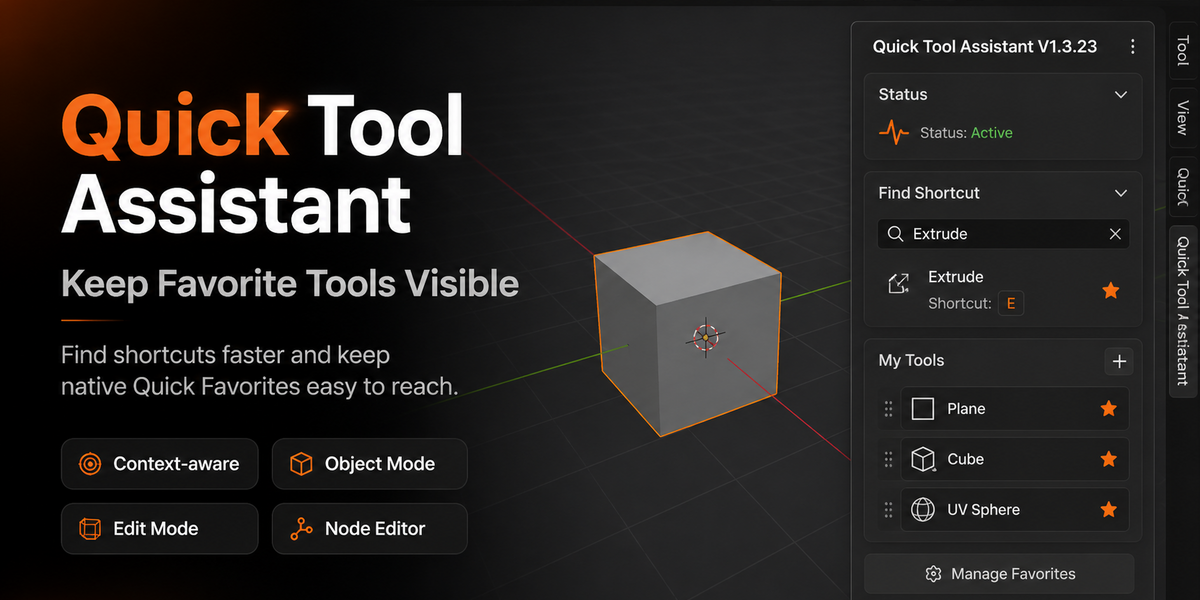
Quick Tool Assistant is a Blender add-on by Ahui Studio. It puts Blender’s native Quick Favorites in a sidebar panel and includes a finder for common command shortcuts. The product listing identifies support for Blender 3.6 through 5.0 and a GPL license; check it for current package details.
Keep favorite tools in the sidebar
The add-on displays Blender’s own Quick Favorites in a panel called My Tools. Add a command, menu item, or tool to Quick Favorites through Blender’s normal right-click menu, then open the panel from the sidebar. Your favorites remain managed by Blender, so Quick Tool Assistant does not create a separate favorite list or replace Blender’s built-in system.
A favorite appears when it is available in the current Blender area and mode. This makes the panel a quick way back to commands you use often without reopening menus each time.
Favorites follow the current context
Quick Tool Assistant can show different favorites in Object Mode, Edit Mode, Geometry Nodes, Shader Nodes, and the Compositor. Its documentation lists the 3D View, Geometry Nodes, Shader Nodes, and Compositor among the supported areas. A mesh-editing command may not appear in Object Mode, for example, and node tools can remain with the relevant node workflow.
This context-aware behavior suits people who move between modeling and node work and want each area’s favorite tools close at hand.
Look up common command shortcuts
Find Shortcut searches for a Blender command by name and displays its shortcut when one is available. The documentation gives examples such as Move, Rotate, Scale, Extrude, Bevel, Knife, and Loop Cut and Slide. Searching does not add a command to My Tools; that panel reflects the tools you add through Quick Favorites. Some commands have no simple default shortcut, and a key can depend on your Blender keymap. Using the command’s English name can help the search.
Install and open the panel
The product documentation describes installing the add-on from a ZIP file through Blender’s Edit > Preferences > Add-ons screen. After selecting the ZIP and enabling Quick Tool Assistant, press N in the 3D View to open the sidebar and find its panel. If My Tools is empty, add items to Blender’s Quick Favorites and check whether the current area or mode supports them.
Quick Tool Assistant may suit Blender users who revisit the same commands, learners following tutorials, and artists who want their favorites visible while switching between supported editors. The product FAQ covers activation and other setup questions.