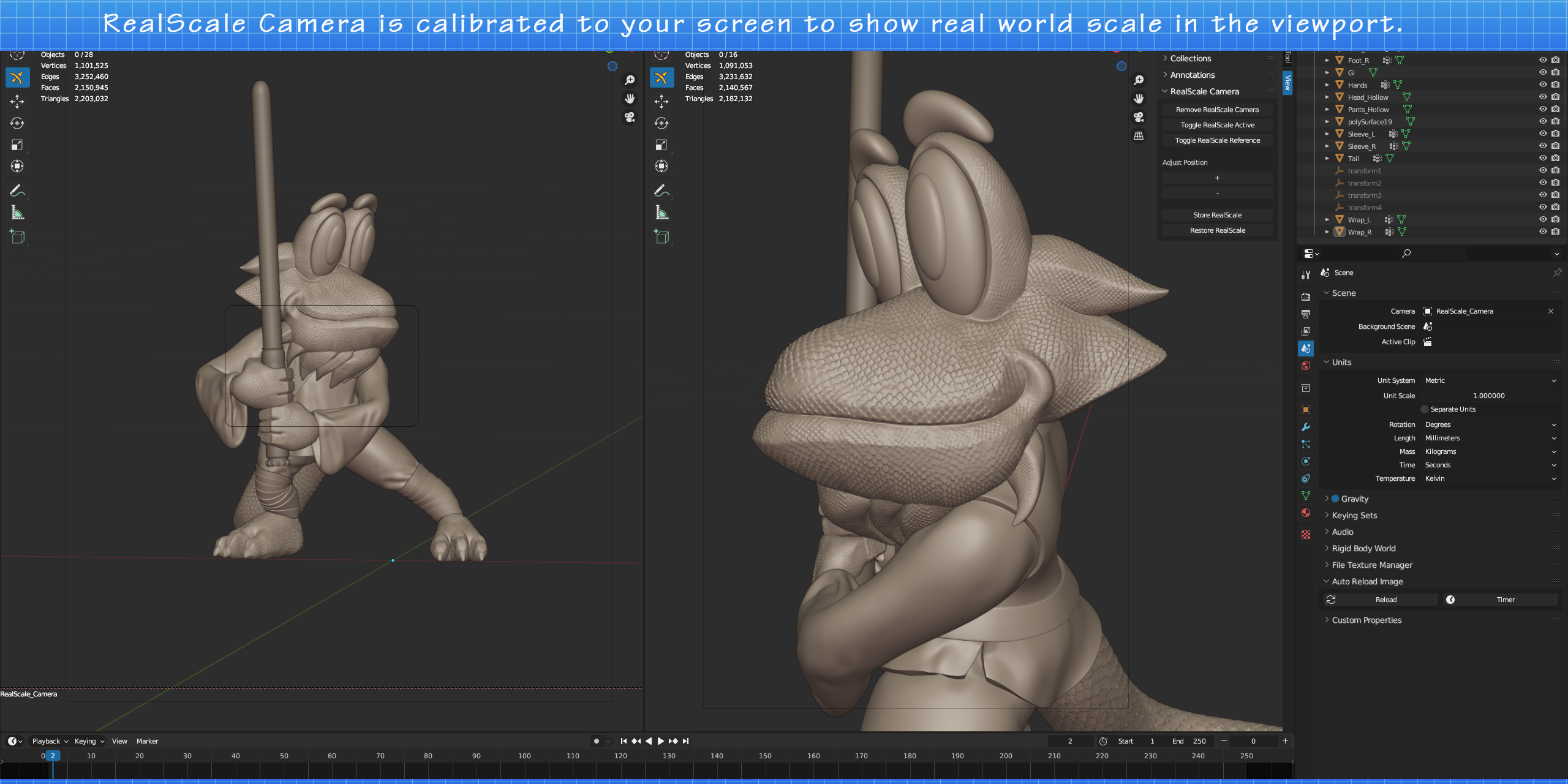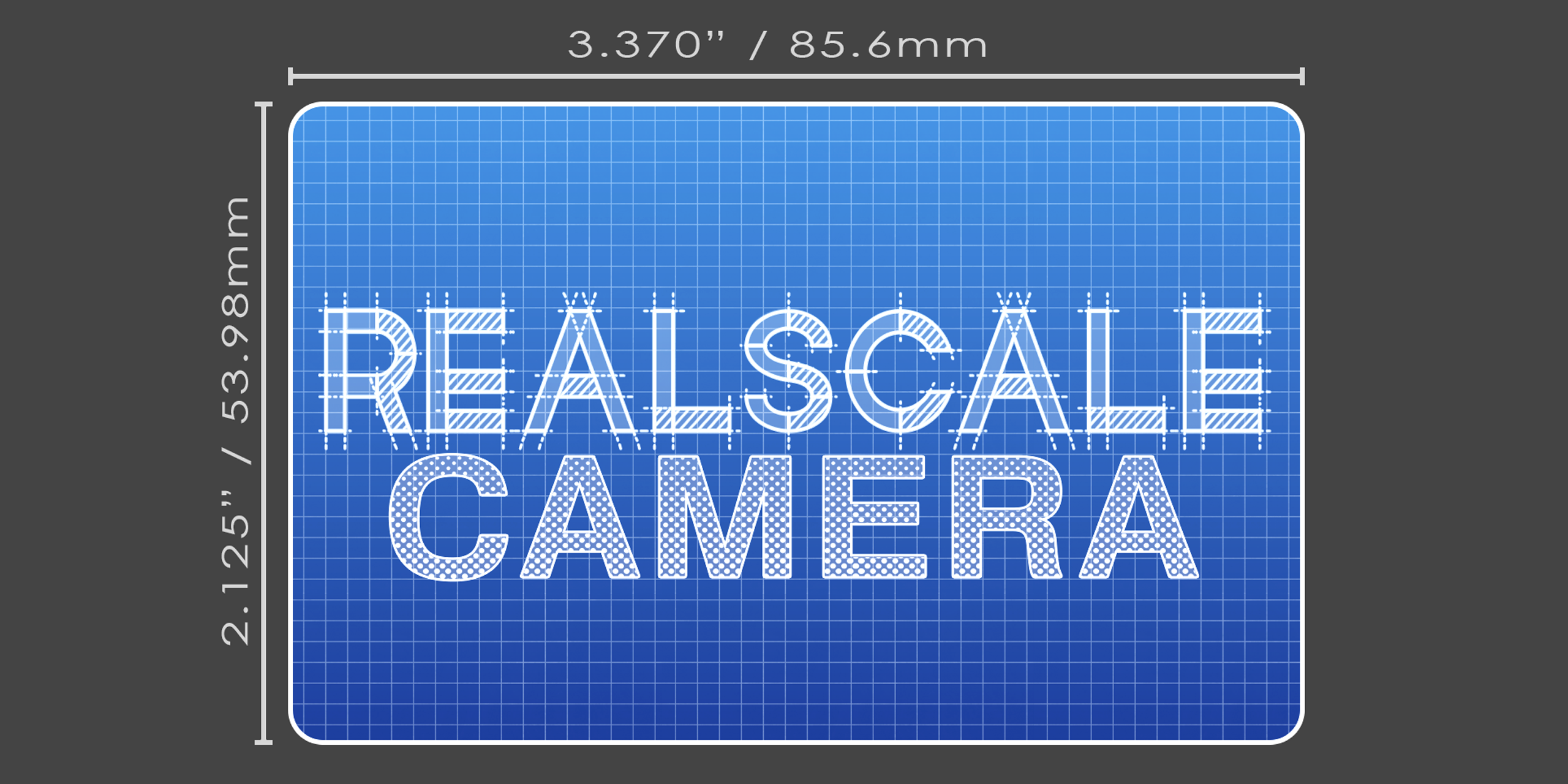
RealScale Camera is a Blender add-on that calibrates a 3D viewport against a physical credit card. It is intended for artists making miniatures and figures for 3D printing who want to judge their model’s on-screen scale while working.
Calibrate and store the viewport scale
- After activating the add-on, open Blender’s View tab and choose Create RealScale Camera.
- In the viewport you want to calibrate, open the RealScale Camera panel and select Toggle RealScale Active.
- Zoom until the on-screen card reference is roughly the same size as a physical credit card or a similarly sized card placed over it on your monitor. Fine-tune with Blender’s zoom controls or the panel’s plus and minus buttons.
- Select Store RealScale to save the calibration.
After storing it, you can orbit around the viewport. If you accidentally zoom or pan, Restore RealScale returns to the saved calibration. The pie menu, opened with Ctrl + Shift + R, provides quick access to common controls when the sidebar is hidden.
Viewport changes require care
Viewport calibration and orbit recovery
The calibration depends on the viewport’s size. If you resize it, switch to another viewport, or create a new one, recalibrate and store the setup again. Panning can also disrupt the orbit center. Use Restore RealScale from the RealScale Camera viewport; restoring from another viewport may offset the orbit.
Keep the RealScale collection and its contents’ names unchanged. The product listing also notes that the default pie menu shortcut may conflict with an existing keymap.
Listed Blender versions and license
The Superhive listing names Corey Kinard as the creator, lists Blender 3.6, 4.0, 4.1, and 4.2, and identifies the license as GPL. Check the listing for current compatibility and license details before installing.