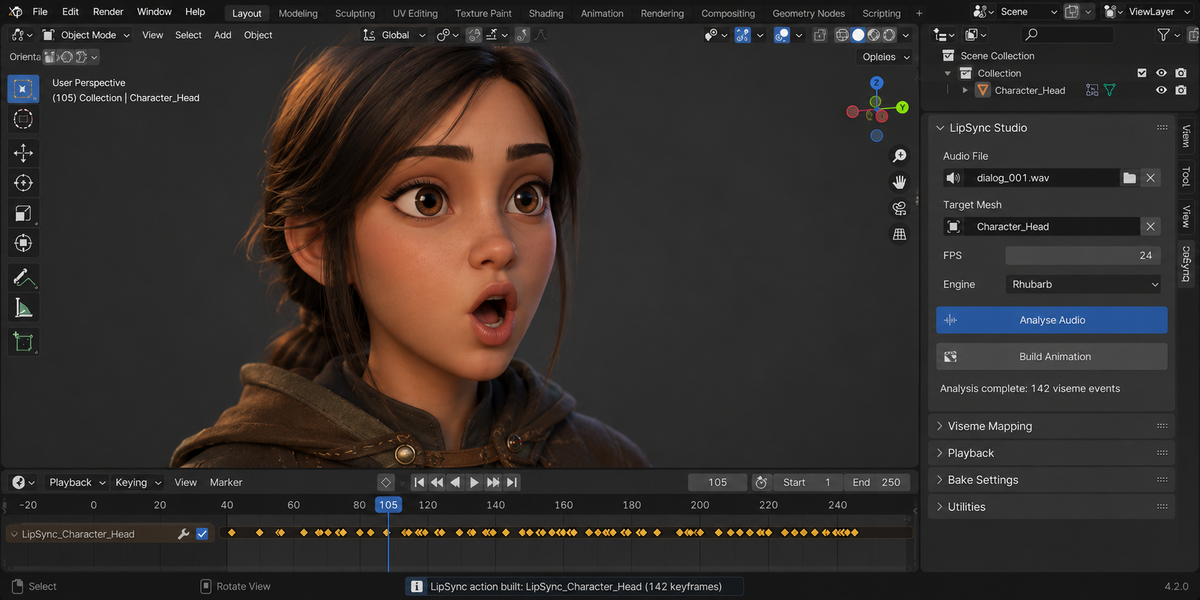
Rhubarb Lipsync NG is a Blender add-on by Premysl Srubar that connects the Rhubarb Lip Sync engine to a character animation workflow. It analyzes audio into nine mouth cue types, which you can map to shape keys, armature actions, or an action sheet. The add-on can bake those mappings to Nonlinear Animation (NLA) tracks for further editing.
Capture mouth cues from audio
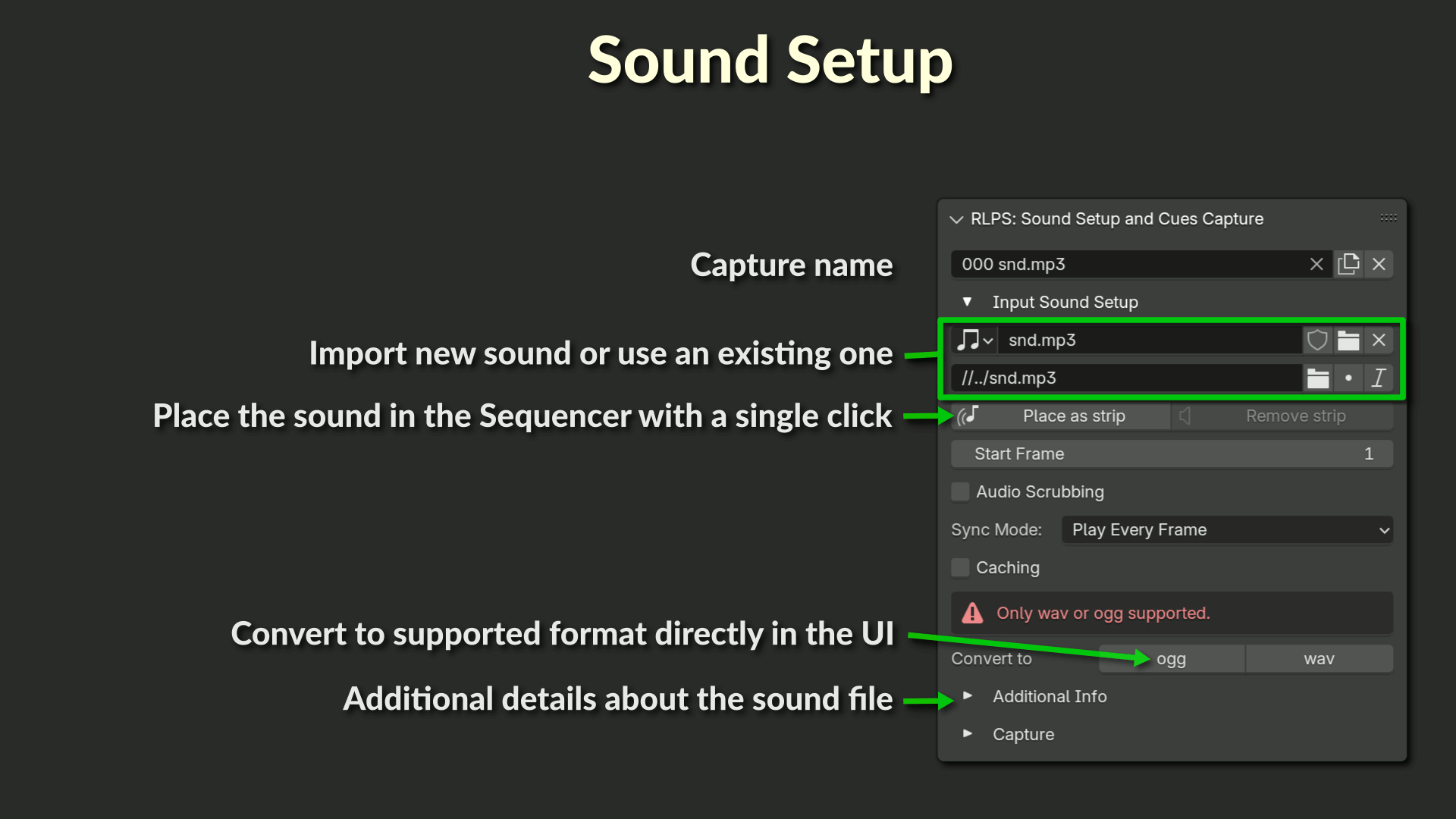
Start by creating a Capture in the scene and selecting a sound file. The add-on can convert audio to a supported format within Blender. Press Capture to process it; the task runs in the background, and the resulting cue list can be previewed in the interface. Cues that are too short or too long are highlighted, which helps you review the generated timing before mapping it to a rig.
The capture options also include a dialog file, which is a transcription that can improve accuracy. This option works only for English. For longer clips, the underlying Rhubarb command-line tool can use multiple threads; short clips run single-threaded, according to the documentation.
Map cues to a character rig
In the cue-mapping panel, choose the object you want to animate. Select an armature for bone animation or a mesh for shape-key animation, then assign an Action to each cue type. Basic animations need about five to eight mouth shapes plus an idle shape, following the classic Hanna-Barbera chart. An Action can be assigned to more than one cue, and an action sheet can hold poses for several cues on different frames.
Rhubarb Lipsync NG can map and bake multiple objects at once. That is useful when a character has separate parts, such as a tongue or teeth, or when the rig uses both armature and corrective shape-key actions. You can also set a custom frame range for an action sheet and filter the Action lists to find suitable entries.
Bake to NLA and refine the timing
After mapping, choose a Capture and bake it to NLA tracks and strips. By default, the add-on includes objects with non-empty mappings, and the bake dialog lets you set the start frame and review warnings. You can adjust strip placement and blending in Blender's NLA Editor, then run the bake again after removing earlier strips if you want to replace them.
For 3D animation, the documentation recommends two tracks so action strips can interleave and blend. For 2D animation, use one track and set the blend type to No Blending. If the final scene needs one Action, Blender's built-in Bake Action command can combine the NLA strips; if both normal-action and shape-key-action track pairs are present, bake each pair one by one.
Installation and Blender compatibility
The Superhive product page lists Blender versions 3.3 to 5.3 and marks the add-on as Blender Extension compatible. For Blender 4.2 and later, its documentation describes installing the downloaded zip as an extension by dragging it into Blender. For earlier Blender versions, install the zip from Edit > Preferences > Add-ons without extracting it, then enable the add-on.
After installation, use the Check rhubarb version button to verify that the bundled executable works. If a button is disabled, hover over it to see the reported reason. The product documentation covers the capture and baking workflow, while the troubleshooting guide and project issue tracker provide places to check when setup fails.