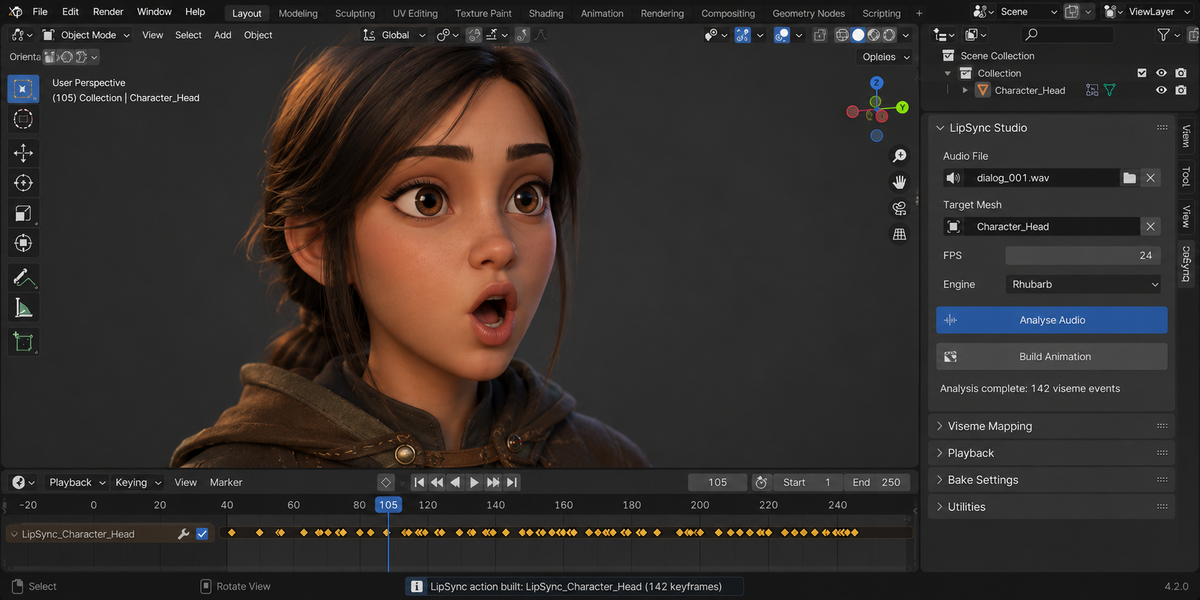
Lipsync Studio is a Blender add-on that turns audio into keyframed mouth animation. Choose an analysis engine, map its visemes to a character rig, then build an action you can adjust in Blender or export to another pipeline. It supports shape keys and jaw-bone rigs, with options for characters whose faces span multiple meshes.
Choose an analysis engine
The four engines suit different audio and workflow needs:
- The built-in energy analysis is fast and language-agnostic, though less precise.
- Rhubarb Lip Sync produces phoneme-based results and can use dialog text. The add-on can download the platform-specific Rhubarb release from its preferences.
- OpenAI Whisper combines speech-to-text with phoneme analysis. The listing specifies English-only support.
- Optional Vosk aligns English dialog text word by word. It runs offline and is off by default. A setup button downloads libvosk, an English model, and the CMUdict dictionary into a separate folder.
For Rhubarb or Vosk, dialog text can help guide the analysis. The engine choice matters: the developer notes that built-in energy analysis and Whisper do not read the Dialog Text field.
Map visemes to your character
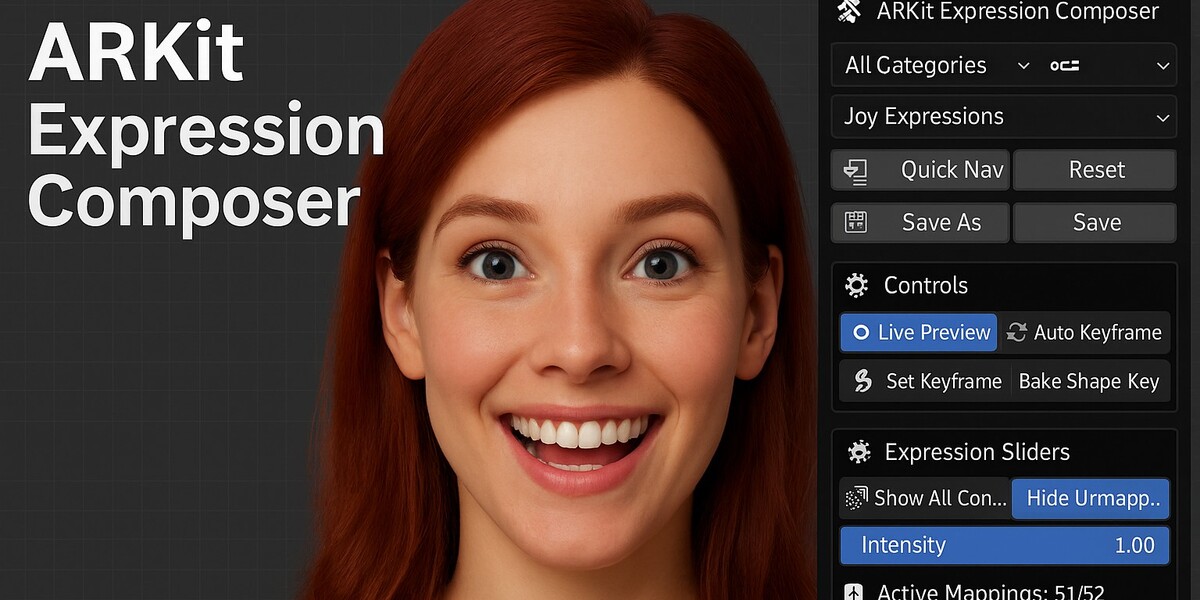
Six presets map the add-on’s 17 viseme slots to common rig naming systems: Generic, ARKit 52, FACEIT, Preston Blair, MetaHuman, and CC4. Auto-Detect scans shape-key names when a preset does not fit. This is useful when setting up dialogue animation for a rig that already has a known blendshape convention.
For a face split across meshes, Lipsync Studio can apply the same animation to meshes with matching shape keys, including separate head, beard, eyebrow, tongue, or teeth meshes. It resolves names per mesh, including split left and right shapes. If the character uses a jaw bone instead of mouth shape keys, choose the Jaw Bone rig type, select the armature and bone, then set the opening axis and maximum angle.
Adjust the performance
The baked mouth-openness control records a value from 0 to 1 on the character. You can use that property to drive a shader, jaw bone, corrective, or another object. Optional controls add eye blinks and a subtle head idle; loudness intensity scales viseme keys with speech volume. An emotion overlay can add Happy, Sad, Angry, or Surprised shape keys over the speech.
To revise one phrase, limit a re-bake to a start and end frame. Keyframes outside that range stay untouched. Rebuilding also overwrites the existing lip-sync action instead of leaving numbered duplicates in the scene.
Blend or export the animation
Push to NLA places the result in a dedicated strip on the mesh’s shape-key track. The workflow is reversible, and the strip can blend with other actions such as breathing or expression layers. Export options include FBX, glTF, and JSON. The developer describes FBX with shape-key animation for Unity, FBX output for Unreal, and JSON as a viseme timeline for custom pipelines.
Install the add-on
The download contains the Python add-on without a bundled binary. In Blender, open Preferences, choose Add-ons, select Install from Disk, and enable the downloaded ZIP. The LipSync tab appears in the 3D Viewport sidebar, opened with N. For Rhubarb analysis, use Download Rhubarb in the add-on preferences. Skava’s Superhive product listing has installation and feature details.
Compatibility details differ across the available listings. The Superhive description says Blender 4.2 LTS and later and names tests on 4.2, 5.1, and 5.2; its compatibility field lists 3.0 through 5.1. The AnyPlugins listing says 3.2 and later. Check with Skava for support on your exact Blender version.