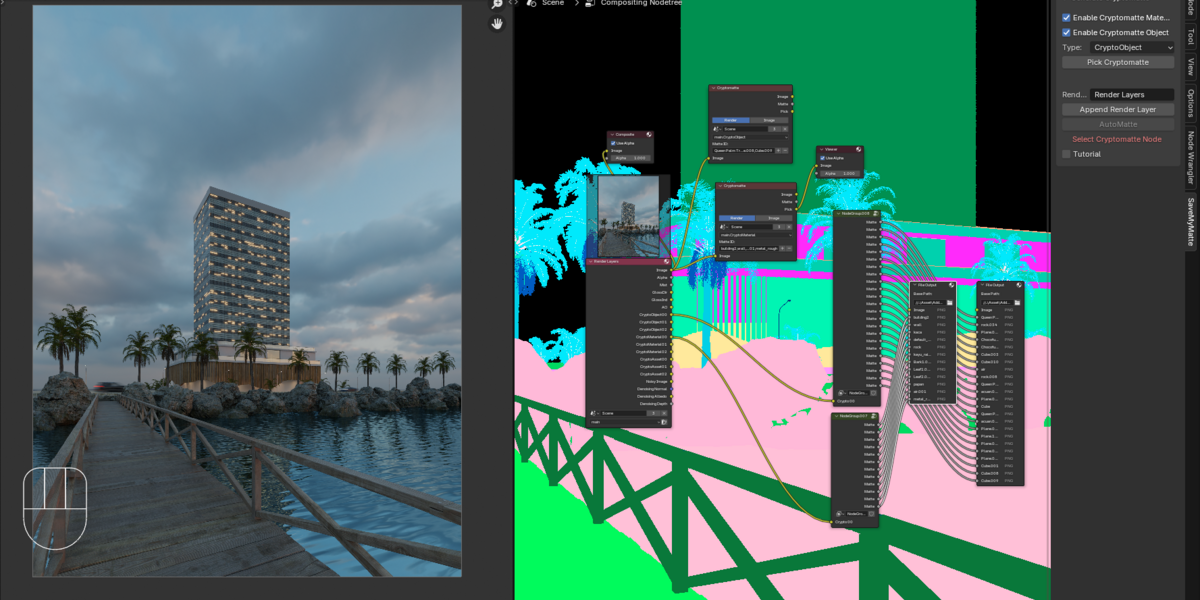
SaveMyMatte is a Blender add-on from UitTree that separates selected Cryptomatte passes into object or material mattes and saves them after rendering. The listing covers Blender 4.2 through 5.0; version 2.0.0 adds Blender 5.0 support. It lists Cycles and Eevee as supported render engines.
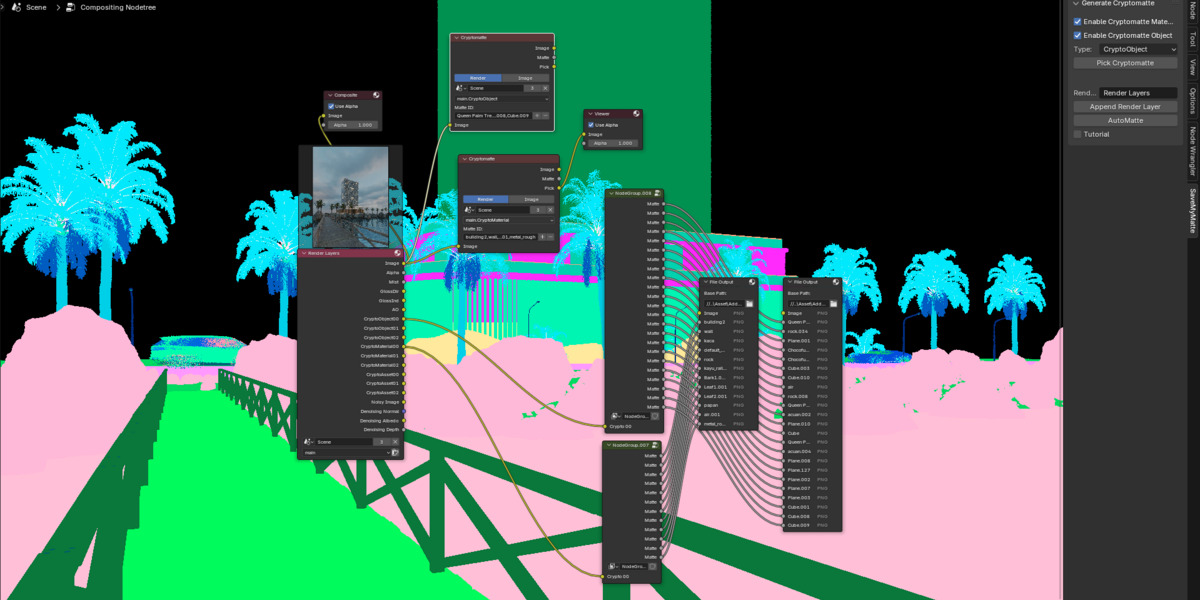
You choose the Cryptomatte type and the entries to use. SaveMyMatte creates the matte setup through its AutoMatte control, then saves the matte images using the destination set in the File Output node. This suits VFX artists and compositors who want picked mattes ready for post-processing without building the separation setup by hand each time.
Set up a Cryptomatte render
Install the add-on ZIP from Blender's Edit > Preferences > Add-ons settings menu with Install from Disk, then enable SaveMyMatte. In the Compositing workspace, enable Use Nodes and open the SaveMyMatte tab in the N panel. The SaveMyMatte documentation recommends enabling Cryptomatte Material or Object and running a quick render first to generate Cryptomatte data.
- Choose the Cryptomatte type, click Pick Cryptomatte, and select the entries from the Cryptomatte image.
- Select the Render Layers node and click Append Render Layer. The default name is Render Layer.
- Select the Cryptomatte node and click AutoMatte to generate the matte setup.
- Set the destination folder in the File Output node's Base Path, then render again. The matte images are saved to that folder.
Compatibility and license
SaveMyMatte is listed for Blender 4.2 to 5.0 and for both Cycles and Eevee. Superhive identifies its license as GPL. Check the product listing for current version and license details before downloading.