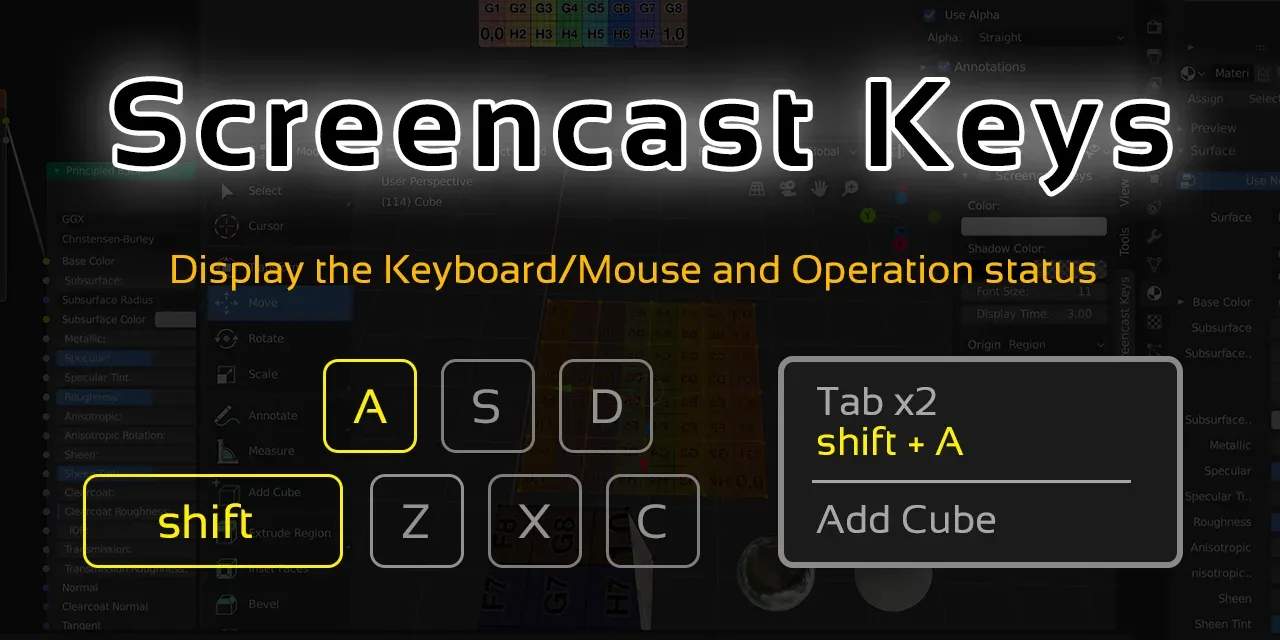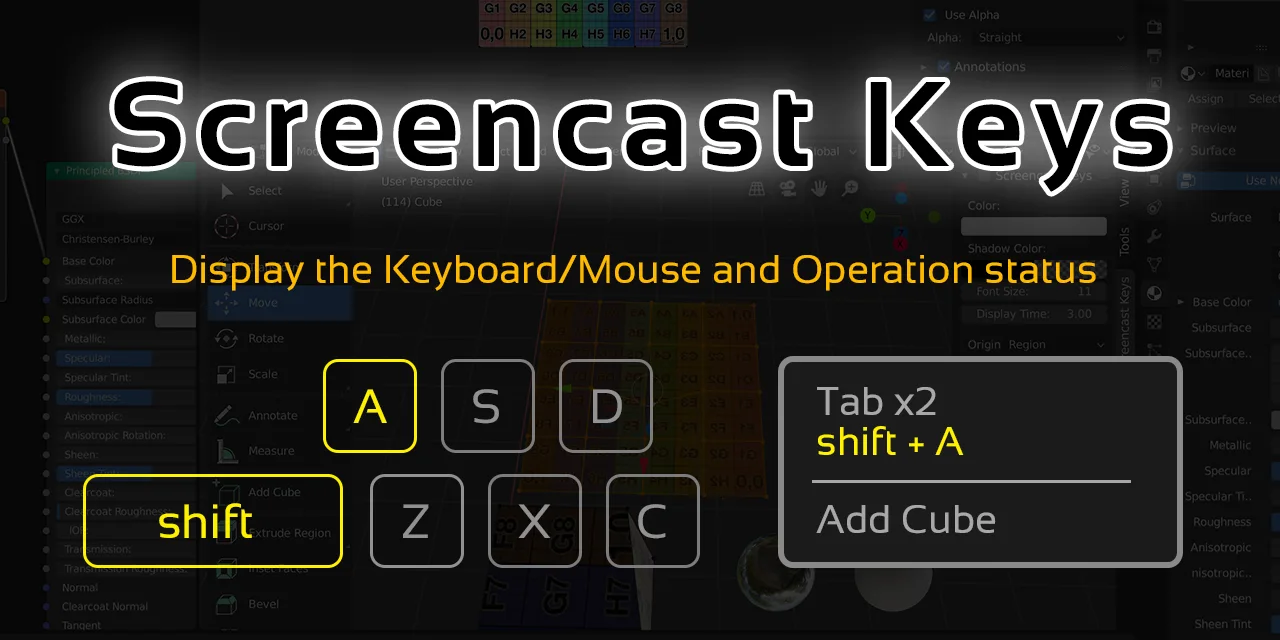
Screencast Keys is a Blender add-on that displays keyboard and mouse activity and can show the last executed operator on screen. It is intended for Blender tutorials and demonstrations where viewers need to see which controls were used. Set the origin to the selected region, area, Blender window, or cursor. Read the Blender Extensions listing for the current release details.
Choose what appears in the overlay
Mouse event display can use Event History, Hold Status, or both. Max Event History limits how many recent events stay visible, while Display Time controls how long an event remains on screen. Repeat Count can combine repeated presses into a string such as Tab x5. When enabled, the last-operator display can show its label, ID name, or both.
Adjust the position and appearance
Appearance settings include text color, shadow, background planes and modes, font size, margin, line thickness, and mouse figure size when Show Mouse Events is set to Hold Status or Event History + Hold Status. Alignment and offset controls refine text and figure placement. You can also assign custom images for the mouse base and its left, right, and middle buttons.
Enable it in Blender
For the v4.2.2 Extensions package, use Blender's Install from Disk instructions on Blender 4.2.0 or later, then enable the add-on. The add-on can place its menu in the sidebar or Viewport Overlays, and an Enable On Startup option activates it when Blender launches. Use Shift + Alt + C to toggle the on-screen display.
Version and license
The Blender Extensions API record lists Screencast Keys version 4.2.2, with Blender 4.2.0 as the minimum for that package and nutti as the maintainer. For the v4.2 add-on, the developer's installation guide lists Blender 2.80 and later for disk or manual installation. It is licensed under GPL-3.0-or-later. Check the Blender Extensions API record for the package version and compatibility data.