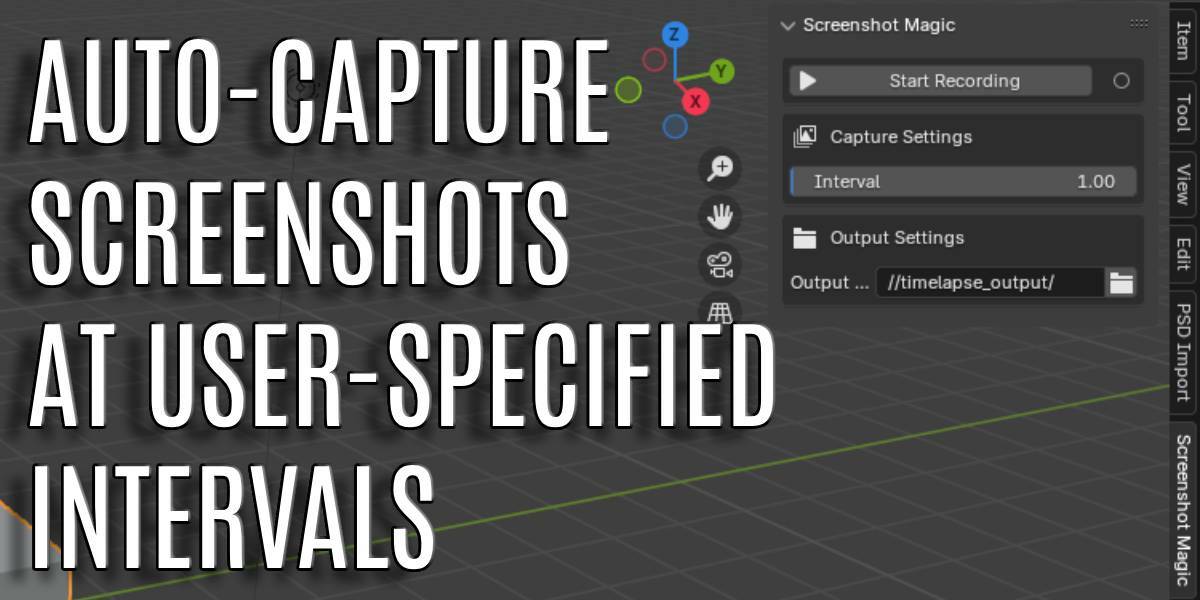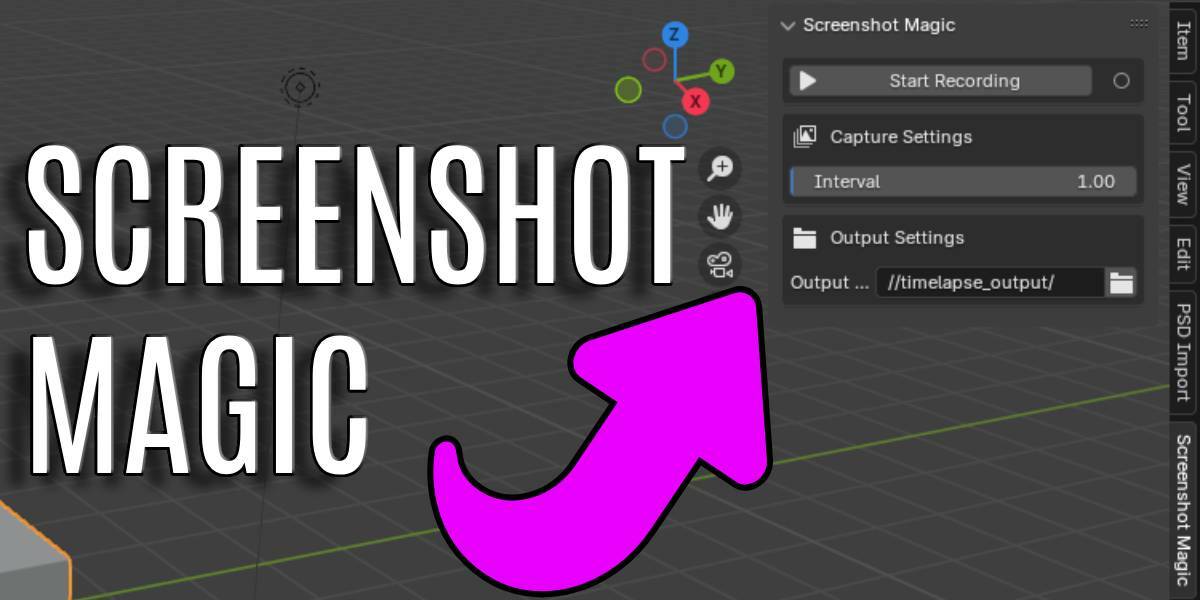
Screenshot Magic is a Blender add-on by Digital DiLeo that saves viewport screenshots at intervals you choose. Its controls are in the 3D View sidebar, where you can set the interval, pick an output directory, and start or stop recording.
What Screenshot Magic captures
The add-on takes screenshots automatically while you work, so you can keep a visual record of a Blender session without stopping to capture each image yourself. The saved images can help document progress, prepare material for a tutorial or portfolio, or collect frames for a time-lapse sequence. Screenshot Magic organizes captures in a folder structure inside the output location you select.
The documentation covers viewport capture for time-lapse frames but does not document assembling them into a finished video.
Install the add-on
Check compatibility before installing: the documentation says Blender 2.80 or newer, while the listing names versions through 4.3. The product documentation gives these installation steps; Blender's install-menu label changed in 4.2.
- Download the add-on ZIP file.
- In Blender, open Edit > Preferences > Add-ons.
- Choose Install from Disk (Blender 4.2 and later) or Install... (earlier versions) and select the downloaded ZIP file.
- Enable the add-on named 3D View: Screenshot Magic.
After enabling it, open the Screenshot Magic panel in the 3D View sidebar to configure a capture session.
Set up a capture session
Enter the screenshot interval in seconds and choose the directory where the images should be saved. Click Start Recording to begin automatic captures, then click Stop Recording when you have finished. The interval sets how often screenshots are taken.
This setup suits artists who want progress shots while working, or who need a sequence of viewport images for process documentation.
Blender compatibility and license
The documentation says Screenshot Magic requires Blender 2.80 or newer. The product listing enumerates Blender versions from 2.80 through 4.3, including versions in the 2.9, 3.x, and 4.x series. If you use a later Blender release, check the current documentation or developer listing for compatibility details.
The marketplace details panel labels the license GPL, while the product documentation identifies it as GPL-3.0.