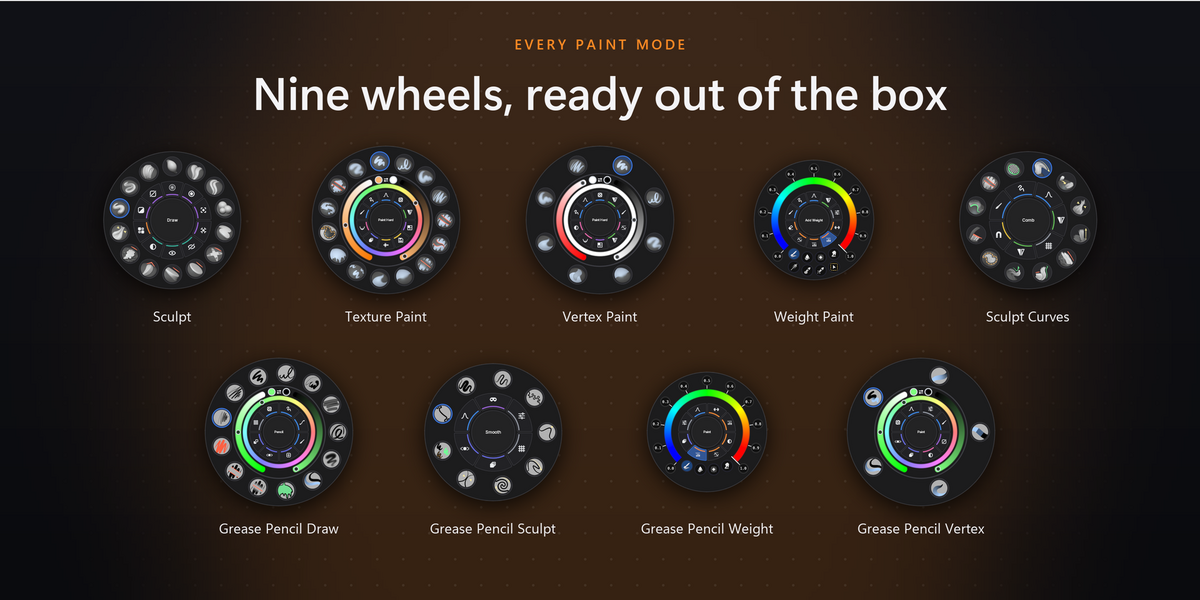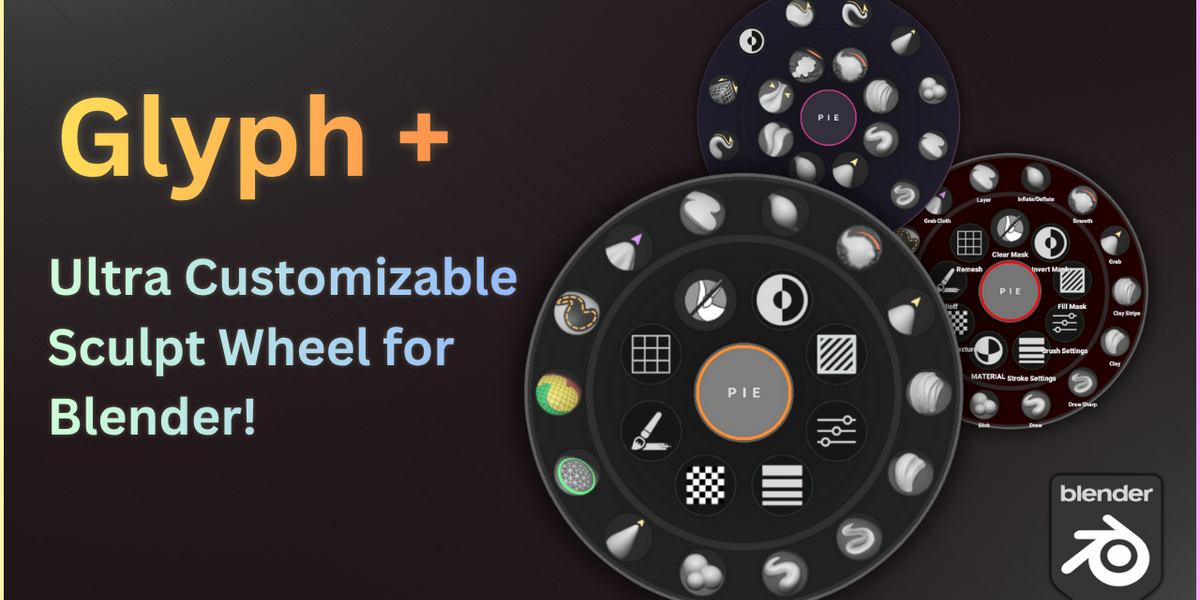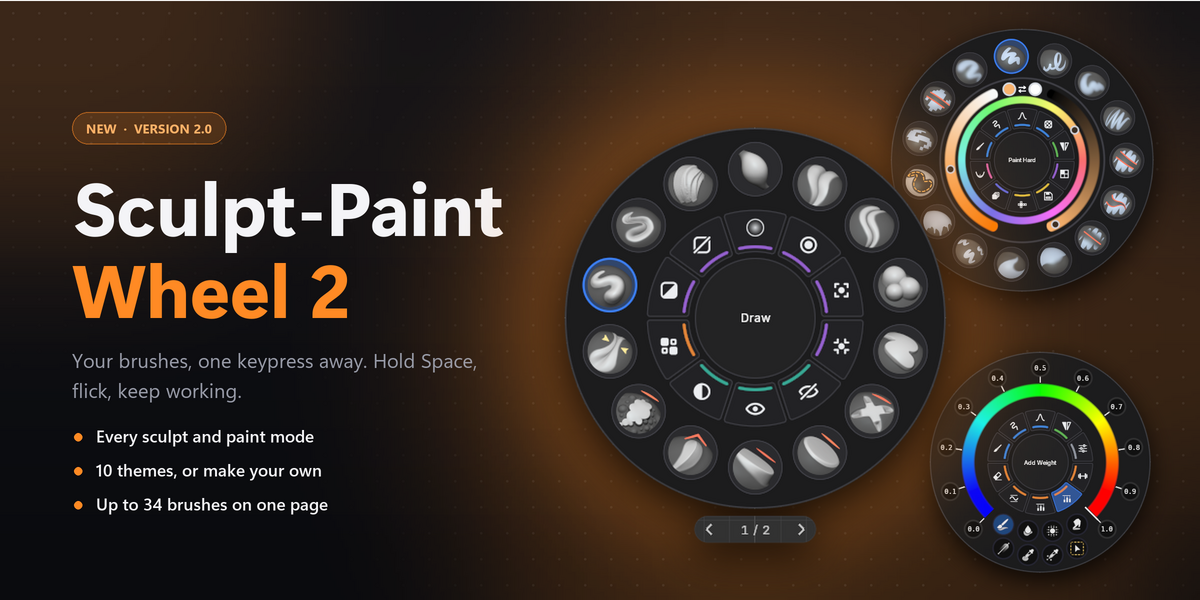
Sculpt-Paint Wheel puts Blender brushes and tools in a radial menu beneath the cursor. Hold Space over the 3D Viewport in a supported mode, left-click a brush or button to activate it, then release Space. Both Weight Paint wheels use a dial to set brush weight instead of a brush ring. The current user guide lists Blender 5.1 or newer as a requirement.
Mode-specific wheels for sculpting and painting
The add-on creates a separate wheel for Sculpt, Texture Paint, Vertex Paint, Weight Paint, Sculpt Curves, and the four Grease Pencil modes: Draw, Sculpt, Weight Paint and Vertex Paint. Each mode has its own brush sets and custom button sets. The first time you use a mode, Sculpt-Paint Wheel creates a default set for it.
The mesh and Grease Pencil Weight Paint wheels use a color-coded dial from 0.0 to 1.0 instead of a brush ring. Small buttons below the dial switch weight paint tools. In the other modes, the outer ring holds brushes, while the center menu holds buttons for settings and actions.
Adjust brushes without leaving the wheel
Drag the wheel's center up or down to change brush radius, or left and right to change strength. Hold Shift for finer adjustments and Ctrl for faster ones. The center displays the value as it changes. Press Esc or right-click during the adjustment to restore the previous value.
When a brush set is larger than one ring can show, use the mouse wheel or page controls to move between pages. You can also enable Allow Double Ring in preferences: a set that does not fit on one ring uses two rings, while sets that fit keep the compact single ring. Sets that do not fit on two rings still use pages.
Customize brushes, buttons and themes
Add brushes from Blender's asset libraries, including your own, to a set and arrange their order on the ring. Custom button sets hold up to 10 buttons per set. A button can run a Blender operator, open a panel or menu, toggle a setting and show its state, or run a Python script you provide. Each mode can have its own sets.
The add-on includes 10 color themes. You can adjust colors and save your own theme. Its preferences, custom button scripts and themes are stored in Blender's user directory for that Blender version under an spwheel folder. The guide says the add-on needs no internet access and restores these files after an update or reinstall.
Install and check compatibility
Install the downloaded zip without unzipping it: in Blender, open Edit, Preferences, then Get Extensions. Use the menu in the upper-right corner to choose Install from Disk, or drag the zip into Blender. Check that Sculpt-Paint Wheel is enabled under Add-ons. For current requirements and mode details, consult the product guide and product listing.