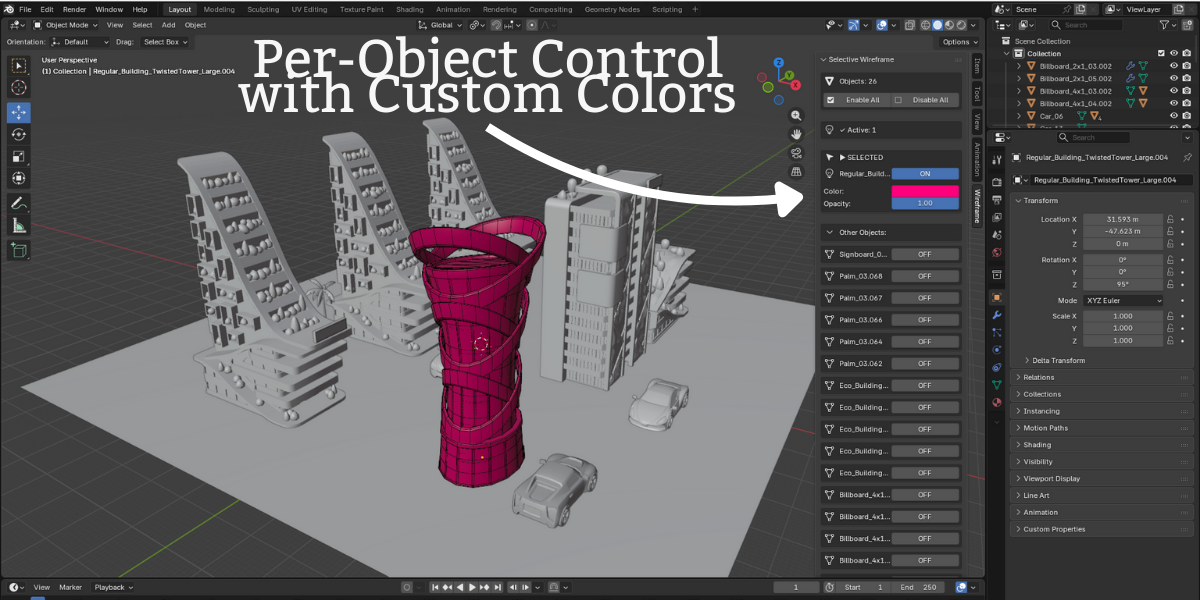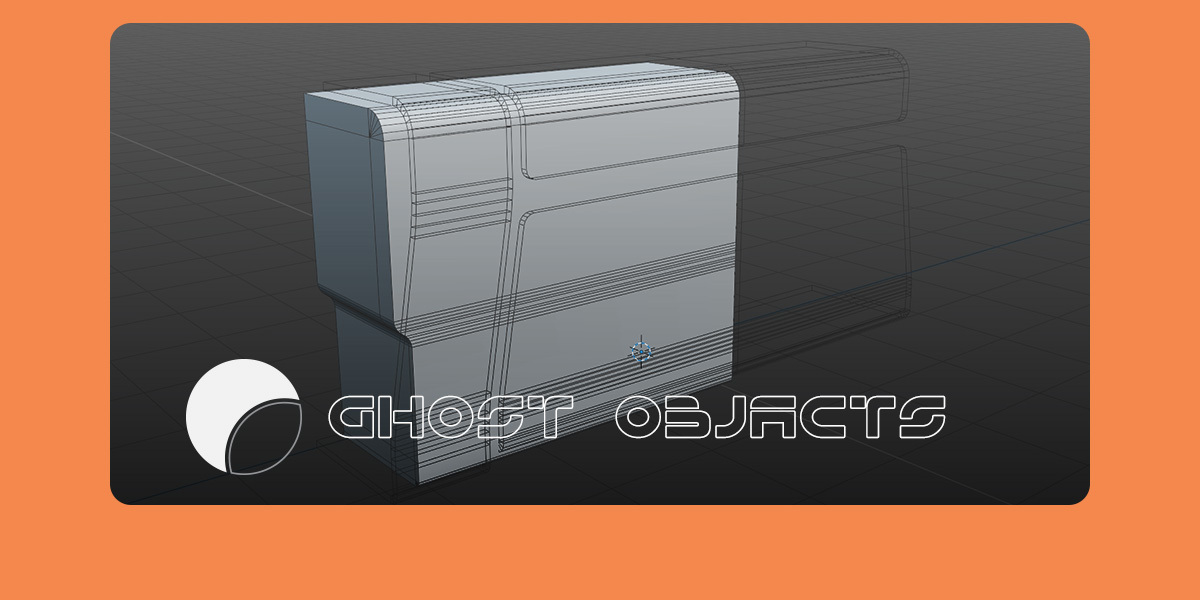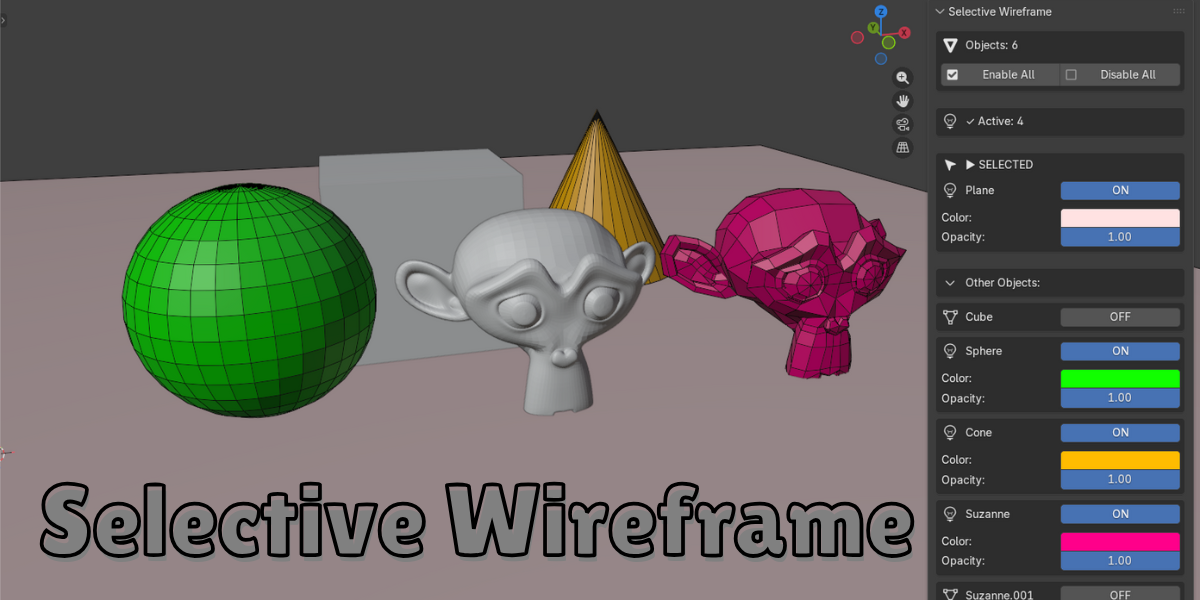
Selective Wireframe is a Blender add-on by Salman Naseem for controlling wireframe overlays on individual mesh objects. Turn an object’s overlay on or off, choose an RGB color and adjust opacity without switching the whole scene to wireframe view. Changes apply as you work, which can help isolate topology during modeling, compare versions or mark objects for review.
Control wireframes by object
Each mesh gets its own wireframe toggle, color and opacity setting. The sidebar panel also has Enable All and Disable All controls for scene-wide changes. You can still adjust objects individually after using either button.
The add-on saves an object’s original color when you enable its wireframe and restores that color when you turn the wireframe off. Its FAQ says wireframe settings are saved with the .blend file and kept separately for each scene.
Check the viewport shading mode
Custom wireframe colors display in Solid shading mode when Color Type is set to Object. The Configure Viewport button sets this up for you. Wireframe overlays can remain visible in Material Preview and Rendered modes, but those modes use default wireframe colors rather than the custom colors.
The product FAQ describes the overlays as viewport-only, so they do not affect rendered output. For installation steps and the full usage guide, see the Selective Wireframe documentation.
Compatibility and object limits
The product description lists Blender 4.2.0 or later and compatibility with Blender 5.0. The usage guide provides installation steps for Blender 4.1 and earlier, while marketplace details list Blender 3.0–5.0, so the supported range remains unclear. Check the Superhive product listing for the advertised range; confirm older-version compatibility with the developer before installing.
The controls apply to mesh objects. Curves, text objects and empties are not supported. The listing says the add-on works on Windows, macOS and Linux.
Who it suits
Selective Wireframe fits Blender users who need to highlight selected mesh topology while keeping other objects visually quiet. Per-object colors can help distinguish versions or mark areas during a review; opacity provides a subtler overlay for reference objects. If your scene relies on curves or you need custom wireframe colors in Material Preview or Rendered mode, those are outside the documented controls.