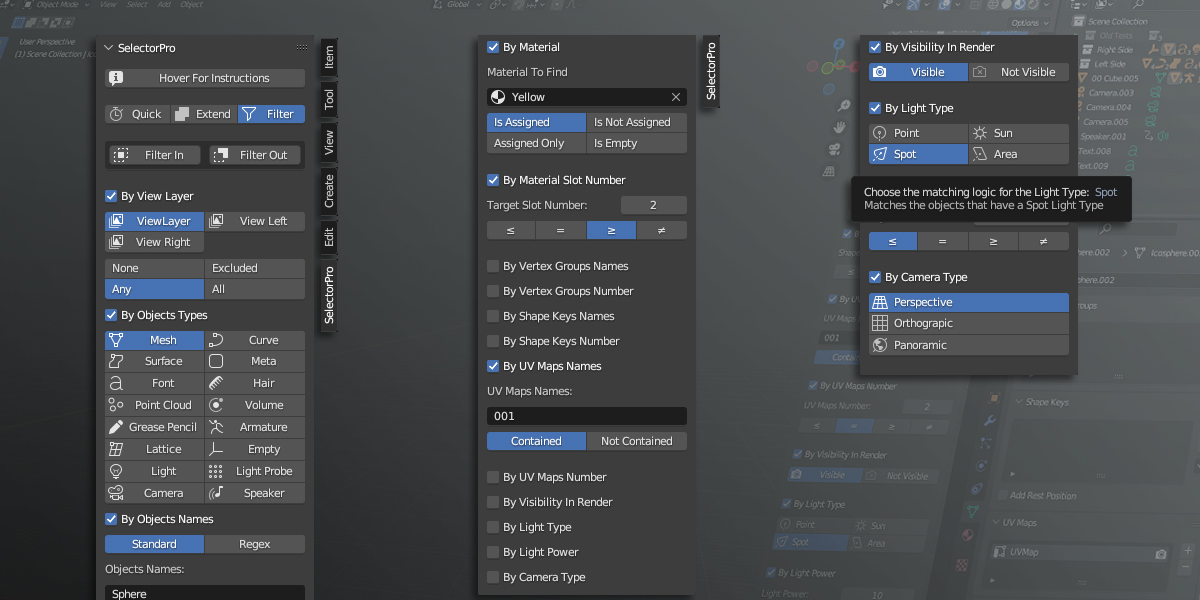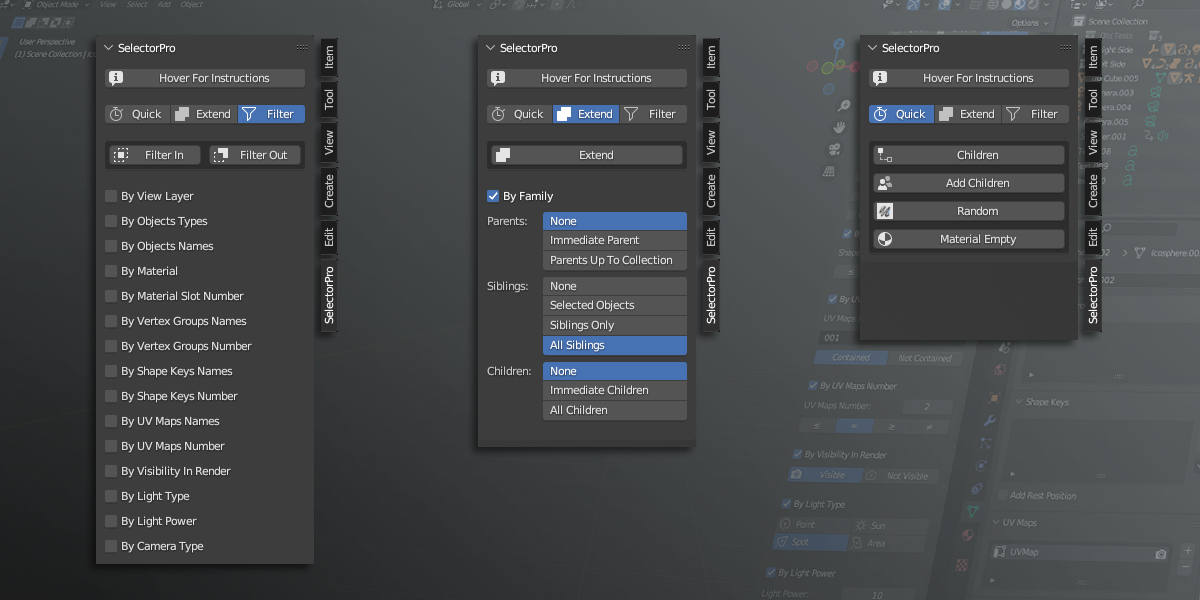
SelectorPro is a Blender add-on for building object selections from settings instead of picking each object by hand. Open it in the N-Panel, choose conditions, then run an operation on the current selection. Its options cover object names, materials, UV maps, vertex groups, ViewLayers, render visibility, Lightgroups and family relationships, according to the product listing.
Filter objects by matching conditions
Use the Filter tab to keep or remove objects from the current selection. Each enabled setting works together with the others, so an object must match every enabled condition to remain selected. The settings also let you choose how each parameter is matched, which helps when the condition needs more than a simple exact match.
The Extend tab expands a selection using settings; the current option is family settings. Choose Filter when you want to narrow or remove matches, and Extend when you want to bring related objects into the selection.
Four tabs for different selection tasks
- Quick runs predefined selection operations in one click.
- Extend expands the selection using family settings.
- Filter keeps or removes objects that match the enabled conditions.
- Saved stores a selection or selection logic for recall during the current Blender session.
Saved entries appear as buttons. A saved selection selects those objects again; saved filter or extend logic runs against the current selection. These saved items are session-dependent and disappear when Blender restarts. Tooltips explain the interface controls.
Use the Outliner as the starting context
The Context feature switches between the Viewport and Outliner as the source of the starting selection. This lets you select objects in the Outliner before applying a filter or expansion, including when working with hidden objects. The listing gives selecting visible children of hidden parents as one example.
SelectorPro separates filtering and expanding into different operations. You cannot run both at once, but you can apply one and then the other to the resulting selection. For feature details, see the product FAQ.