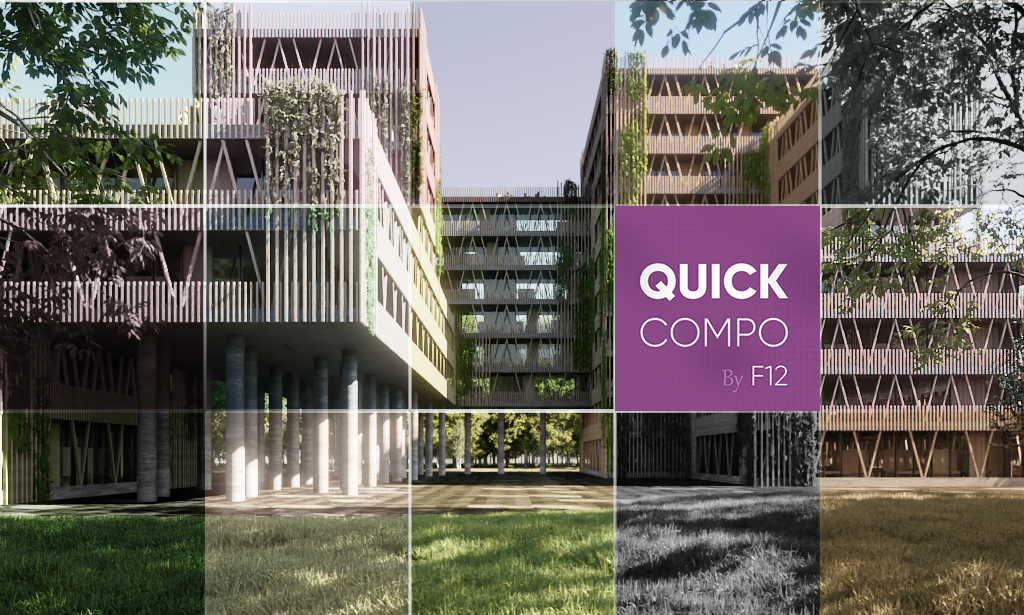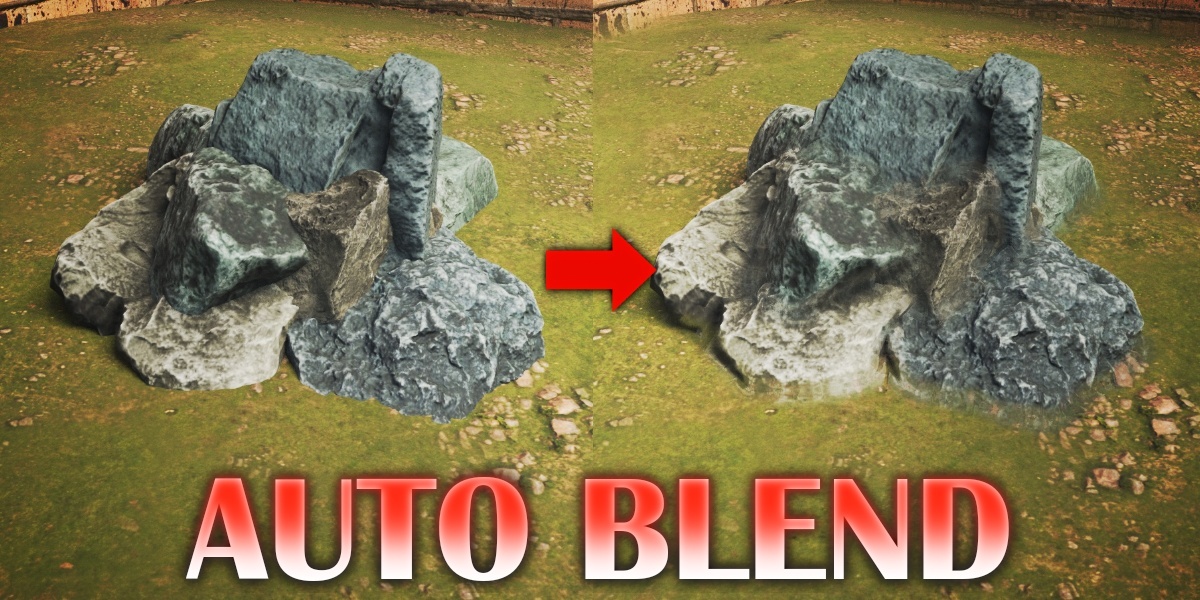
Shutter - 2D Toolset is a collection of 22 nodes for image and video compositing in Blender. Its nodes are grouped into Adjustments, Artistic, and Utilities, covering color and exposure changes, visual effects, and compositing helpers.
Node groups and effects
Adjustments
Smart Contrast combines contrast and brightness; Temperature shifts an image toward warmer or colder tones; Tint changes magenta and green tones; and Vibrance has a stronger effect in less saturated areas. Clarity uses large-radius sharpening, while Exposure raises or lowers overall exposure. Vignette darkens the edges, Sharpen uses an unsharp mask method, and White Balance sets the white or black point.
Artistic
Halftone makes a dotted black-and-white version of the input. Blur Vignette softens the edges, Film Grain adds noise, and Color Pop desaturates less saturated areas. Tilt Shift blurs the top and bottom of the image. The group also includes Thermal Vision, Soft Glow, Bloom, which adds glare to bright areas, and Edge Detect, which can create line art. The documentation names Thermal Vision but does not describe its controls or output in detail.
Utilities
Denoiser uses bilateral blur to remove image noise. Average Color returns an image's average color, and Unsharp Mask creates a mask that can be used in further compositing work, such as sharpening. Pixelate adds a pixelation effect without changing the image dimensions.
Adding nodes to a Blender scene
- In Blender, choose File > Append and open the Shutter .blend file.
- Open its node groups folder, select the nodes you want, and click Append.
- To keep the nodes available in future sessions, repeat the append process in your startup file and choose File > Save Startup File. Shutter can then be accessed from the Add menu in the node editor each time Blender starts.
Check the listed compatibility
The product listing identifies Blender 2.6x and 2.7x, with Blender Internal as the render engine used. It does not establish support for newer Blender releases or other render engines. Check the node documentation and current product listing before relying on Shutter in a newer setup; the listing also provides its license details.