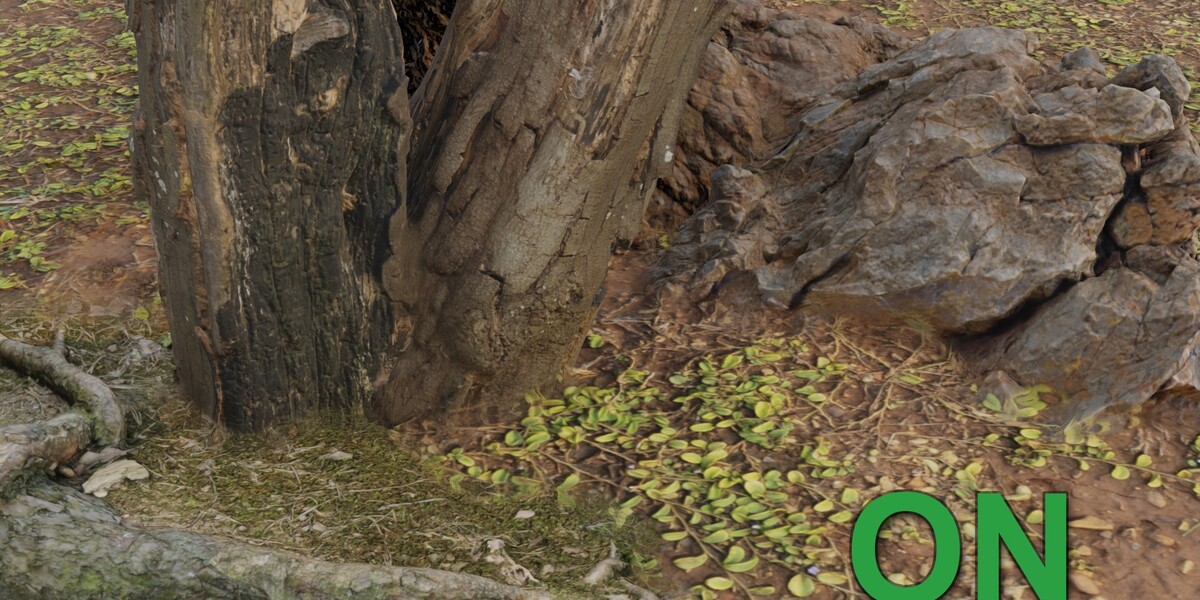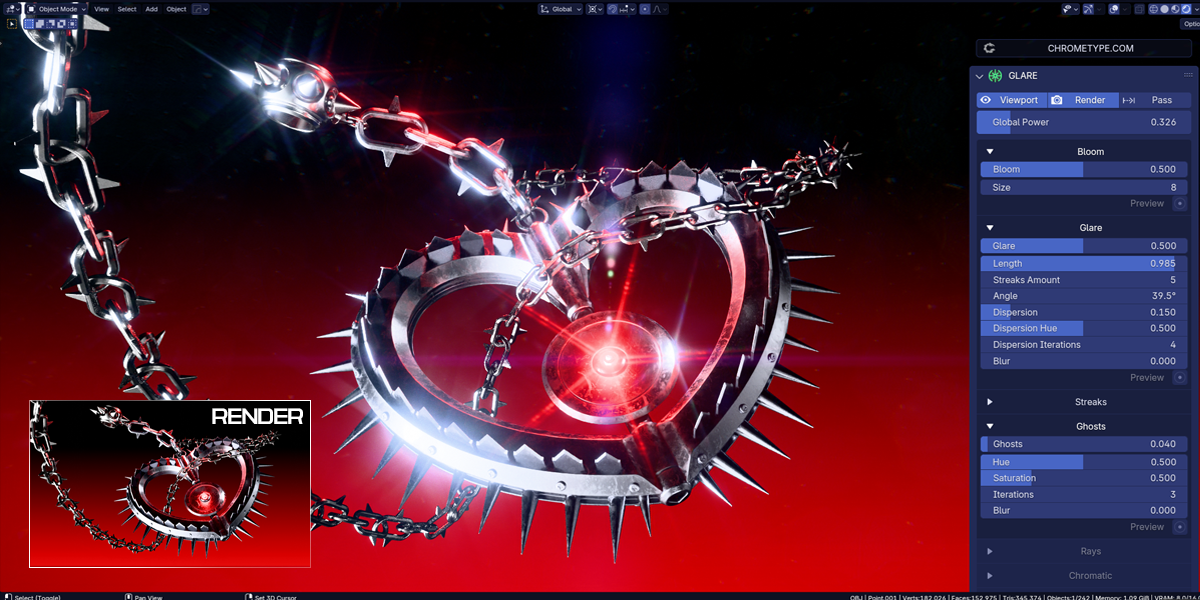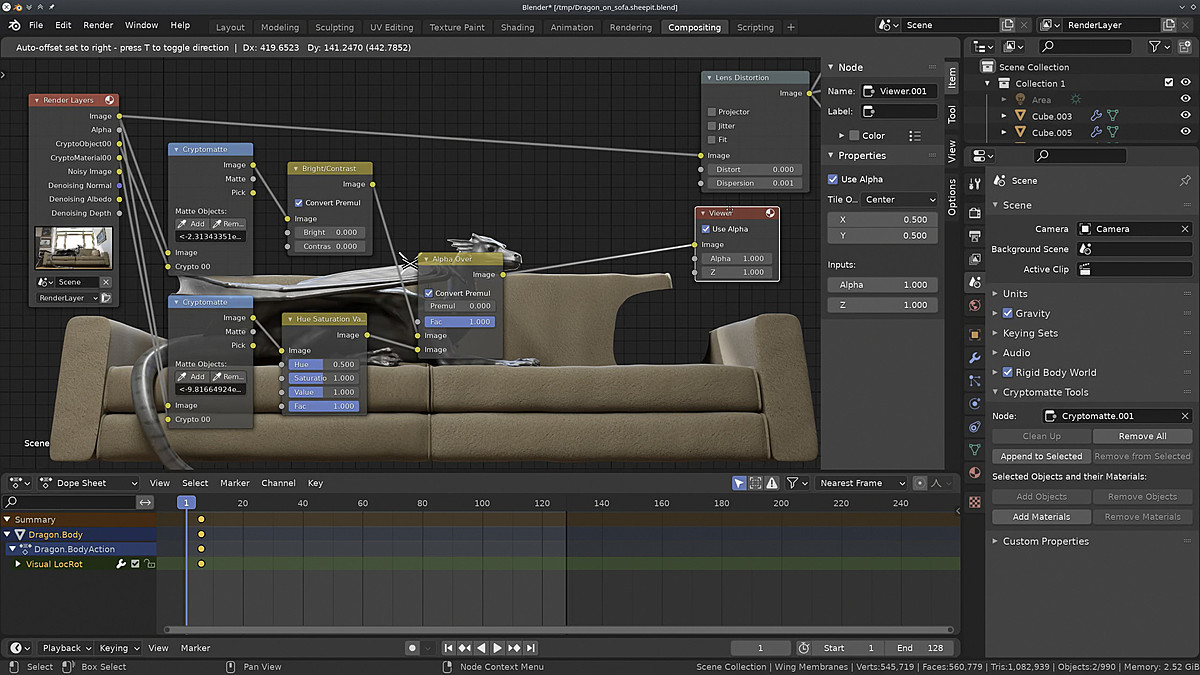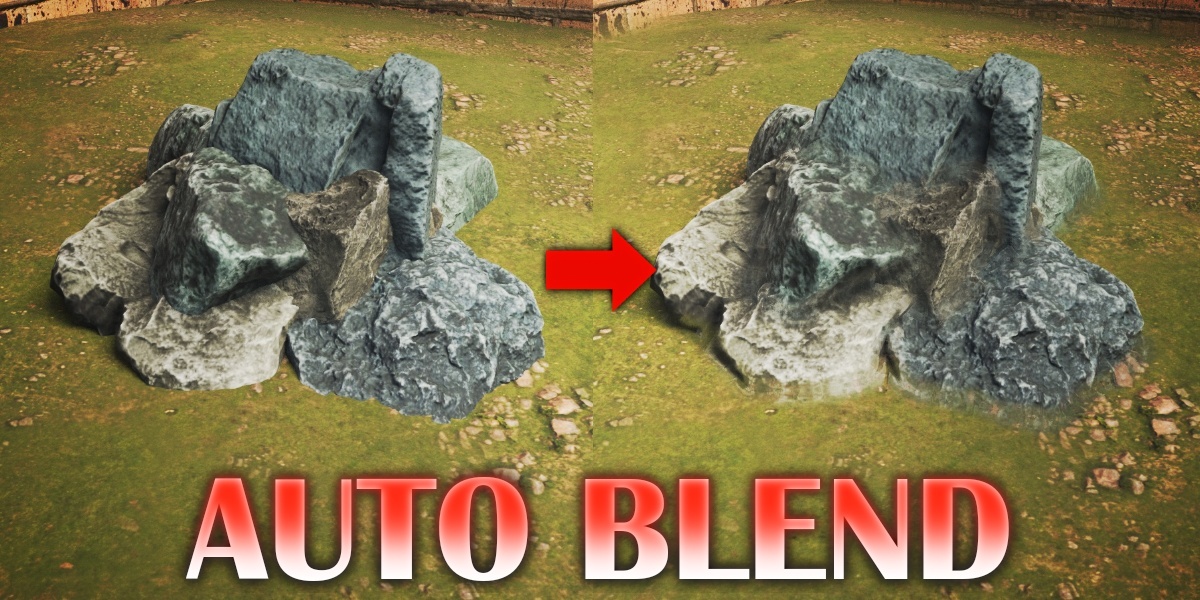
AutoBlend is a Blender add-on that blends selected materials in screen space through the Compositor and Cryptomatte. It runs as a post-processing effect, so you can blend objects without changing their meshes or materials. The developer describes it as independent of scene complexity; transparent materials are not supported.
How AutoBlend selects materials
After setup, select objects and use the add-blending control. AutoBlend assigns the selected objects' materials to the effect, so any other object using those same materials can be blended too. Each object needs a material. Blender's Cryptomatte identifies materials by name, so reassign them if you rename one.
The add-on works with EEVEE and Cycles. It supports Noise, Voronoi, and custom masks for more organic blends; version 1.1 added automatic setup for Noise and Voronoi masks.
Install and adjust the blend
The product listing gives Blender 4.5–5.0 as its compatibility range; the setup documentation names Blender 4.5 as the minimum. Install the ZIP as an add-on, including by dragging it into Blender. The add-on adds a panel to the right-side N-panel. Press Setup Auto Blend to create the required scene changes and compositing setup, then select objects and add blending. See the AutoBlend documentation for the setup details.
- Blend Distance sets the distance in world space.
- Max Size caps that distance relative to the screen. A 1% setting limits it to 1% of the screen; larger values take longer to calculate.
- Thickness Scale adjusts how much the blend uses depth information.
- Mirror Factor controls edge mirroring. The documentation says 2 gives 1:1 mirroring and usually does not need adjustment.
- Hardness sharpens the edges as its value increases. Hardness Midlevel gives extra control over the threshold.
Choose an automatic mask in the add-on, or connect a custom mask to the Compositor node's Mask input.
Compatibility and limits
The listing also says version 1.1.1 added Blender 5.0 compatibility. In Cycles, realtime preview, depth of field, and motion blur are not supported directly. The documentation suggests using the Compositor's defocus node for depth of field and vector blur node for motion blur.
Because AutoBlend is a screen-space effect, it can fade when another object blocks the view and flicker or jitter when the blending distance is too large. Keeping that distance smaller is recommended. The effect cannot be baked or exported to game engines, and blending between instances of the same object is unsupported. Check the product listing for the current compatibility details.