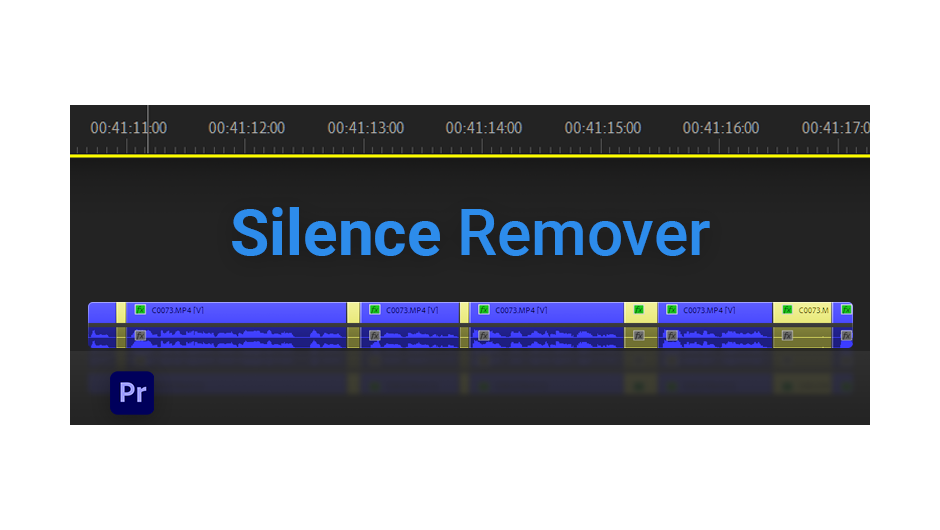
Silence Remover from Motion FX is an Adobe Premiere Pro plugin that marks detected silence gaps in footage. You can review the highlighted sections and delete them, or use the direct removal option for a quicker first pass.
Adjust what the plugin treats as silence
The Noise Level control sets the detection threshold: audio below its red line is treated as silence. Minimum Time excludes gaps shorter than the value you set. Offset sets separate in and out buffers around silence edits, a split introduced in version 1.1. These controls let you tune detection to the recording before removing sections.
The developer notes that a clear audio frequency improves accuracy. For large video files, its product page recommends preparing the audio and importing it as an MP3. Imported audio remains available until you drag in another file.
Review the gaps before removing them
- Drag or import the audio you want to analyze.
- Set Noise Level, Minimum Time, and Offset for the material.
- Apply the analysis and review the yellow gaps. Select the gaps to delete them, or choose the direct removal option.
Since the threshold determines which audio counts as silence, check the highlighted sections before deleting them, especially if quiet speech or pauses need to remain. The developer product page also links to a tutorial described as under four minutes.
Version and compatibility
The listing identifies version 1.2 and lists compatibility with Premiere Pro 2023, 2022, 2021, 2020, and CC 2019. For versions beyond that list, check the current developer listing before installing. The Silence Remover documentation has further product details.