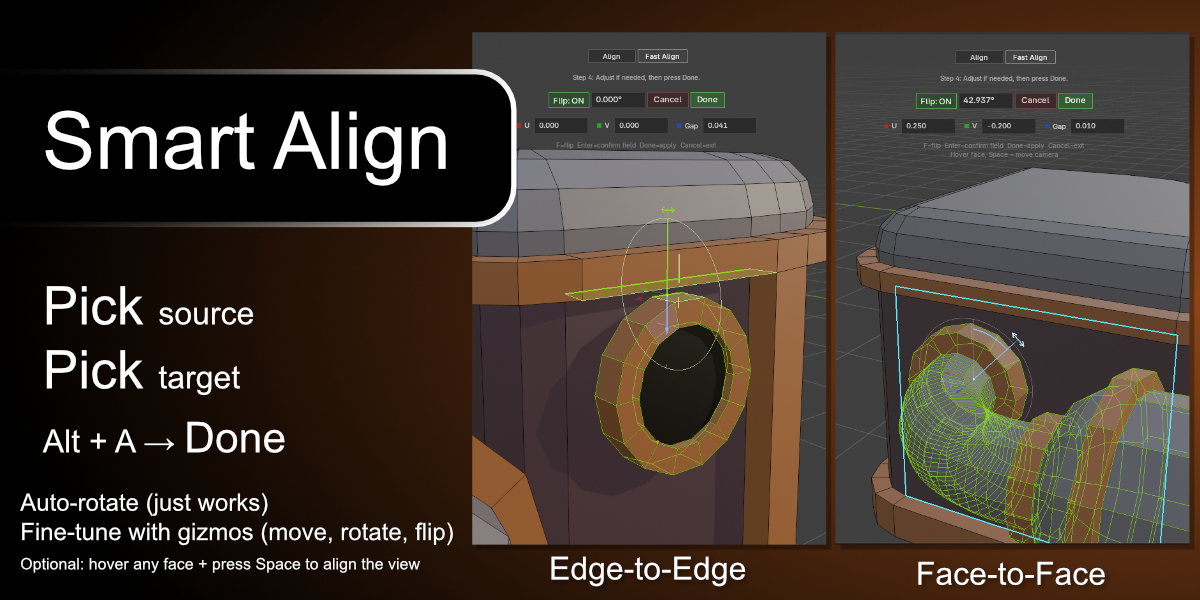
Smart Align is a Blender add-on for aligning vertices, edges, faces, and connected geometry while staying in Edit Mode. Choose a source element and a target element, then use either a quick island move or a guided alignment. The add-on is built for hard-surface and CAD-style modeling
Choose Fast Align or guided Align
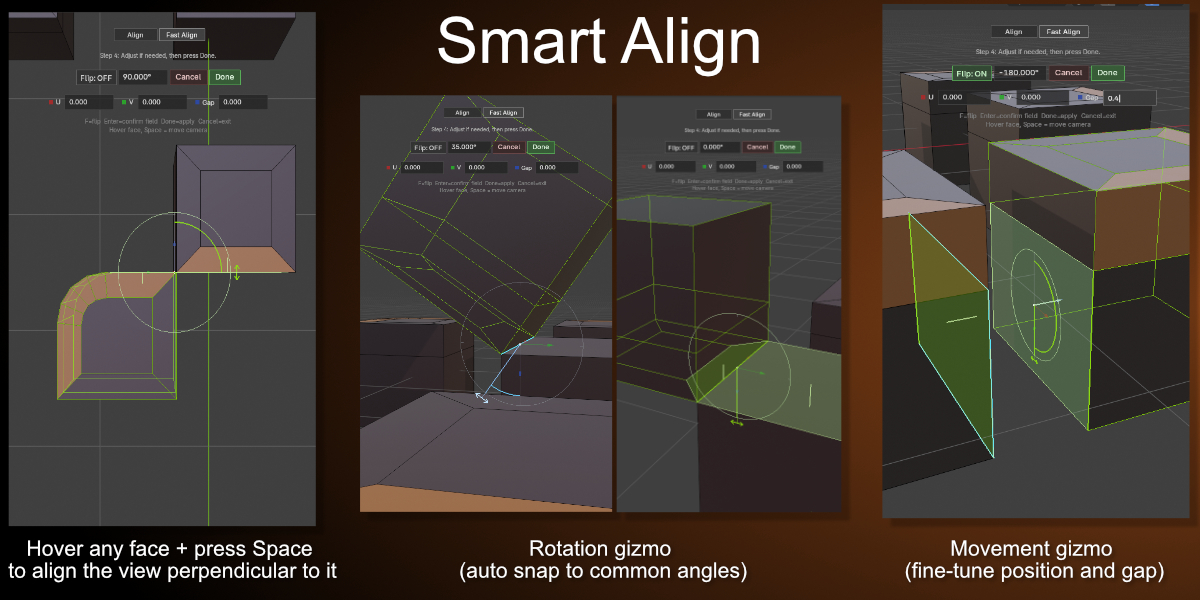
Fast Align is the quick option when the reference element belongs to a separate geometry island from the target. In Edit Mode, select a vertex, edge, or face on the island to move, select the matching target element, press Alt + A, and choose Fast Align. The connected island containing the reference moves to the target.
Choose Align for a guided placement. Press Alt + A and choose Align, select the geometry to move, then select its reference element and the target. The moving selection can be partial geometry or several islands. Align can also work within one island, preserving the relative positions of the selected vertices; Fast Align requires separate islands, according to the product FAQ.
Refine placement with Fine Tune
After alignment, Fine Tune provides rotation with snapping or manual control, plus local U, V, and Gap offsets. Viewport gizmos adjust movement and rotation, and numeric fields stay in sync with them. Contextual cues indicate parallel or perpendicular alignment. To inspect a face straight on, hover over it and press Space; the view rotates perpendicular to the face without changing zoom.
The documentation says Fine Tune is available for edge-to-edge and face-to-face workflows. In vertex mode, rotation and flip are unavailable. Smart Align works in Edit Mode only.
Blender compatibility and license
The product listing identifies Smart Align as Blender Extension compatible, lists Blender versions 4.2 through 5.1, and gives the license as GPL. Check the current product listing for compatibility and license details before installing.